
Workflows Live
CRM hygiene in five steps: how to keep your CRM updated after every call and email
CRM hygiene in five steps: how Oliv AI keeps Salesforce, HubSpot or Zoho current from every meeting, call and email, how to review proposed updates before they're written, and how to run a monthly CRM hygiene check.
On this page
- At a glance
- Before you begin
- Step 1: Connect your CRM
- Step 2: Let activity start the work
- Step 3: Review proposed updates
- Step 4: Switch to auto mode when you're ready
- Step 5: Run the monthly hygiene check
- What keeping the CRM updated with Oliv AI involves
- Why keeping the CRM updated matters
- The Oliv AI approach to keeping the CRM updated
- How keeping the CRM updated works with other features
- Who keeps the CRM updated with Oliv AI, and how
- How CRM records get kept current
- How to measure CRM data quality
- How to run a monthly CRM update check by hand
- How Oliv AI compares for CRM hygiene
- Limits and things to know
- Common questions
- Further reading
- Related
CRM hygiene comes down to one job: your CRM is updated after every call and email, without chasing reps to type it in. Oliv AI does that job from the work your team already does. Oliv AI's CRM Manager agent reads every meeting, call and email, then updates accounts, contacts, opportunities, activities and tasks in Salesforce, HubSpot or Zoho. You review each proposed change before it's written, then switch to auto mode once you trust it. This guide covers setting it up, reviewing what it writes and running a monthly check.
At a glance
| Who does the work | Oliv AI's CRM Manager agent |
| CRMs | Salesforce, HubSpot and Zoho |
| What it updates | Accounts, contacts, opportunities, activities and tasks |
| Fields | Standard fields, methodology fields and your custom fields |
| Starts from | Every meeting, call and email |
| Control | Ask First to review each update, or Auto-Pilot once you trust it |
| Where you review | The deal's CRM Updates tab in Records › Deals |
| For RevOps | A weekly report and batch clean-up jobs on request |
Before you begin
- Connect your CRM. Salesforce, HubSpot and Zoho are supported out of the box. Additional CRMs are available on request.
- Plan your custom fields. Oliv's team maps fields unique to your process during onboarding, as a service.
- Don't clean first. CRM Manager is built to start on messy data. It cleans as it goes and can work back through old records.
- Agree who reviews. In the review phase, reps accept or reject updates. RevOps decides when to switch to auto mode.
Step 1: Connect your CRM
Connect Salesforce, HubSpot or Zoho. Your pipeline and fields sync once the CRM is connected. Standard fields such as close date, deal amount, stage, next steps and last activity date are pre-mapped, so they populate from day one. Oliv AI works on top of your CRM, so every update flows into the workflows, reports and dashboards you already use.
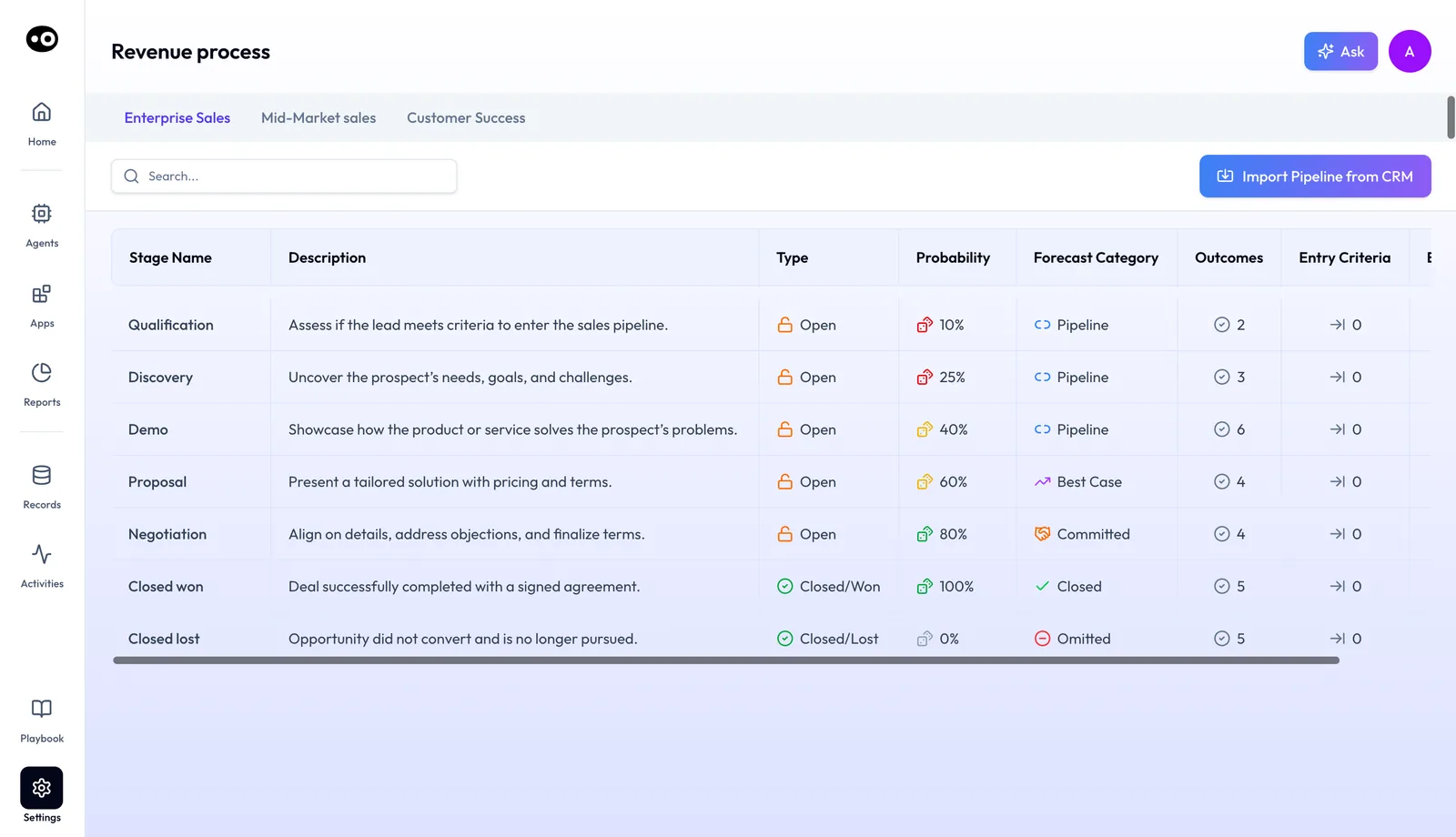
Then check your stages in Settings › Revenue Process. Import Pipeline from CRM pulls in the stages from the connected CRM, with a tab for each sales motion. Each deal's header also carries Sync to Salesforce to push the deal to the CRM.
Step 2: Let activity start the work
There's nothing to schedule. From the first meeting, call or email, Oliv AI's CRM Manager agent is already working. It's the idea behind autonomous CRM hygiene: no rules to maintain. After each activity it:
- Creates accounts and contacts that aren't in the CRM yet, and enriches them.
- Logs the meeting, call or email against the right account, contact and opportunity.
- Creates tasks from next steps, and assigns each one to the right rep or owner.
- Updates deal stage as the deal moves, and writes methodology fields for the framework marked Active in Settings › Qualification Framework.
- Tracks each contact's role on the deal, such as economic buyer, champion or blocker.
If it can't work out which account or opportunity an activity belongs to, it asks the seller.
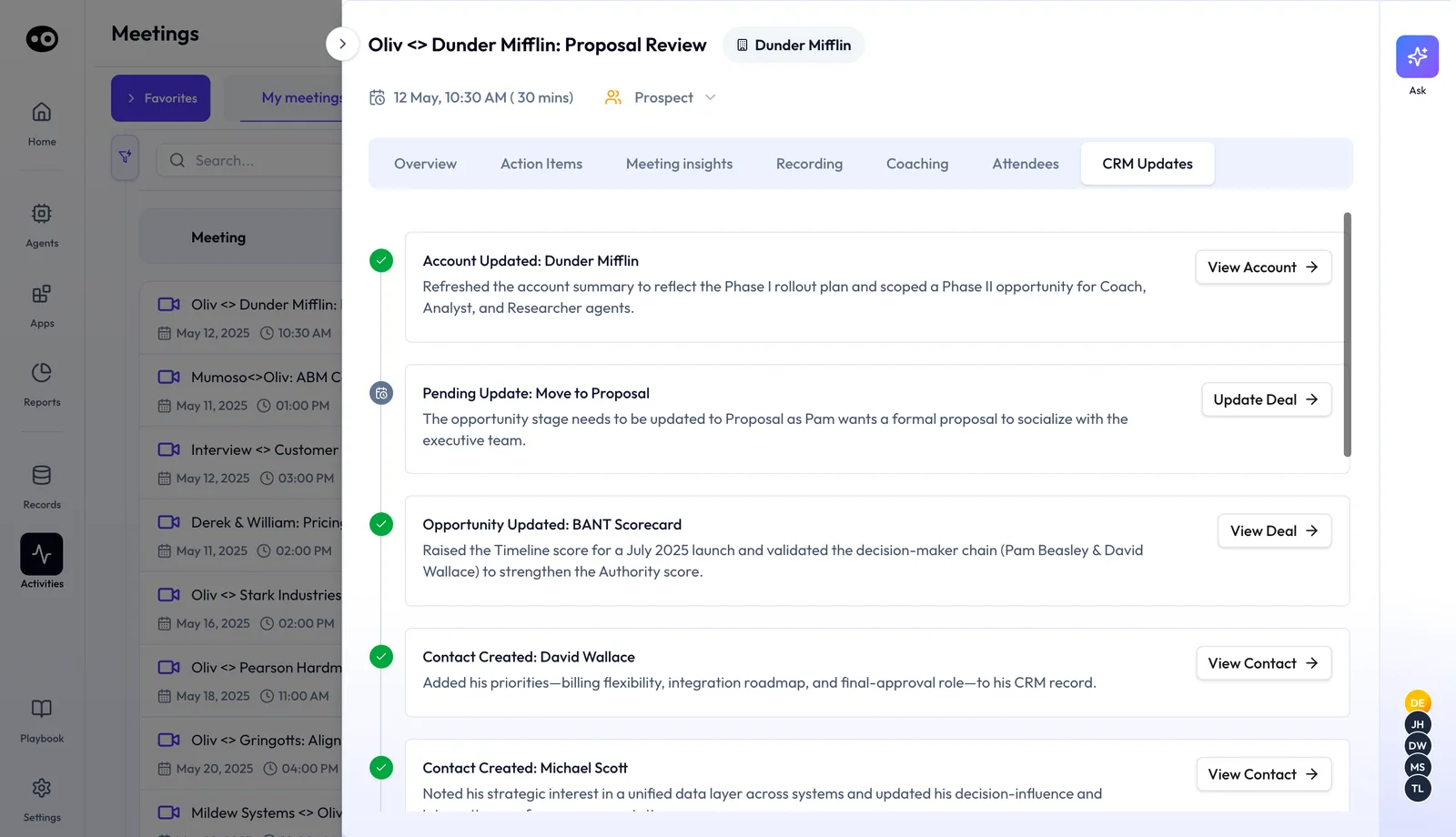
Each meeting's CRM Updates tab, in Activities › Meetings, lists what was written after the call. Completed cards such as Account Updated and Contact Created link to the record. A stage move waits as Pending Update until you press Update Deal.
Step 3: Review proposed updates
By default, every suggested update surfaces for review before anything is written to the CRM. This is the Ask First mode.
- Watch for the notification. After every activity, CRM Manager sends a message in Slack or your preferred channel saying it found updates for a number of fields, with a link to review them.
- Open the deal from Records › Deals and pick the CRM Updates tab. AI Suggestions lists each proposed change.
- Compare the suggested value with the "Current Value" line under it.
- Choose Accept or Reject.
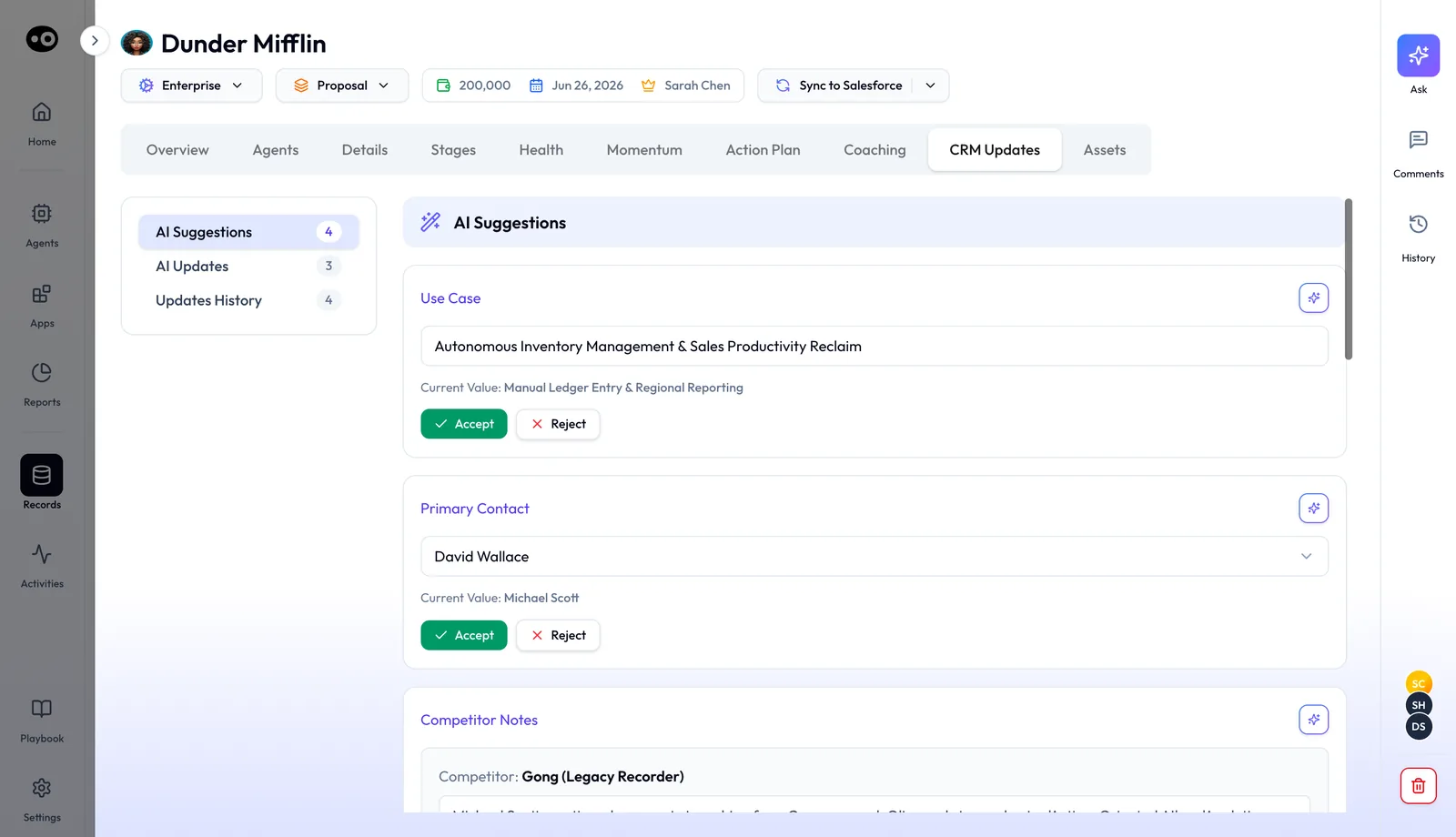
The count beside AI Suggestions shows what is waiting on each deal. AI Updates lists changes already applied, and Updates History keeps the record.
Step 4: Switch to auto mode when you're ready
Once accuracy thresholds are met, RevOps confirms the switch to auto mode. Acceptance rate by rep in the weekly governance digest is the number to watch. In Auto-Pilot, unreviewed updates apply automatically, so the pipeline stays current without anyone acting.
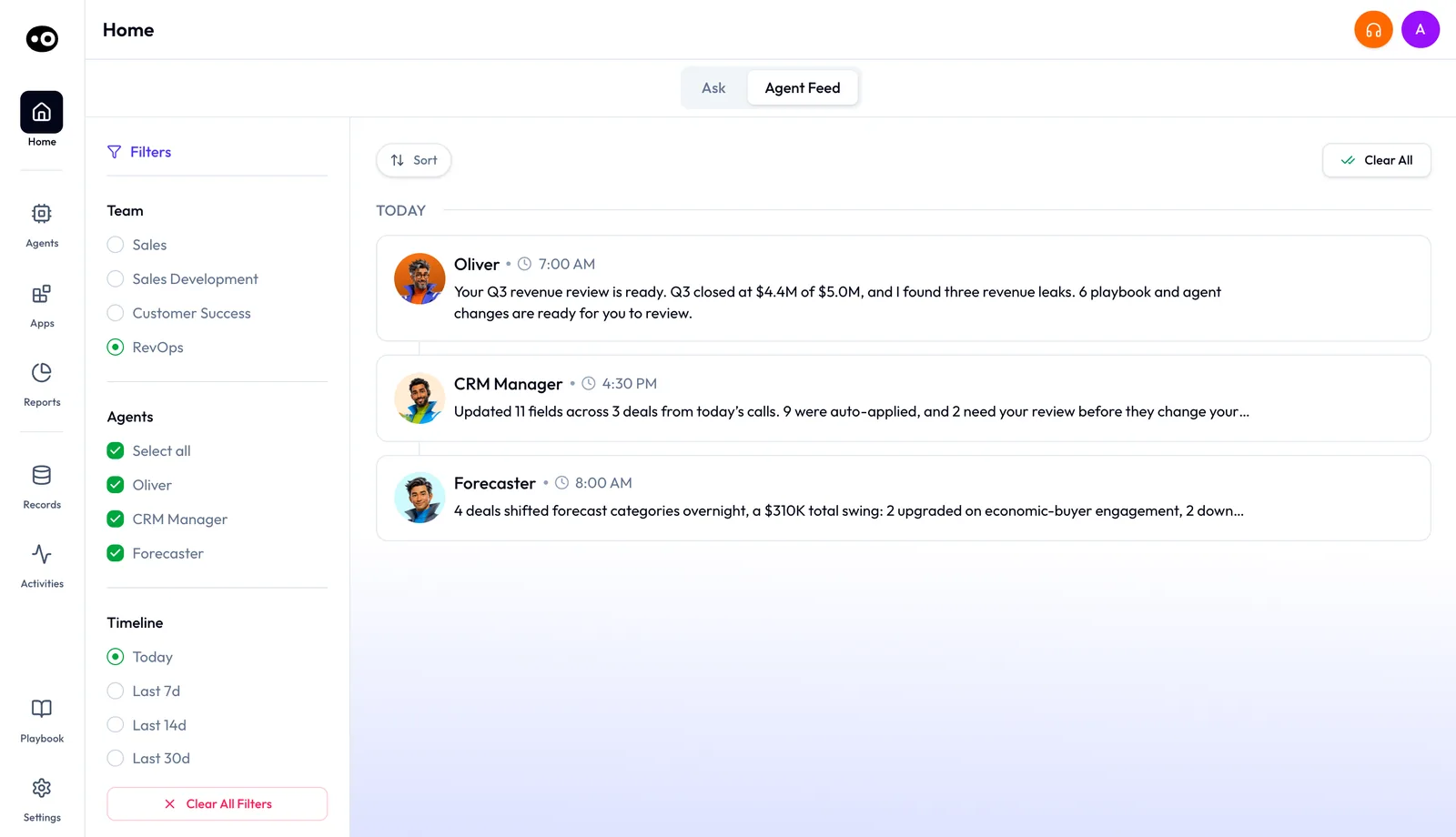
On Home, CRM Manager's Agent Feed row reports each batch of work. It says how many fields changed, how many applied straight away and how many still need your review.
Some teams run a weekly review window instead. Reps get their pending suggestions on Friday morning, and on Sunday night they get a confirmation of what was auto-accepted.
Step 5: Run the monthly hygiene check
Before a board deck or quarterly review, RevOps can check the CRM in one sitting:
- Read the weekly reports for the month. Each lists newly created deals, accounts and contacts, fields updated and enriched, and records cleaned or de-duplicated.
- Read the governance digest. It covers suggestions made, fields updated, reverts, acceptance rate by rep and flags that need review.
- Check the flags. CRM Manager flags CRM objects with missing or stale data.
- Run a clean-up job. Ask CRM Manager to work back through old records, for example "Find all duplicate accounts from last quarter" or "Backfill MEDDPICC fields across the pipeline."
- Chase what's still pending. Reps get end-of-day reminders for open CRM tasks or unverified updates. If updates stay incomplete past a set window, deals can be deferred or flagged as closed-lost, configured for your org.
What keeping the CRM updated with Oliv AI involves
Oliv AI's CRM Manager agent does this job without anyone updating records by hand. It isn't a CRM itself: it works on top of Salesforce, HubSpot or Zoho.
It runs in two modes:
| Mode | When it runs | What it does |
|---|---|---|
| Real-time | After every meeting, call and email | Syncs updates and fixes duplicate accounts, missing contacts and broken field values as part of the same operation |
| Batch | When RevOps asks | Runs jobs across historical data, such as rebuilding broken account hierarchies or cleaning unassigned contacts |
It fills three kinds of fields:
| Field type | Examples | How it's set up |
|---|---|---|
| Standard | Close date, deal amount, stage, next steps, last activity date | Pre-mapped when the CRM connects |
| Methodology | The framework marked Active: MEDDPICC, MEDDIC, SPICED, BANT or DRIVE | Values come from Oliv's Deal Insights layer |
| Custom | Any field unique to your process | Mapped by Oliv's team during onboarding |
Why keeping the CRM updated matters
What it's for
CRM hygiene, at its simplest, means the records match what actually happened on calls and in email. Deal stages, close dates and contacts reflect this week, not the last time a rep had a spare hour. Reports built on those fields then mean what they say.
How it helps
- Updates come from conversations. Fields change because something was said, not because someone remembered to type it.
- Each change sits above the old value. You compare the two before you accept or reject it.
- New people get records. Contacts and accounts appear when they first show up in a meeting or email.
- Old mess gets cleaned too. Batch jobs work back through duplicates and empty fields from earlier quarters.
What happens without it
Without upkeep, the CRM drifts behind the deals it describes. Managers spend 1:1s chasing updates instead of coaching. Pipeline reports run on fields nobody has touched in weeks, and the forecast inherits every gap.
Why buyers care
Revenue operations leads own the data and answer for the reports. Sales and customer success leaders run reviews that depend on current records. The pressure peaks at month and quarter end, when numbers go to leadership.
The Oliv AI approach to keeping the CRM updated
Think of a RevOps lead three days before the monthly board deck is due. The pipeline slide pulls straight from the CRM. She needs to trust every close date and stage in it, and she knows some haven't moved in weeks.
The usual routine is an export to a spreadsheet and a round of messages to reps. Duplicates get merged by hand and blank fields get chased one owner at a time. It eats days, and the clean state often lasts only until the next deck.
The records drift because updating them is a separate job from selling. Every call already holds the facts the CRM needs. If those facts flow into the fields as calls happen, the end-of-month scramble shrinks to a check.
Oliv AI's CRM Manager agent does that work after every meeting, call and email. It proposes each change with the suggested value above the current value. Once the team trusts it, RevOps turns on auto mode, and batch jobs clean up older records on request. New contacts, such as a buyer added late to a call, get their own records along the way. Each week's changes then land in one report for RevOps.
Each suggestion on the deal's CRM Updates tab can be accepted or rejected, and Updates History keeps the record. How other platforms keep CRM fields current is covered in How Oliv AI compares for CRM hygiene, below.
How keeping the CRM updated works with other features
Meeting follow-up
Oliv AI's Meeting Assistant agent proposes field updates from every call. CRM Manager reviews the same call context and pushes approved changes into the CRM. Account executives see this when running deals with Oliv AI, and the next pre-meeting brief starts from the updated record.
Pipeline alerts for managers
Oliv AI's Deal Driver agent raises an alert when a rep hasn't updated the Core 4 Fields after a meeting. It reads the completion data CRM Manager produces. Deal Driver doesn't update fields itself; that stays with CRM Manager.
Forecasting
Oliv AI's Forecaster agent uses stage, close date and amount fields for pipeline projections. Clean fields are what make those numbers usable in a board deck. See how teams run evidence-based forecast commits on that data.
Agent permissions
Agents that write to Salesforce or HubSpot do it through tools on their Tools tab. Agent tools and run modes explains how to make CRM writes wait for approval.
Olivia and specialist agents
Oliv AI's Olivia agent can hand field updates and data hygiene work to CRM Manager, one of the specialists she orchestrates.
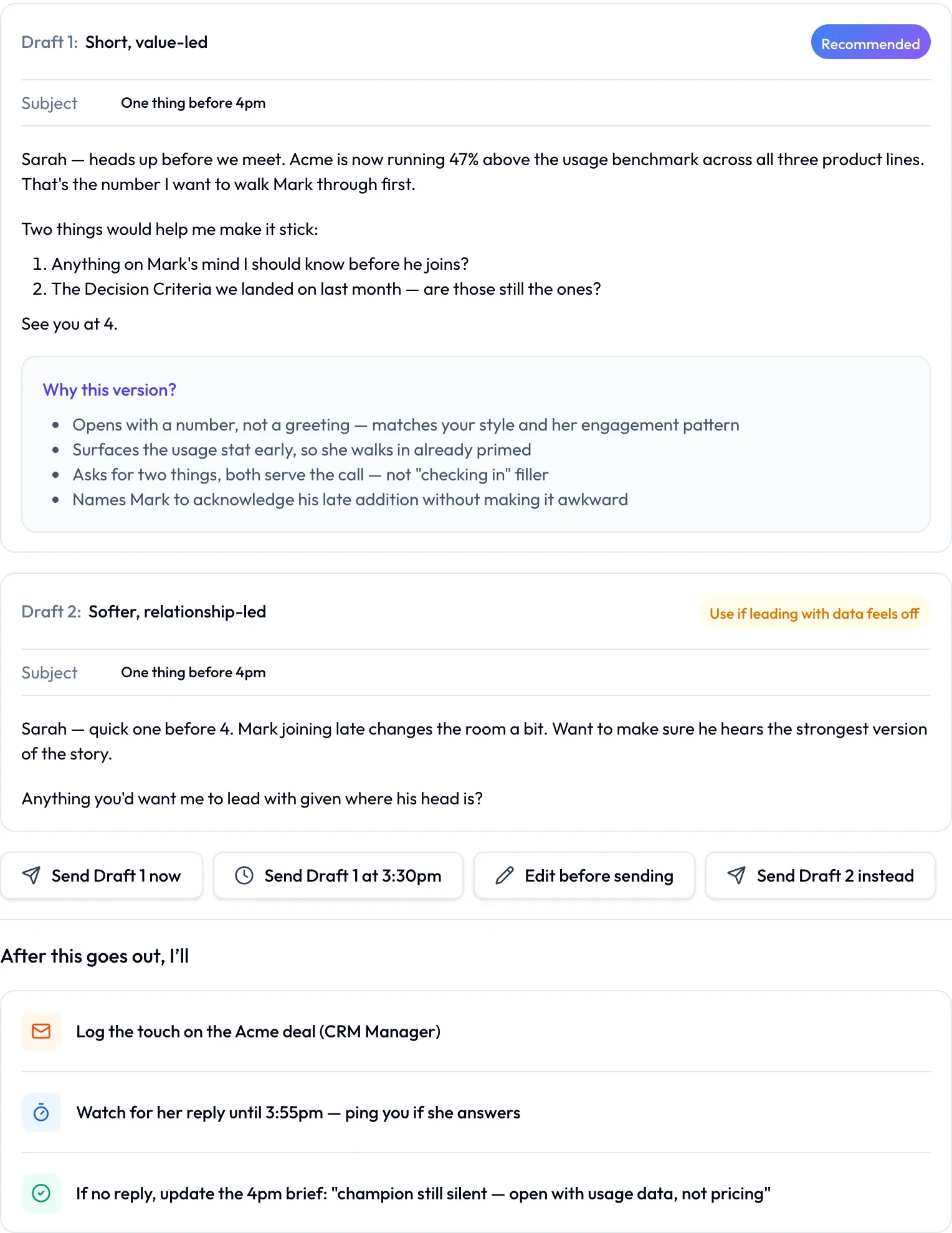
When Olivia drafts an email for you, her plan for after it goes out names CRM Manager to log the touch on the deal.
Unrecorded meetings
If a meeting wasn't recorded, CRM Manager can prompt the rep by voice (Beta). The rep gives a quick spoken summary, and CRM Manager uses it as a source.
Who keeps the CRM updated with Oliv AI, and how
These are typical patterns, shown to illustrate how teams use CRM Manager.
Revenue operations
A RevOps lead starts on Ask First, watches acceptance rates by rep in the weekly digest, and confirms auto mode once they hold up. Monthly, she runs a duplicate check and a methodology backfill before reporting. How RevOps teams run autonomous agents covers the rest of the process.
Account executives
An account executive finishes a demo where a new economic buyer joined late. By the next call, the contact is in the CRM, the stakeholder role is set and the next step is logged. The rep reviews the updates in Slack instead of typing them up. AI sales call notes covers the write-up itself.
Sales managers
A sales manager checks the AI Suggestions count on each deal's CRM Updates tab before a 1:1. Deals with a pile of unreviewed updates are the ones to raise first. The sales manager's daily guide shows the rest of the routine.
Customer success and account management
A customer success manager's QBRs and check-in calls update account records too. When a champion mentions a reorg in passing, the stakeholder map changes and the champion is flagged at risk.
How CRM records get kept current
There are three common ways a team keeps deal records current after calls and email. You can mix them, and each one leaves a different kind of gap.
Reps type updates after each call
The rep opens the record and edits stage, close date, next step and contacts by hand. It catches whatever the rep remembers and has time for. It misses the details from a busy week.
The CRM fills some fields by rule
Your CRM sets some fields on its own. HubSpot, for example, sets the last activity date automatically from the latest logged call, email, meeting or completed task. It can also show set properties when a deal moves to a stage, so reps fill them at that point. Rules like these catch dates and stage moves. They miss what was said on the call, such as a new buyer or a changed next step.
Updates drawn from the conversation
An agent reads the meeting, call or email and proposes the field values it heard. This catches the content of the conversation, including new contacts and roles. Its weak spot is trust: until you have reviewed enough of its work, someone needs to check each change.
Which of these Oliv AI does
Oliv AI's CRM Manager agent works from the conversation. It proposes updates for review, then applies them automatically once RevOps switches to auto mode. It writes into your existing CRM, so the CRM's own rules keep running alongside it.
How to measure CRM data quality
Two measures tell you whether keeping the CRM updated is working. Check both on open deals only.
- Field completeness. Count the required fields that hold a value, then divide by open deals times required fields. A weak spot: a default value counts as filled. HubSpot sets a missing close date to the last day of the month when a deal is created in an open stage, so a "complete" close date may be nobody's estimate.
- Stale deals. Count open deals with no activity in your chosen window, say 30 days, then divide by open deals. A weak spot: a logged task can refresh the date without any contact with the buyer.
Where Oliv AI shows these
The agent flags CRM objects with missing or stale data. Its weekly report lists fields updated and enriched, and records cleaned or de-duplicated. On each deal, the AI Suggestions count shows updates still waiting for review, which is often where an empty field is stuck.
How to run a monthly CRM update check by hand
- Export open deals with stage, close date, amount, next step and the economic buyer contact.
- Count the empty cells in each column and work out the completeness rate.
- Sort by last activity date and list deals with nothing logged in 30 days.
- Spot close dates that sit on the last day of the month, and ask the owner if they are real.
- Search for duplicate accounts by name and website, then merge them.
- Message each rep their list of gaps, and recount a week later.
The same job in Oliv AI
With the agent running, fields fill as calls and emails come in, so there's less to count and chase by hand. Your monthly check becomes Step 5 above: read the weekly reports and digest, clear the flags, run a batch job for old duplicates or empty methodology fields, and let end-of-day reminders chase what is still pending.
Worked example: field completeness before and after a monthly check
This is an illustrative calculation with sample figures, not an Oliv AI output. A team has 20 open deals and tracks 5 required fields, so there are 20 × 5 = 100 field slots.
| Field | Filled before the check | Filled after the check |
|---|---|---|
| Stage | 20 | 20 |
| Close date | 18 | 20 |
| Amount | 15 | 19 |
| Next step | 9 | 17 |
| Economic buyer contact | 6 | 15 |
| Total filled | 68 of 100 (68%) | 91 of 100 (91%) |
| Stale deals (no activity in 30 days) | 7 of 20 (35%) | 3 of 20 (15%) |
Before: 20 + 18 + 15 + 9 + 6 = 68. After: 20 + 20 + 19 + 17 + 15 = 91. The gaps sat in next step and the economic buyer, the two fields that only a conversation can fill. Those are the fields to check first each month.
How Oliv AI compares for CRM hygiene
Oliv AI proposes each CRM change for review first, then lets RevOps switch to automatic updates once they're trusted. It creates new contacts from activity and sends RevOps a weekly report of what changed. Oliv AI is the only platform in this table that does all four.
CRM hygiene features, from each platform's public documentation:
| Platform | Proposed updates you review first | Automatic updates once trusted | New contacts created from activity | Weekly CRM-change report for RevOps |
|---|---|---|---|---|
| Oliv AI | Yes | Yes | Yes | Yes |
| Gong | Partly (one text field on deal boards) | Yes (AI data fields mapped to CRM) | Doesn't create Salesforce contacts | Not in docs |
| Outreach | Yes (reviewable field recommendations) | Yes (auto update per field) | Not in docs | Not in docs |
| Fireflies.ai | Yes (nothing sent until you approve) | Not in docs | Yes (new HubSpot contacts from meetings) | Not in docs |
| Avoma | Not in docs | Yes (sync without manual updates) | Yes (contacts created from meetings) | Not in docs |
| Fathom | Not in docs | Yes (summaries written to Salesforce) | Not in docs | Not in docs |
Yes: documented and built in. Partly: documented with a limit, shown in brackets. Not in docs: not found in the vendor's public documentation.
Why Oliv AI is the stronger choice for CRM hygiene
- New people get CRM records. Oliv AI's CRM Manager agent creates the record when an activity involves a company or person not yet in the CRM. Gong's Salesforce FAQ says Gong doesn't create contacts in Salesforce. See Oliv AI as a Gong alternative.
- Review first, then let it run. Oliv AI starts every update in review and moves to auto mode once accuracy holds. Fireflies.ai says nothing is sent to Salesforce until you review and approve it.
- A weekly account of what changed. Oliv AI sends RevOps a weekly report of records created, fields updated and records cleaned. Avoma documents automating field updates to manage your pipeline. See Oliv AI vs Avoma.
- Clean-up across past records. Oliv AI runs batch jobs across historical data on request. Fathom's Salesforce guide lists retroactive sync as manual, one call at a time. See Gong vs Oliv AI.
Competitor details checked against each vendor's public documentation on 21 October 2026. Features and plans change, so confirm with the vendor before you decide.
Limits and things to know
- Three CRMs out of the box. Salesforce, HubSpot and Zoho are supported. Other CRMs are available on request.
- Custom fields need onboarding. Oliv's team maps them during onboarding; until then, CRM Manager fills standard and methodology fields.
- Review comes first. By default every update waits for review. Auto mode starts only when RevOps confirms it.
- Field values come from Deal Insights. CRM Manager writes what Oliv's Deal Insights layer produces. It doesn't score deals or decide values from scratch.
- Not a reporting tool. It makes your existing reports accurate but doesn't replace them.
- Not a deal-risk tool. Pipeline risk signals belong to Oliv AI's Deal Driver agent.
- Pending updates have consequences. Depending on your org's settings, deals with overdue updates can be deferred or flagged as closed-lost.
- Voice prompts are Beta. Spoken summaries for unrecorded meetings are part of the Voice Agent (Beta).
Common questions
Do I need a clean CRM before I start?
No. Real-time mode fixes issues as new activity comes in, and batch mode cleans what's already there. CRM Manager is built to start on messy data.
Does CRM Manager write directly to my CRM?
Both ways are possible. By default, every suggested update surfaces for review first. Once your team trusts it, switch to auto mode for hands-free updates.
What if it makes a wrong update?
Each suggestion shows the field's current value under the suggested one, so you can reject it before it's written. Updates History keeps the record of what changed.
Which CRMs are supported?
Salesforce, HubSpot and Zoho out of the box. Additional CRMs are available on request.
Who sets up custom fields?
Oliv's team, during onboarding, as a service. Once mapped, custom fields update the same way as standard and methodology fields.
Does it understand account hierarchies?
Yes. CRM Manager maps parent and subsidiary accounts and keeps them current as org structures change. A full hierarchy rebuild can run in batch mode.
Does it work for customer success as well as sales?
Yes. It tracks activity across sales cycles, renewals, QBRs and customer success check-ins.
What does RevOps get each week?
A report of newly created deals, accounts and contacts, fields updated and enriched, and records cleaned or de-duplicated. A governance digest adds acceptance rate by rep and flags that need review.
Can managers see what's waiting for review?
Yes. The count beside AI Suggestions on each deal's CRM Updates tab shows what's waiting.
Can I see how a field changed over time?
Yes. Each deal's CRM Updates tab has an Updates History list of the changes made.
How do you get reps to update the CRM?
Take most of the typing away. Oliv AI's CRM Manager agent proposes updates from each call and email, reps accept or reject them, and end-of-day reminders cover what is still pending.
How often should you check CRM data?
Monthly is a sensible default, ahead of board and quarterly reviews. With CRM Manager running, the weekly report and digest keep you informed between checks.
How do you stop duplicate records in a CRM?
CRM Manager de-duplicates accounts and contacts as activity touches them. For older records, ask it to run a batch job, such as finding all duplicate accounts from last quarter.
What goes on a CRM hygiene checklist?
Field completeness on open deals, deals with no recent activity, close dates left on a default, duplicate accounts, unassigned contacts and updates still waiting for review.
Further reading
Related
Updated 2 November 2026: added the ways CRM records get kept current, how to measure an up-to-date CRM, a manual monthly check, a worked example and four questions.