
Integrations Live
HubSpot AI integration: how to connect Oliv AI, approve updates and show fields on deals
How to connect Oliv AI to HubSpot, show Oliv AI fields on deal records, decide how updates are approved, and see what Oliv AI keeps current in your portal.
On this page
- At a glance
- What the HubSpot integration is
- Why the HubSpot integration matters
- The Oliv AI approach to the HubSpot integration
- Connect HubSpot
- Show Oliv AI fields on HubSpot deals
- Decide how updates are approved
- How updates get onto a HubSpot deal
- What to check in HubSpot after you connect
- How to tell your HubSpot updates are ready for Auto-Pilot
- How to add meeting contacts to HubSpot by hand
- How the HubSpot integration works with agents
- Who uses the HubSpot integration, and how
- How Oliv AI compares as AI for HubSpot
- Limits and things to know
- Common questions
- Further reading
- Related
A HubSpot AI integration should be simple to connect, let you control how updates are approved and show you what stays current on each deal. Oliv AI connects to HubSpot so your deals, contacts and companies stay current without reps typing updates after every call. HubSpot remains your CRM, and Oliv AI works on top of it. Here you'll find the connection steps, how to show Oliv AI fields on a deal, and how approvals work.
At a glance
| What it does | Pulls HubSpot data into Oliv AI and writes back what customers said |
| How you connect | From the HubSpot integration in the Oliv AI web app, then share your HubSpot URL |
| What it keeps current | Deals, contacts, companies, activities, tasks and buying committee roles |
| Approvals | Ask First by default, or Auto-Pilot once you trust the updates |
| Deal view | Oliv AI fields appear in a card you add to the deal record |
| What it needs | A connected calendar, plus HubSpot itself |
What the HubSpot integration is
The HubSpot integration links your portal to Oliv AI in both directions. Oliv AI pulls information in from HubSpot and writes insights from your conversations back, so reps stop typing those updates by hand.
The sync covers pipeline, fields, owners, close dates, stages and forecast categories. Writing back to HubSpot is the job of Oliv AI's CRM Manager agent.
What changes in HubSpot
- Logged activity. Meetings, calls and emails land on the right deal, contact and company.
- New contacts and companies. A person or company that shows up in a conversation, and isn't in HubSpot yet, gets a record.
- New deals. A deal is created when there are enough activity signals, with name, estimated close date, stage and amount where available.
- Deal properties. Close date, amount, stage and next steps are pre-mapped when you connect. Qualification fields such as MEDDPICC or BANT follow every call.
- Tasks. Next steps from meetings, calls and emails become tasks assigned to the right owner.
- Buying committee. Each contact's role on a deal, such as economic buyer, champion or blocker, is tracked as the deal moves.
Why the HubSpot integration matters
What it's for
The HubSpot integration is for sales teams whose deal records fall behind their calls. It takes what buyers said and puts it on the deal, so the pipeline view matches the conversations.
How it helps
- Deals you can trust on Monday. Stage, amount and next steps are proposed or updated after each activity.
- Stakeholders on the record. A new person from a call becomes a contact with a role on the deal.
- Next steps that don't get lost. Commitments from calls turn into HubSpot tasks with an owner.
- Approval you control. Reps see each proposed change beside the current CRM value, then accept or reject it.
What happens without it
HubSpot only knows what a rep remembered to type. Deal properties go stale between calls, new stakeholders never become contacts, and next steps live in someone's notebook. The weekly pipeline meeting turns into an audit of missing fields instead of a talk about deals.
Why buyers care
On a smaller team, the head of sales often owns HubSpot as well as the number. They care most at forecast time and in 1:1s, when deal records need to be right. Reps care because the follow-up admin after each call shrinks.
The Oliv AI approach to the HubSpot integration
Imagine the head of sales at a twelve-person team: eight account executives and three SDRs. There is no RevOps hire yet, so she is also the HubSpot admin. Every Sunday night she opens the deals board and fixes amounts, stages and close dates before Monday's pipeline call.
A common fix is to make key deal properties required before a deal can change stage. Reps then paste a line or two from memory just to move the deal on. The board looks complete, but the values are often guesses, and she likely still rechecks the deals that matter most.
The information she needs already exists. It was said out loud on calls and written in emails during the week. What is missing is a step that turns those conversations into property values, with a person checking them before they count.
Oliv AI adds that step on top of HubSpot. Oliv AI's CRM Manager agent reads each meeting, call and email, then proposes updates to the deal, its contacts and its tasks. She starts every rep on Ask First, so reps Accept or Reject each proposal on the deal's CRM Updates tab.
Every proposal shows the current CRM value beside the suggested one, so a rep can spot a wrong value before accepting it. A rejected suggestion leaves the current HubSpot value in place, so her Monday board reflects what her reps have agreed to.
Connect HubSpot
- Sign in to the Oliv AI web app and visit the HubSpot integration, at
web.oliv.ai/hubspot/connect. - Share your HubSpot URL with the Oliv AI admin through Intercom in the Oliv AI app.
- Connect your Gmail or Outlook calendar. Oliv AI needs a calendar integration to take notes in meetings.
Once you're connected, Settings › Revenue Process has an Import Pipeline from CRM button that pulls your existing stages into Oliv AI, one tab per sales motion.
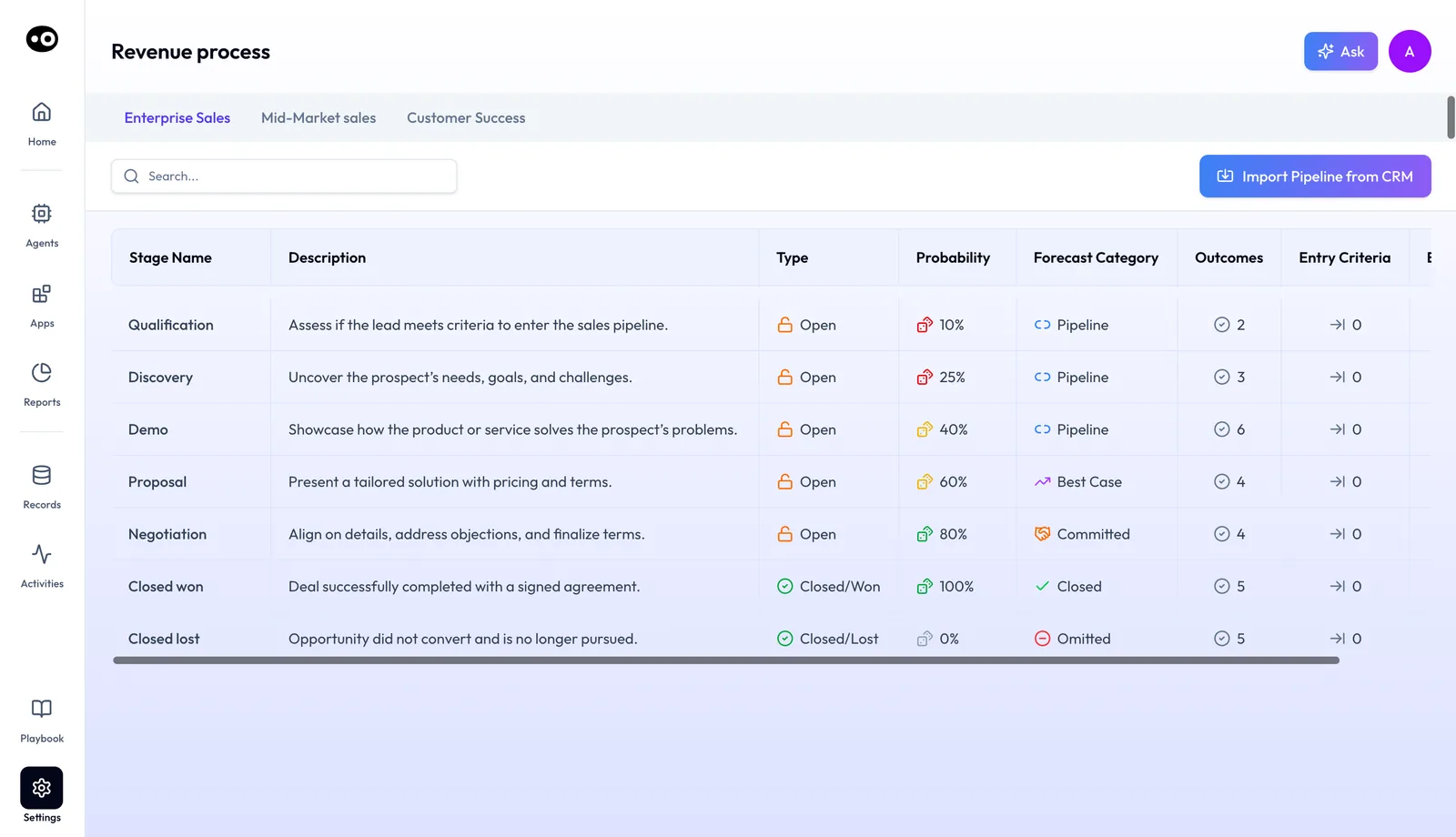
Your core deal properties are mapped on connection and start filling from day one. If you track properties unique to your process, Oliv AI's team maps them for you during onboarding.
Show Oliv AI fields on HubSpot deals
Add a custom property and a card in HubSpot, so Oliv AI's data sits on the deal record.
- In HubSpot, click Settings at the top of the page.
- Under Data Management, select Properties, then click Create Property.
- Name the property, for example "Oliv: Pain Points & Needs", and set the object type to Deal.
- Choose Rich Text as the field type, which suits most Oliv AI fields. Click Preview, then Create.
- Back in Settings, under Data Management, open Objects and go to Record Customization.
- Click the default view, click Add Cards, then Create Card.
- Name the card, select the property you created, and click Save and exit.
- Open any deal to check the field. Once Oliv AI captures relevant information, it fills the field automatically.
Check your HubSpot permissions before you start. HubSpot asks for Edit property settings permissions to create a property, and for Customize record page layout or Super Admin permissions to change a record's default layout. Without them, you'll stop at step 2 or step 6, so ask whoever holds them to run those steps.
Decide how updates are approved
Out of the box, Oliv AI's CRM Manager agent holds every suggestion for review before it touches HubSpot. There are two control modes:
- Ask First. Each update waits for a rep before anything is written to HubSpot.
- Auto-Pilot. Updates are applied without a rep reviewing them, so deals stay current with no one acting.
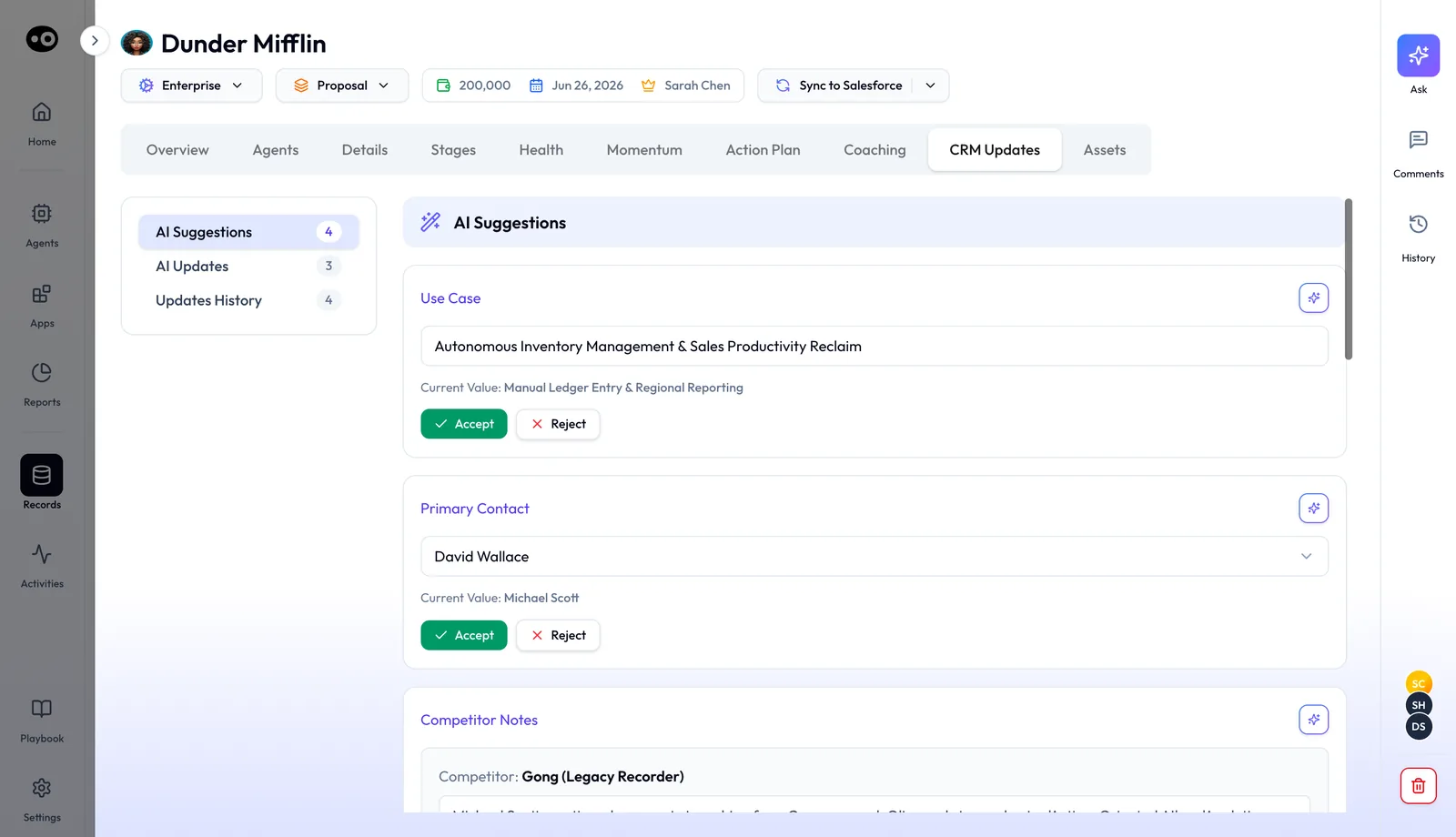
After a call, the rep gets a Slack message, or a note in their preferred channel, saying updates were found. On the deal, the CRM Updates tab lists each proposed change under AI Suggestions. The suggested value sits in its own field above the Current Value, and the choices are Accept or Reject. AI Updates holds changes already applied, and Updates History keeps the record.
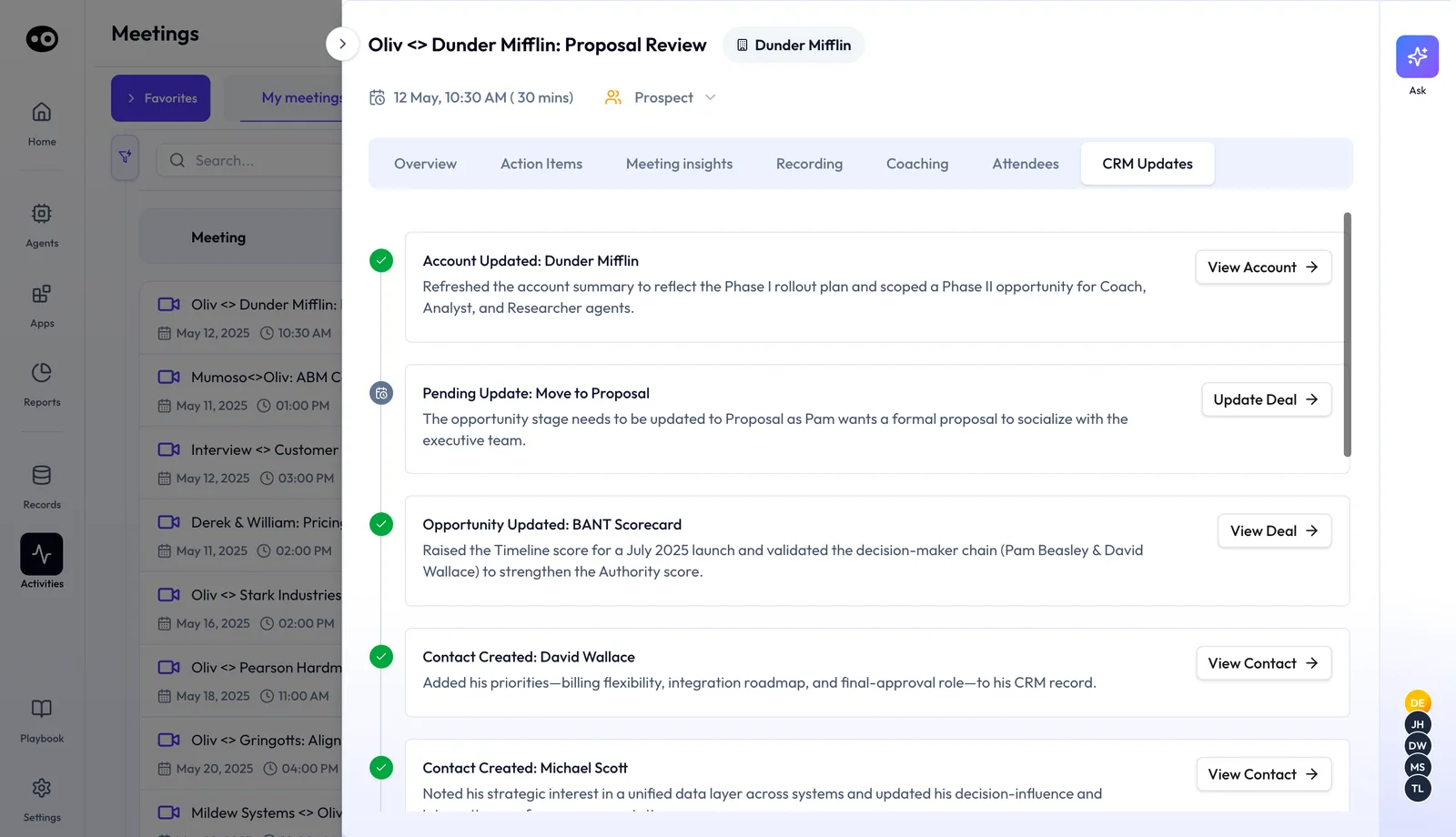
Each meeting has a CRM Updates tab of its own. It lists what was written after the call, such as Account Updated or Contact Created, and holds a stage move as a Pending Update until you press Update Deal.
Reps with open tasks or unverified deal updates get an end-of-day reminder. If updates stay undone past a set window, deals can be deferred or flagged as closed-lost, and your org chooses whether that happens. Auto mode waits until the person who owns HubSpot confirms it, and the measures below help you decide when.
How updates get onto a HubSpot deal
Before you choose an approval mode, look at how your deals get updated today. There are five common ways, and you may be running more than one.
Reps type updates in
A rep can record what only the rep knows, such as a judgment call on a close date. Anything they don't get round to typing is lost. A person who joined a call late rarely becomes a contact this way, and the record falls behind on busy weeks.
HubSpot asks for properties at a stage move
HubSpot's conditional stage logic shows chosen properties when a user creates a record in a stage or moves it there. That stops blank fields at the moment a deal moves. It can't judge the quality of the answer, and it never fires on a deal that sits still, because a slipping close date doesn't trigger a stage move.
A meeting tool pushes notes to the record
Anyone opening the deal can now read what was said, but the properties stay as they were. A note doesn't change the amount or the stage, so your boards and reports still read the old values.
A tool writes properties directly
Calls reach the deal with no rep effort, and the deal stays current. What you give up is the check. A wrong value reaches your reports before anyone has seen it, so you find the error later and have to trace where it came from.
A tool proposes and a person approves
A wrong value can be stopped before it reaches HubSpot, because the person approving sees the old value beside the new one. The risk moves to the queue, since pending updates nobody reviews can leave a deal as stale as before. It also adds a step for each rep.
Which of these Oliv AI does
Oliv AI's CRM Manager agent uses the last two, and you choose between them. On Ask First, it proposes and a rep approves. On Auto-Pilot, updates are written without a rep's review. Either way, the agent reads from HubSpot and writes back, so it adds to your HubSpot records instead of replacing them.
What to check in HubSpot after you connect
Run these checks in your first week, while the number of updates is still small enough to read.
- Check the stages. Open Settings › Revenue Process and compare the imported stages with your HubSpot pipeline. If you never changed HubSpot's default Sales Pipeline, it has seven deal stages.
- Check the deal card. Open a deal and confirm your card shows. An empty field is normal until Oliv AI captures something relevant for it.
- Follow one call through. Pick a deal with a call yesterday and open that meeting's CRM Updates tab. Use each View link to reach the record that changed, then compare it with what was said.
- Count the new records. In HubSpot, sort contacts by Create date, the day the contact was created in your account. Compare the count with the estimate you make in the worked example below.
HubSpot values that change without Oliv AI
Some deal properties move because of HubSpot's own rules. Check these before you decide an update went wrong.
- Close date. When a deal enters a closed-won or closed-lost stage, HubSpot sets the close date to today. A deal created in an open stage with no close date gets one by default too.
- Deal probability. HubSpot updates this when a deal changes stage, but a manual edit stops that for open stages. HubSpot counts changes from data sync integrations as manual edits. This property isn't one of the core properties mapped on connection, so think twice before you ask for it to be mapped.
How to tell your HubSpot updates are ready for Auto-Pilot
Moving off Ask First is the approval decision you'll be asked to defend, so base it on two measures. Agree your bar with the team before the first numbers arrive, or you'll end up setting it to fit them.
Acceptance rate
This is accepted suggestions divided by suggestions reviewed. A high rate suggests the proposals match what reps would have written. Its weak spot is that a rep who presses Accept on everything scores perfectly, so pick a few accepted updates for each rep and check the HubSpot deal against the call.
Pending updates
This is the number of suggestions still waiting on a deal. On Ask First, a HubSpot deal keeps its old value until someone reviews the suggestion. So a good acceptance rate means little if the queue keeps growing, because it only counts reviewed suggestions. The weak spot here is call volume: a busy deal will naturally hold more pending updates than a quiet one.
Where Oliv AI shows these
The weekly governance summary gives RevOps or the manager the acceptance rate by rep, along with suggestions made and fields updated. Managers can see pending update counts per deal from the deal board, and each deal's CRM Updates tab shows its own AI Suggestions count. When your numbers clear the bar, the person who owns HubSpot confirms the move.
How to add meeting contacts to HubSpot by hand
If you're doing this today, or you want to see what you're replacing, here is the routine after each call.
- Open the deal in HubSpot and compare the meeting's attendees with the contacts on the deal.
- Search HubSpot for each new person by email address. HubSpot deduplicates contacts by email address and companies by domain name, so those are the values to match on.
- Create a contact for anyone with no match, and associate them with the deal.
- If their email domain has no company record, create the company and associate it too.
- Note each person's role on the deal, such as economic buyer, champion or blocker.
- Update the next step, close date, amount and stage from what was said.
The usual failure is skipping steps 3 to 5 when the next call is close. The deal then looks fine, but the people who decide it aren't on the record.
The same job with Oliv AI
Oliv AI's CRM Manager agent works from the meeting, call or email itself. When a person or company isn't in HubSpot, the agent creates the record and enriches it, with details such as a contact's title and a company's industry and size. It also removes duplicate accounts and contacts as activity touches them.
Your job moves from typing to checking. Read the Contact Created entries on the meeting's CRM Updates tab, and watch for anyone who joined from a second email address. HubSpot's own check looks for a matching value in the Email property, so a different address won't match on it.
Worked example: how many new HubSpot records to expect
Before you connect, work out how many new records you should expect, so a jump in your contacts doesn't surprise anyone. This is an illustrative calculation with sample figures, not an Oliv AI output.
Say you have 40 open deals. Last month, 120 people joined meetings on those deals, not counting your own team, and 85 of them already exist in HubSpot.
| Step | Arithmetic | Result |
|---|---|---|
| People who joined meetings last month | Counted across the 40 open deals | 120 |
| People already in HubSpot | Matched by email address | 85 |
| New contacts to expect | 120 minus 85 | 35 |
| Share of people who are new | 35 / 120 | 29% |
| New contacts per open deal | 35 / 40 | About 0.9 |
So a month like that one should bring about 35 new contacts, or just under one per open deal. Group those 35 by email domain to estimate new companies, because a business domain HubSpot doesn't have is likely a new company record.
Now you have a number to check against. If the real count runs far above 35, look first for people who joined from a second email address. If it runs far below, check that your calendar is connected for every rep.
How the HubSpot integration works with agents
CRM Manager
Oliv AI's CRM Manager agent does every write, so updates show up in the HubSpot workflows, reports and dashboards you already use. The CRM Manager overview covers its full job.
Meeting Assistant
Oliv AI's Meeting Assistant agent suggests field updates after each call. CRM Manager then reviews that call context and pushes approved changes into HubSpot. Briefs before a call draw on the contacts and companies kept current here, as in preparing for a meeting.
Deal Driver
Oliv AI's Deal Driver agent reads deal stage history and field values for pipeline reviews. Task reminders and end-of-day nudges belong to Deal Driver, while creating and logging tasks stays with CRM Manager.
Olivia
Oliv AI's Olivia agent reads what is already in HubSpot, messy data included. Ask her about a deal and she works from the same records.
Agents you build
HubSpot appears in the Add Tool catalogue with 32 tools in six groups: Lookup / Search, Create / Update, Associations, Activities, Marketing and Utility. They run from Find Deal and Update Deal Stage & Dates to Enroll Contact in Sequence and Submit Form.
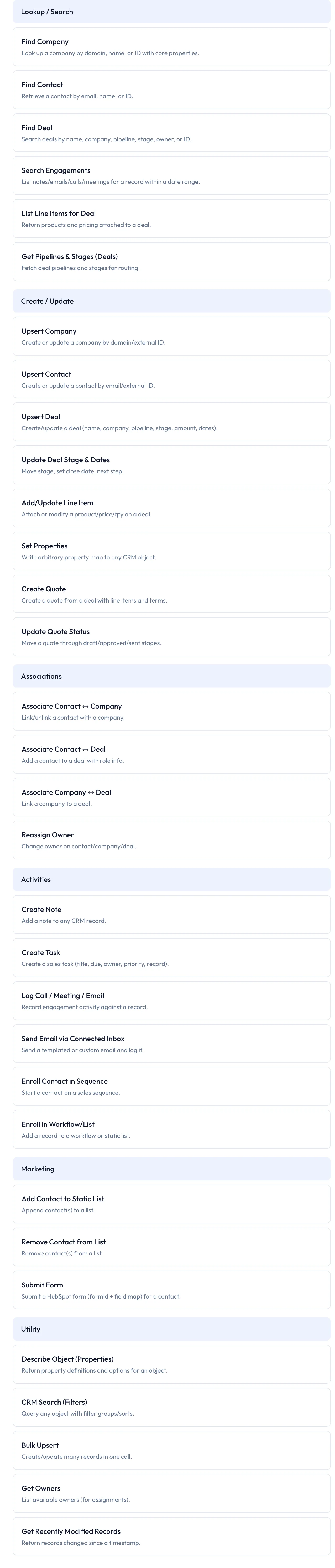
HubSpot is also listed under Most popular when you add a trigger, so a change in your portal can start an agent.
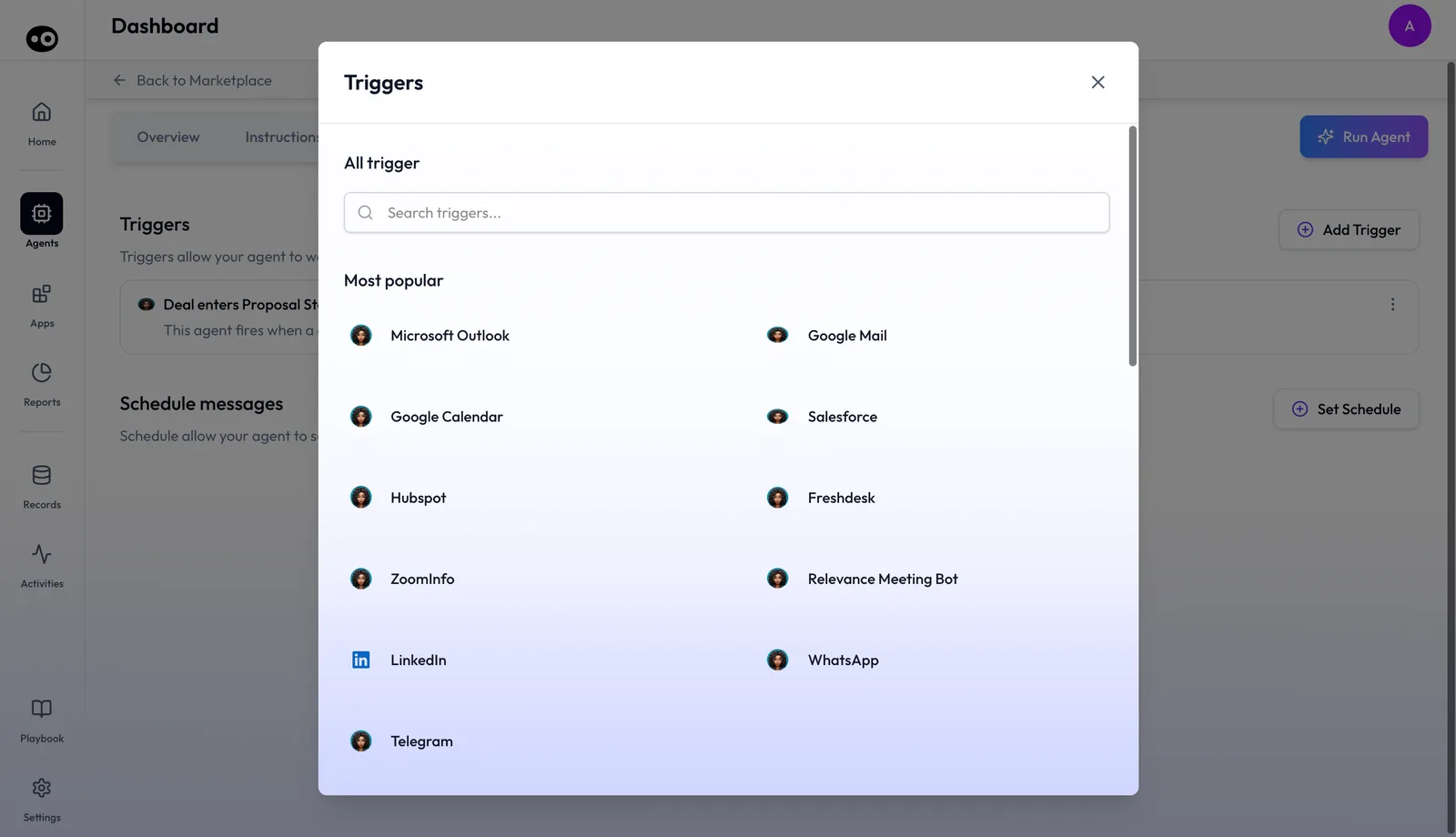
How each tool asks for approval is explained in agent tools and run modes.
Who uses the HubSpot integration, and how
Sales leaders
A head of sales opens the deals board on Monday and finds approved changes to stages, amounts and next steps from last week's calls already on each deal. The AI Suggestions count on each deal's CRM Updates tab shows what still needs review. More on Oliv AI for sales managers.
Account executives
An AE finishes a demo where a new economic buyer joined late. By the next call, that person is a contact with a role on the deal and the next step is logged. See how an AE runs deals day to day.
Sales development
An SDR books a first meeting with three people from a target company. Each attendee who isn't in HubSpot becomes a contact, and the meeting is logged against the company. See also Oliv AI for sales development teams.
Account management
An account manager's renewal and check-in calls update the company record the same way sales calls do. Changes to the stakeholder map show up on the record before the next renewal talk. Renewal teams can read Oliv AI for account management.
How Oliv AI compares as AI for HubSpot
Several meeting tools can push notes or properties into HubSpot. Oliv AI also holds each update for approval, tracks each contact's role on the deal, and reminds reps about updates they haven't reviewed. Oliv AI is the only platform in this table that does all four.
HubSpot sync features, from each platform's public documentation:
| Platform | Deal properties filled from calls | Approval before anything reaches HubSpot | Buying committee roles on each deal | Reminders for pending updates |
|---|---|---|---|---|
| Oliv AI | Yes | Yes | Yes | Yes |
| Gong | Yes (AI data fields mapped to your CRM) | Automatic (fields update without rep action) | Not in docs | Not in docs |
| Avoma | Partly (field mapping needs Business license) | Not in docs | Not in docs | Not in docs |
| Fireflies | Yes (Autofill CRM for HubSpot) | Yes (nothing sent until you approve) | Not in docs | Not in docs |
| Fathom | Partly (Business and Enterprise plans only) | Not in docs | Not in docs | Not in docs |
Yes: documented and built in. Partly: documented with a limit, shown in brackets. Not in docs: not found in the vendor's public documentation.
Why Oliv AI is the stronger choice as AI for HubSpot
- Updates follow each activity. Oliv AI's CRM Manager agent proposes changes after every meeting, call and email and notifies the rep. Gong's help center notes that exporting Gong data to HubSpot can take up to six hours. Compare Oliv AI vs Gong.
- Your own fields, mapped for you. Oliv AI's team maps the properties unique to your process during onboarding. Gong documents that its AI Data Extractor can only export to an existing CRM field. See Oliv AI as a Gong alternative.
- Standard fields from day one. Core deal properties are pre-mapped on connection and fill from day one. Avoma lists a HubSpot Business license for users of field mapping. Compare Oliv AI vs Avoma.
Competitor details checked against each vendor's public documentation on 21 October 2026. Features and plans change, so confirm with the vendor before you decide.
Limits and things to know
- Setup goes through Oliv AI's team. After visiting the integration, you share your HubSpot URL with the Oliv AI admin through Intercom.
- A calendar is required. Without a calendar integration, Oliv AI can't take notes during meetings.
- The deal card is yours to add. Oliv AI fields show on the deal view once you create the property and card in HubSpot.
- Custom properties are mapped at onboarding. There's no self-serve mapping screen for them.
- Auto mode waits for you. Updates stay on review until the HubSpot owner confirms the switch.
- Removing the integration is a message. Send Oliv AI a message through Intercom in the Oliv AI app.
Common questions
Do we have to move off HubSpot to use Oliv AI?
No. Oliv AI works with your existing CRM, brings the context together and keeps HubSpot updated. HubSpot stays your system of record.
How do we connect HubSpot?
Visit the HubSpot integration in the Oliv AI web app, then share your HubSpot URL with the Oliv AI admin through Intercom in the Oliv AI app.
Where do Oliv AI's insights show up on a deal?
In a custom property you create, shown in a card on the deal view. The help center suggests a name like "Oliv: Pain Points & Needs".
Which field type should an Oliv AI property use?
Rich Text. Oliv AI's guide says most Oliv fields work best as Rich Text, with Deal as the object type.
Do reps have to approve every change?
At first, yes. Every suggestion surfaces for review by default. Once the team trusts the updates, you can switch to Auto-Pilot for hands-free changes.
What if a rep ignores pending updates?
They get end-of-day reminders. If updates aren't completed within a set window, deals can be deferred or flagged as closed-lost, depending on how your org configures it.
Will Oliv AI create contacts we don't have yet?
Yes. When a person or company in a meeting, call or email isn't in HubSpot, Oliv AI's CRM Manager agent creates the record and enriches it.
Our HubSpot data is messy. Is that a problem?
No. CRM Manager works with unclean data and normalizes it as it goes, resolving duplicates and filling gaps in real time and in batch.
Can a wrong update be undone?
Before it's written, yes: every suggestion shows the current value next to the proposed one, and you can reject it. Changes already applied are listed under AI Updates, and Updates History keeps the record, so you can see what changed and fix the value in HubSpot.
Does it work for customer calls after the sale?
Yes. Activity tracking covers renewals, QBRs and customer success check-ins as well as sales calls.
Which other CRMs does Oliv AI support?
Salesforce and Zoho, alongside HubSpot, out of the box. Other CRMs are available on request.
How is Oliv AI priced for a team on HubSpot?
Plans are assigned by role, so each person gets the apps they need. For current plans, see Oliv AI pricing.
Do reps have to leave HubSpot to use Oliv AI's agents?
Not to see the results. HubSpot stays your CRM, and Oliv AI's fields show in a card on the deal record. Reps review proposed updates on the deal's CRM Updates tab in Oliv AI, and they get a note when updates are found.
Will Oliv AI duplicate contacts that are already in HubSpot?
Oliv AI's CRM Manager agent removes duplicate accounts and contacts in real time as activity touches them. HubSpot also matches contacts on email address. Someone who joins from a second address is the case to check by hand.
Further reading
Related
Updated 3 November 2026: added the ways updates reach a HubSpot deal, first-week checks, Auto-Pilot measures, the manual routine, a worked example and further reading.