
Agents Live
AI agent audit trail: read each run's type, status and record before you widen an agent
An AI agent audit trail guide: read an agent's Runs tab and open a run record to check every email the agent wrote, the people it picked, a sequence's steps or a drafted reply.
On this page
- At a glance
- What agent run history is
- Why agent run history matters
- The Oliv AI approach to agent run history
- How to check what an AI agent did
- Open an agent's run history
- Find a run
- Read a run record
- How to measure an agent's run mix before you widen it
- How to review an agent's work by hand
- How agent run history works with other features
- Who uses agent run history, and how
- How Oliv AI compares for AI agent audit trails
- Limits and things to know
- Common questions
- Further reading
- Related
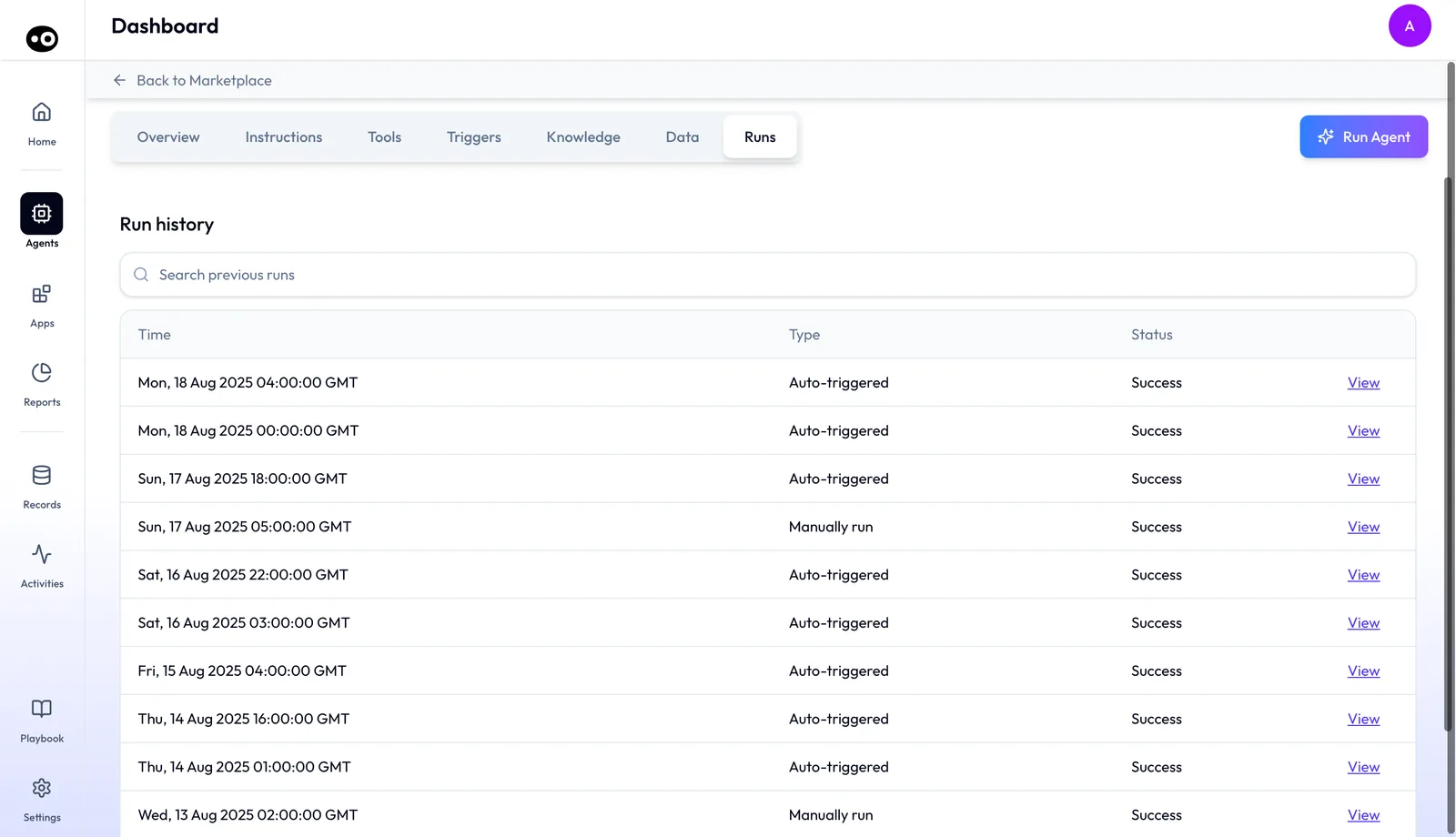
When someone asks what an agent did overnight and you have to answer before it takes on more work, you need an AI agent audit trail. Oliv AI's run history is that record: each agent's Runs tab lists its past runs, newest first, with when each one ran, how it started and how it ended. Press View on a row and the full record opens. It shows every email the agent wrote and the people it picked, a sequence's steps, a drafted reply or a clipped call.
At a glance
| What it is | A list of every run an agent has made, plus a full record for each run |
| Where it lives | Agents › [agent] › Runs, on every agent with a detail page |
| Columns | Time, Type and Status on every table, plus extra columns on some agents |
| Run types | Auto-triggered or Manually run; Auto Trigger or Manual on some agents |
| Run record shows | What the run produced: emails in full with their contacts, sequence steps, a drafted reply and its deal context, or a clipped call |
| Order | Newest first |
| Summary cards | Last run and a weekly run count on the Overview tab |
| What it leaves out | The trigger that started a run, how long it took, what it read first, and any export |
What agent run history is
Say a rep questions a reply the agent drafted, or a manager wants to know what ran overnight. Start on the Runs tab, which has one row per run and a search box above it. Read the row first. Press View to open the run record, a wide drawer, only when the row leaves your question open.
What to read in each row
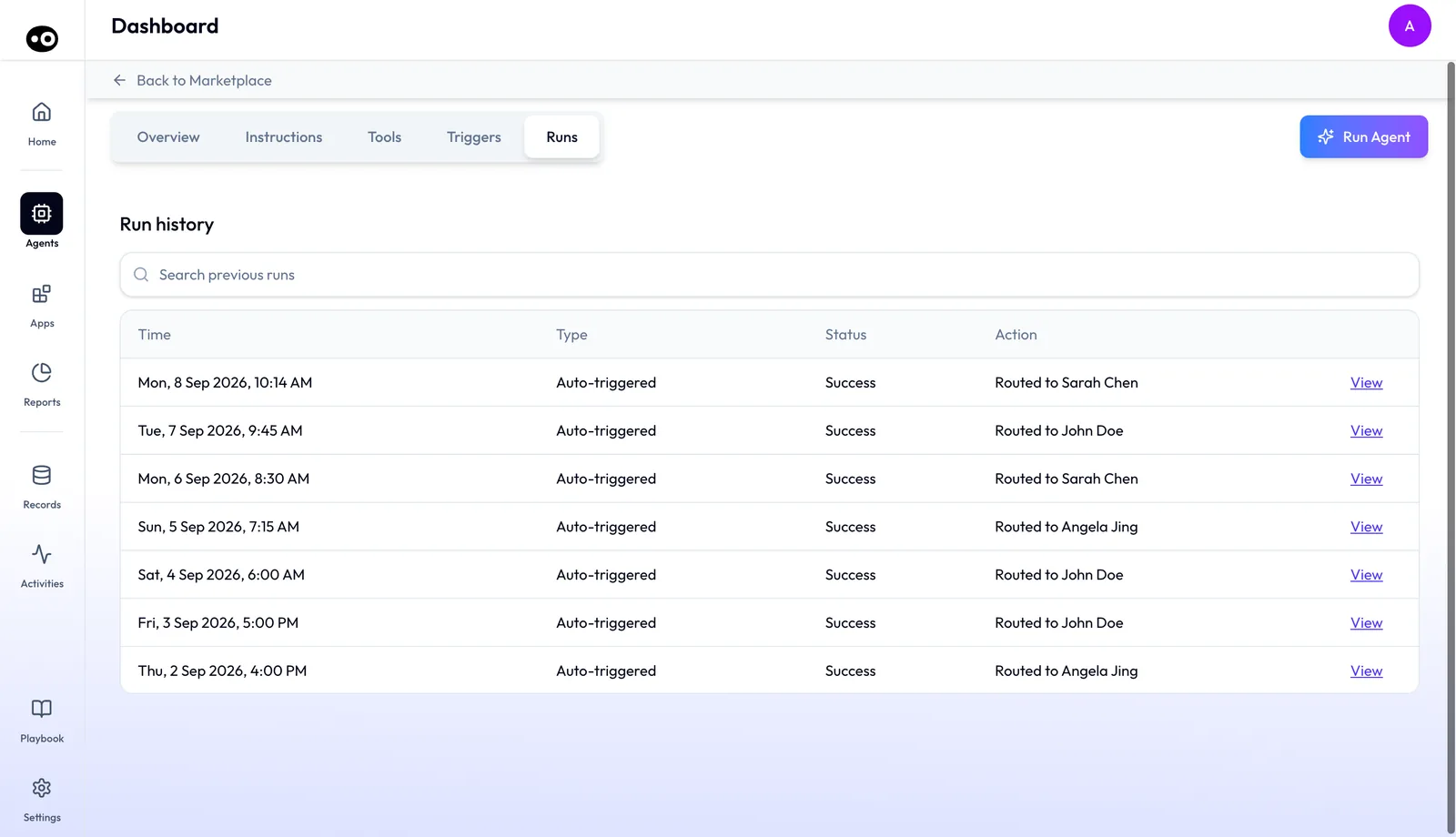
Pick the column by the question you've been asked. Every table carries Time, Type and Status, and some agents add more.
| If you're asked | Read | Then |
|---|---|---|
| What ran overnight? | Time, from the newest row down | Times end in GMT, so convert them first. A few tables use relative times, such as "Today, 07:58 AM". |
| Did a person start this run? | Type: Auto-triggered or Manually run, or Auto Trigger or Manual on some agents | If it ran on its own when you expected a person, check the agent's triggers. |
| Where did this lead go? | Action, on agents whose runs carry an action name | Open the record only if the action looks wrong. |
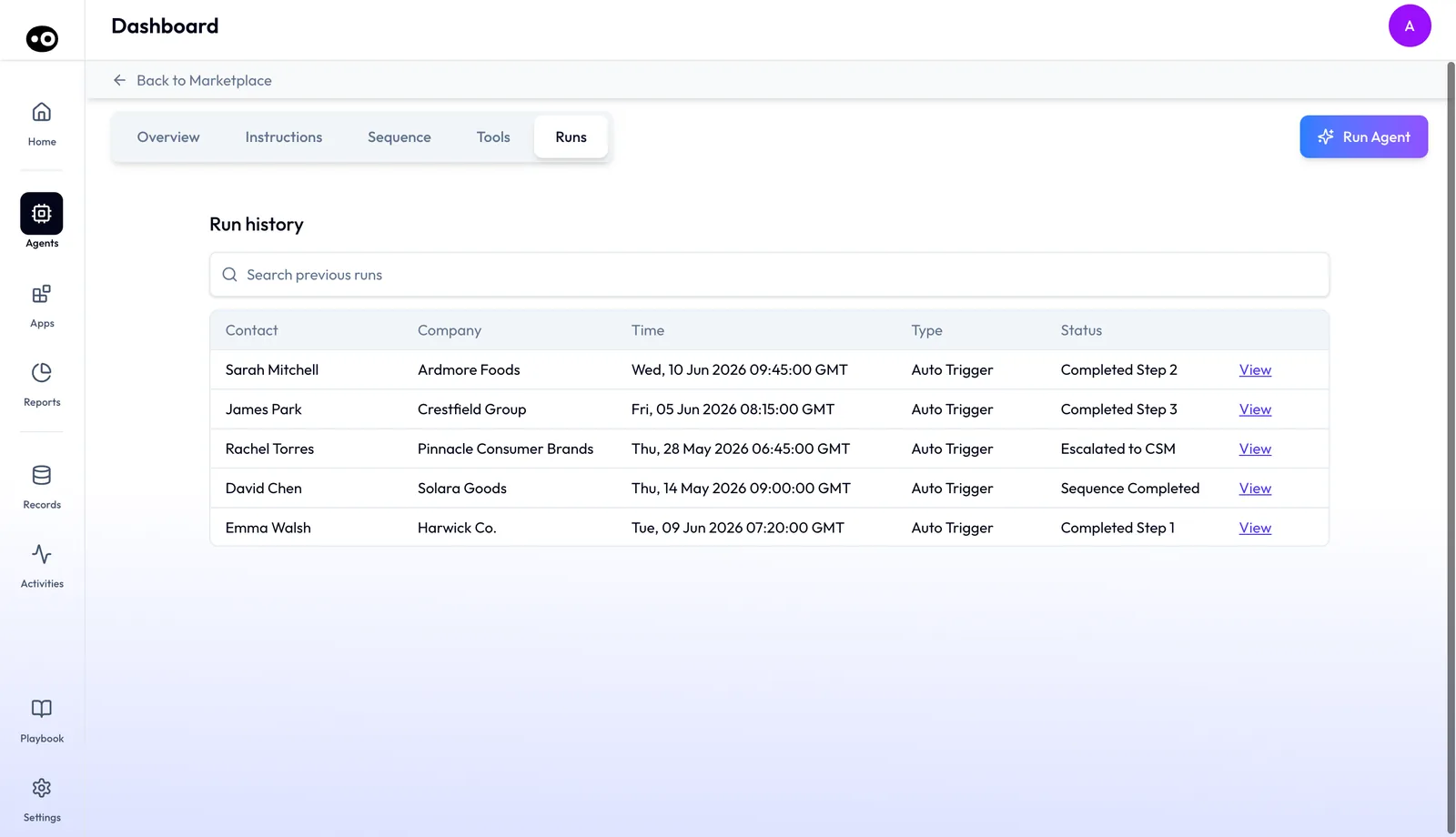
| Who did this run reach? | Contact and Company, on agents whose runs are per person | Search by name, then press View. |
| Where did this message come from? | Channel, such as Gmail, Slack or Teams, on some message tables | Use it to find the thread you were asked about. |
What to do with each status
The Status column tells you which rows to open first:
- Draft ready: press View and read the draft against its Deal context used: box. Use Review draft in Gmail or Copy to work on it.
- No reply needed: read a few of these, because a wrong call here leaves a customer without an answer.
- Success or Sent: the run finished. Open the record when you need to see what it wrote, because the status doesn't tell you the work was right.
- Completed Step 2, or any other step: open the record to see which steps are Completed and which are Upcoming.
- Escalated to CSM: read the record, then check that the customer success manager has picked it up.
- Sequence Completed: no steps remain, so read how the last steps landed before you report back.
Why agent run history matters
What it's for
Open your AI agent audit trail when you have to say what an agent did, not what it was set up to do. Each moment below starts with a question, and the row or record gives you the answer to act on.
How it helps
- Before you widen an agent. Tally a week of Type and Status values, then read the Draft ready records. Widen the agent only if those drafts hold up.
- When a manager asks what ran overnight. Read Time from the newest row down, then open the rows in that window. Report who the agent contacted and what it wrote.
- When a rep questions a draft. Find the row and open the record. Compare the body with Deal context used: to see whether the facts or the wording went wrong.
- Before a round of 1:1s. Read the week's emails from an agent that writes to customers. Note the exact wording you want to coach on.
What happens without it
Skip these checks and you hear about an agent's work from a rep, or from a customer. You then search mailboxes and field history for something that may not name the run. After a surprise like that, a team may ask for the agent to go back to manual.
Why buyers care
Revenue operations usually runs these checks, most often just after a rollout, when agents start acting with nobody watching each step. Sales leaders and reviewers then ask for the answer. There's no export, so keep your tally to hand and be ready to open the records on screen.
The Oliv AI approach to agent run history
Imagine a revenue operations manager on a Tuesday morning. A sales leader wants the reply-drafting agent extended to two more teams by the end of the month. Before agreeing, the manager wants to know what the agent has written so far, and how much of it ran with nobody watching.
The usual check is slow. It starts with asking reps which replies they remember, then moves to mailboxes and the CRM's field history, which may only show an integration user. That can easily take an hour, and the answer is often a best guess.
Once an agent works unattended, the question changes. It isn't only what the agent wrote to one customer, but what it did across every run and how each run started. A list of runs per agent, each with its own full record, answers both at once.
Oliv AI keeps that record on every agent with a detail page. The manager opens the agent, selects Runs and reads down the rows by time. Pressing View opens the run record, which shows each email or draft the agent wrote and the contacts it picked. A drafted reply also lists the facts it relied on, so the manager can test the draft against them.
Each row's Type column says Auto-triggered or Manually run, so it's clear whether a person started the run. How other platforms record what their agents did is covered in How Oliv AI compares for AI agent audit trails, below.
How to check what an AI agent did
You have four ways to check an agent's work, and each one sees a different part of it. Pick by the question you've been asked, not by the tool you have open.
CRM field history: what changed on a record
Start here when the question is about a value on a deal or contact. Salesforce adds a history entry with the date, time, nature of the change and who made it. HubSpot shows the new value, the date and the source for a property.
This catches field changes and tells you when they happened. It misses plenty for this job. Salesforce tracks a field only from the moment you turn tracking on, and skips changes made in the system context. A field history also can't show you an email, so it tells you nothing about what an agent wrote.
The mailbox: what a customer was told
Search the rep's mailbox or the CRM's activity timeline for the customer's name. This catches a message as the customer would read it. It misses any draft that never left the mailbox, and it doesn't say which agent or run produced the text.
Asking people: what they remember
Ask the rep or the admin closest to the work. This catches context no system holds, such as why a rep rewrote a draft. It misses anything nobody noticed, and memory gets thin after a week of unattended runs.
A run list per agent: what each run did
Read every run for one agent in one place. This catches how often the agent ran, how each run started and how it ended, and the record adds what the run produced. It misses the cause of an automatic run and what the agent read first, and it covers one agent at a time.
Which of these Oliv AI's run history does
Oliv AI's run history is the last of the four. Every table carries Time, Type and Status, and the record shows what the run produced. Keep your CRM's field history open beside it when your question is about a field value, because that history is the CRM's own record of the change.
Open an agent's run history
There are two ways in:
- Open the agent from the marketplace and select the Runs tab.
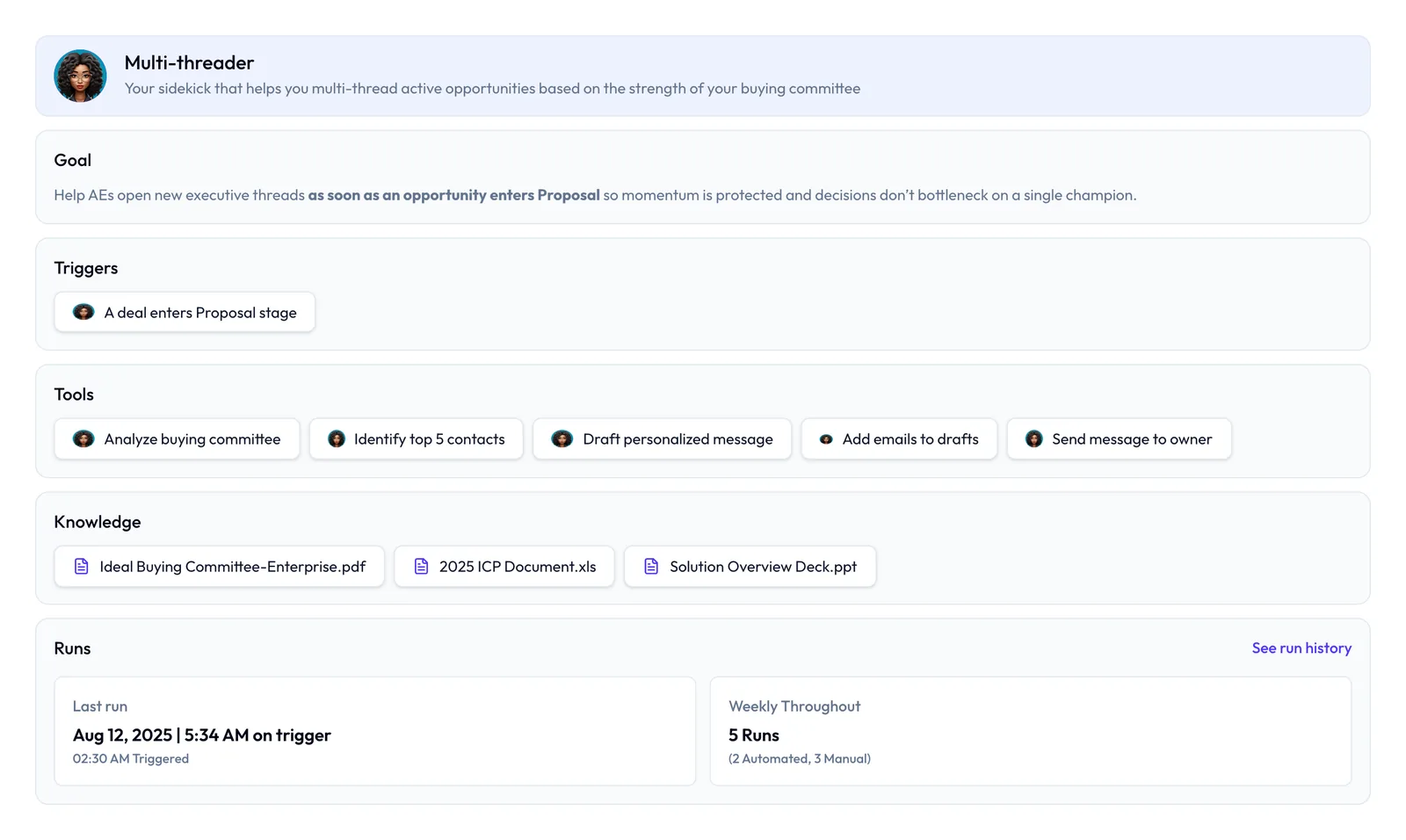
- On the agent's Overview tab, press See run history in the Runs section.
The tab is headed Run history. Beneath the heading is a search box with the placeholder "Search previous runs", then the table of runs in a bordered box.
The Overview tab's Runs section also carries two summary cards. Last run shows a date, with a line beneath describing how it started. The second card shows the week's run count, split into automated and manual.
Find a run
- Open the agent and select Runs.
- Scan the table. Rows are listed newest first, and the order can't be changed.
- To narrow the list, type in the search box. The table filters as you type and ignores case.
- Read the Type column to see whether the run was Auto-triggered or Manually run.
- Read the Status column to see how the run ended.
The search box matches different columns on different agents. On most tables it matches the time, type and status, plus the action where there is one. On the contact-oriented table it matches only the contact, company and status. Search there by name, not by date.
Read a run record
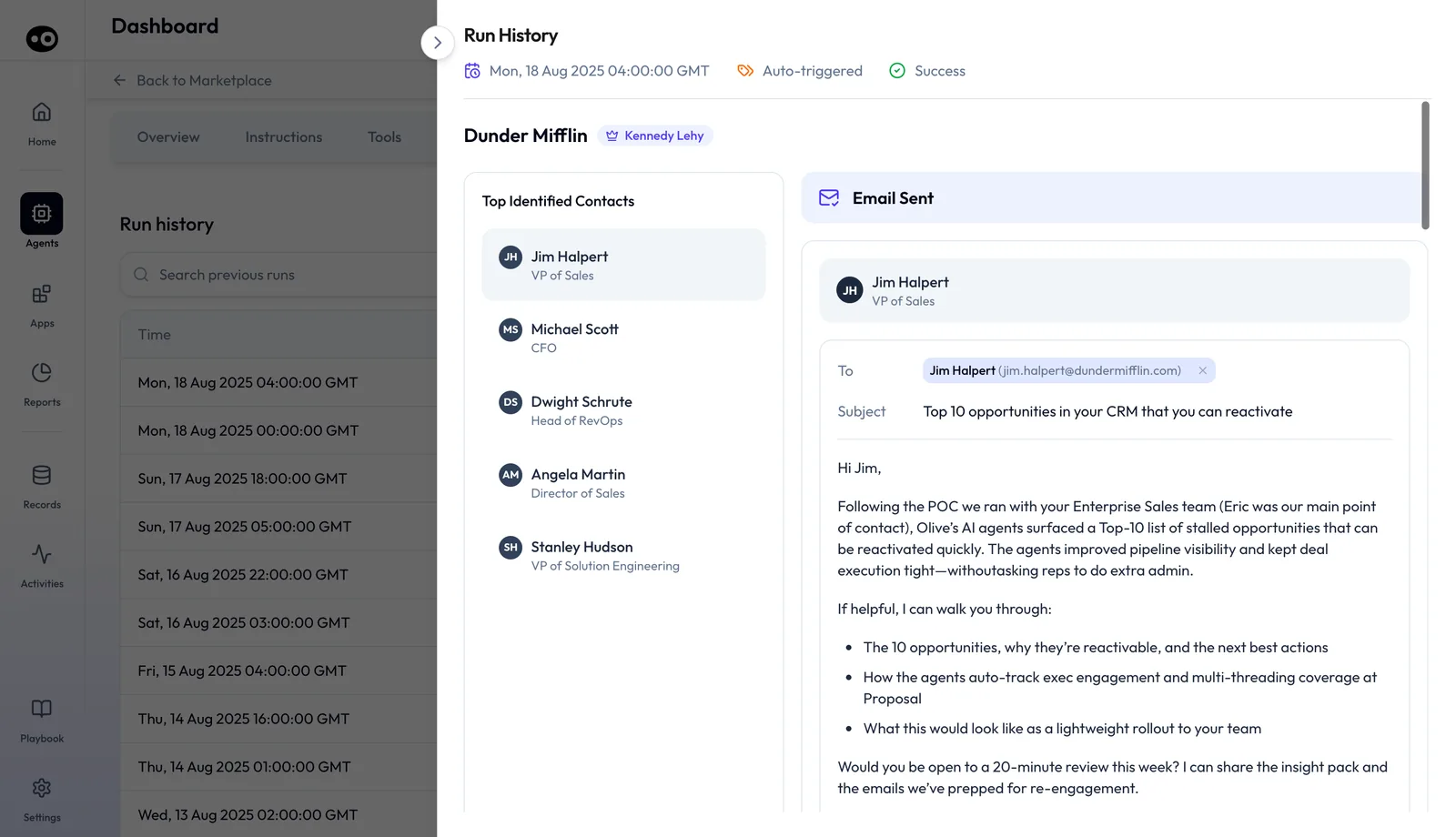
- Press View at the end of the row. The record slides in from the right as a wide drawer, headed Run History.
- Read the header facts: the date and time, how the run started, how it ended, and on some agents the action it performed.
- Check beneath for the account the run concerned. The account owner appears as a chip with a crown icon.
- Look for an amber alert panel. It appears when the agent needed a person to look at something, with a title and a short explanation.
- Look for a calendar card. It appears when the run booked a meeting, showing the date, title, time and attendees.
- Read Top Identified Contacts down the left: each person's name, job title and sometimes an active or dormant mark. Press a contact to jump to that person's email.
- Read the emails in the main pane. Each sits under an Email Sent banner and is shown in full: recipient, subject, body and closing.
- Close the drawer with the round button outside its top-left corner, or press the dimmed page behind it.
Records for sequence agents
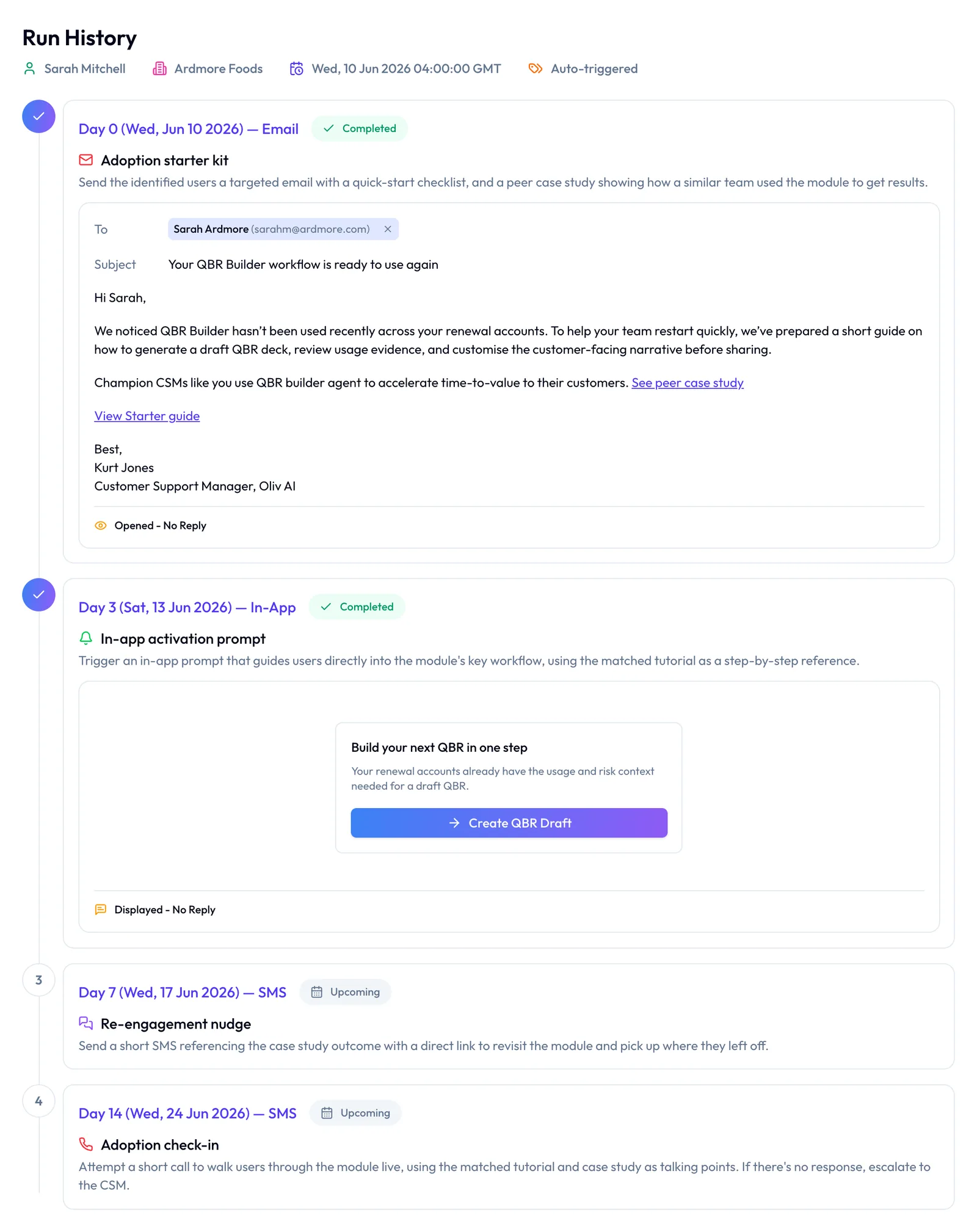
On an agent that runs a sequence, the record is a numbered timeline instead of contacts and emails. The header names the contact and company. Each step carries a day label with its channel, a Completed or Upcoming badge, a title, a description and a preview of what was sent. A sent step also shows how it landed, such as "Opened - No Reply". It's the only place in the product where you can see what an agent still intends to do.
Records for drafts and clips
Other agents produce other records:
- A drafted reply. A Draft · Gmail label sits above the draft's To, Subject and body. A Deal context used: box lists the facts the draft relied on. Review draft in Gmail opens it, and Copy copies it.
- A clipped call. The record shows the call's title and length, a video player with Add Comment and Share, a speaker Timeline, and a transcript you can search by speaker. Ask AI answers questions about the call, and View Clip Library and View Slack Alert open where the clip went.
- A release email. An Email section shows the audience chip with its contact count, the subject and body with merge fields, and a Copy action.
How to measure an agent's run mix before you widen it
Two shares tell you most of what the list can. Work them out for the same period, using the rows you counted:
- Automatic share. Divide the Auto-triggered rows by all rows. This tells you how much of the agent's work started with no person asking for it.
- Status share. Divide the rows for each Status value by all rows. On a reply-drafting agent, this tells you how much of the work is drafts waiting to be read.
Both have weak spots, so don't stop at the numbers. A share counts runs, and it can't tell you whether a draft was any good. A status says how a run ended, not whether it should have run at all. A quiet week can also make a small count look more settled than it is.
Where the run list shows these
The Type and Status columns hold both counts, one row at a time. The Overview tab's weekly run count, split into automated and manual, gives you a quick check on your automatic share. Status has no summary card, so that tally comes from the rows.
How to review an agent's work by hand
Use this method when you need to check work in systems the agent touches, or when you want to test what the run list tells you. It's slow, so set a short period.
- Write down the agent, the period and the question, such as what it wrote and to whom last week.
- Open a spreadsheet with one row per action: date, customer, what happened and where you saw it. Nielsen Norman Group finds spreadsheets work best for content audits, and the same layout suits this job.
- Search the mailboxes of the reps the agent works with, and add each message you find.
- Pull the field history for each CRM field the agent can touch, and add each change.
- Ask the rep about anything you can't place. Note what you're unsure of in the sheet and raise it with the team.
- Count the rows, then read the flagged ones first.
Attribution is what usually goes wrong. A history entry may name an integration user rather than an agent, and a message in a mailbox doesn't say who drafted it. Expect some rows to stay unexplained.
The same job in Oliv AI's run history
The agent's work is already listed, so you skip the hunt and keep the counting.
- Open the agent and select Runs. Rows start with the newest.
- Count from the newest row down, and stop at the first row older than your period. There's no date filter or export, so keep the tally yourself.
- Tally the Type and Status columns as you go.
- Press View on the records you most need to read. On a draft, check To, Subject, the body and the Deal context used: box.
- Use Review draft in Gmail or Copy when you want to work on a draft. The record itself has no edit or approve control.
- Decide what the agent does next, once you've read enough. Each tool's run mode sets whether it acts alone or waits for a person.
Worked example: a week of runs on a reply-drafting agent
Before widening a reply-drafting agent, a RevOps lead reads a week of its Runs tab, which holds 40 rows. There's no date filter or export, so they tally by hand from the newest row down. This is an illustrative calculation with sample figures, not an Oliv AI output, and it claims no saving.
| What the lead counts | Rows | Arithmetic | Share |
|---|---|---|---|
| Auto-triggered | 30 | 30 ÷ 40 | 75% |
| Manually run | 10 | 10 ÷ 40 | 25% |
| All rows, by type | 40 | 30 + 10 | 100% |
| Draft ready | 24 | 24 ÷ 40 | 60% |
| No reply needed | 12 | 12 ÷ 40 | 30% |
| Sent | 4 | 4 ÷ 40 | 10% |
| All rows, by status | 40 | 24 + 12 + 4 | 100% |
Three in four runs started on their own, so most of this work needs checking after the fact. The lead reads the 24 Draft ready records first, because that's where the agent's writing is waiting. Only then do they decide how far to widen it, with a RevOps view of trust and governance risk to hand.
How agent run history works with other features
Tools and run modes
If a run acted when you wanted it to wait, change that tool's run mode. Agent tools and run modes shows how to set each tool to Auto Run, Requires Approval or Agent Decides. Then read the next run's record to see the result.
Olivia and specialist agents
If an email isn't from the agent you expected, look for a "Drafted by" line beneath it. That line names the agent that drafted it. Work that Oliv AI's Olivia agent passes to a specialist shows under the agent that did it, so open that specialist's Runs tab.
Open in Gmail
If you want to work on an email from the record, press Open in Gmail beneath it. Gmail's compose screen opens in a new browser tab with the recipient, subject and body filled in. Nothing is sent, so read it and decide there. Use Review draft in Gmail on a drafted reply, and Copy on message records.
The Agent Feed
Run history is per agent. The Agent Feed shows every agent's work in one stream. Use the feed to watch work as it happens, and the Runs tab to look back at one agent in detail.
Deal and meeting work
If a rep asks what an agent did on a deal, start with the run record, which holds any email it wrote and any meeting it booked. If the question is about a manager alert, go to Oliv AI's Deal Driver agent instead, which surfaces signals for managers and doesn't write to the CRM itself. Account executives can open the same records for agents working their deals, as part of running deals with Oliv AI.
Who uses agent run history, and how
These are typical patterns, shown to illustrate how run history is used.
Revenue operations
A revops lead opens the Runs tab before widening an agent to another team. The Type column shows whether anyone started each run by hand, and each record shows what the agent wrote. It's part of how revenue operations runs autonomous agents without losing track of them.
Sales leaders
A sales manager opens an agent that writes to customers and reads what it wrote that week, before a round of 1:1s. Every message is shown in full, so the manager can coach on the exact wording. It's useful prep alongside a weekly forecast commit.
Customer success and account management
A customer success manager checks which contacts an agent touched on a renewal account. Top Identified Contacts marks each person active or dormant, and the emails show what the agent wrote to each one.
Enablement
An enablement lead uses run records as worked examples. A sequence agent's timeline shows each step marked Completed or Upcoming, which helps new reps see how a sequence unfolds before they run one. The meeting preparation workflow is a good companion read.
How Oliv AI compares for AI agent audit trails
Oliv AI keeps a list of every run on each agent, and every row opens a full record of that run. The record shows each email the agent wrote in full, and each row shows when the run happened. Oliv AI is the only platform in this table that does all three.
AI agent audit trail features, from each platform's public documentation:
| Platform | Run list on each agent | Full text of each email written | What each run did, and when |
|---|---|---|---|
| Oliv AI | Yes | Yes | Yes |
| Gong | Yes (Runs tab for automated agents) | Not in docs | Partly (actions taken per run) |
| Outreach | Yes (activity feed for each agent) | Not in docs | Yes (what the agent did and when) |
| Fireflies.ai | Partly (voice agent calls saved) | Not in docs | Not in docs |
| Avoma | Not in docs | Not in docs | Not in docs |
Yes: documented and built in. Partly: documented with a limit, shown in brackets. Not in docs: not found in the vendor's public documentation.
Why Oliv AI is the stronger choice for AI agent audit trails
- Every message, word for word. Oliv AI's run record shows each email with its recipient, subject and full body. Gong records every automation execution in Run history. See Gong vs Oliv AI. In any trial, ask to read one agent email in full from its run record.
- Manual and automatic runs told apart. Each Oliv AI row says Auto-triggered or Manually run. Gong's troubleshooting guide uses Run history to confirm whether an automation triggered. See Oliv AI as a Gong alternative. Check that each row tells you whether a person started the run.
- One record per run, with the people it touched. Oliv AI lists each run's contacts beside the emails written to them. Outreach documents execution history at run and account level for scheduled Research Agent runs. See how Outreach compares with Gong. Decide whether you need the contacts and their messages side by side.
- A record on every agent, not one agent type. Oliv AI keeps run history on every agent with a detail page. Fireflies.ai saves the recording, transcript and summary after each voice agent call. Before you decide, list which of your agents the record has to cover.
Competitor details checked against each vendor's public documentation on 21 October 2026. Features and plans change, so confirm with the vendor before you decide.
Limits and things to know
- The cause isn't named. A run is marked automatic without saying which trigger or schedule started it.
- No duration or inputs. A run doesn't record how long it took or which records the agent read before acting.
- No approve or re-run. A record can hand a draft to Gmail or copy it, but it has no approve, reject, edit or re-run control.
- No export. Run history and run records can't be exported, downloaded or printed.
- No sort, date filter or paging. The list is one scrolling table, newest first.
- One agent at a time. Run history is per agent, so comparing two agents means two tallies.
- Gmail hand-off only. Open in Gmail and Review draft in Gmail have no Outlook equivalent.
Common questions
How do I see what an agent has been doing?
Open the agent and select Runs. Each row is one run, and View opens the full record of what that run did.
How do I tell whether a run was automatic or started by hand?
Read the Type column. It says Auto-triggered or Manually run, or Auto Trigger or Manual on some agents.
Can I see which trigger started a run?
No. The Type column says a run was automatic but not which trigger or schedule set it off. Check the triggers set on the agent, and treat your answer as a best guess.
How do I see what the agent changed in other systems?
Start in the run record, which shows the emails, drafts and sequence steps, and any meeting the run booked. For a field value on a deal or contact, check your CRM's own field history too.
Can I read the emails an agent wrote?
Yes. Every email the agent wrote is shown in full under an Email Sent banner: recipient, subject, body and closing.
What statuses can a run have?
Success and Sent on most agents. An agent that drafts replies adds Draft ready and No reply needed. A sequence shows the step reached, such as Completed Step 2, then Escalated to CSM or Sequence Completed.
Can I undo or re-run something from the record?
No. A record can open a draft in Gmail or copy it, but it has no approve, edit or re-run control.
Can I export run history?
No. There's no export or download for the list or for a run record.
Can I filter runs by date?
No. The search box matches text in the row, and there's no date filter or sort control.
Where do I see how many times an agent has run?
On the Overview tab. The Runs section shows a total run count, split into automated and manual.
Can I see what a sequence agent will do next?
Yes. A sequence agent's record lists each step as Completed or Upcoming.
How do I review a week of runs with no date filter?
Tally by hand. Read the Runs tab from the newest row down and stop at the first row older than your week. Count each Type and Status value as you go, then read the records that matter most.
Does a run record show what the agent read or how long it took?
No. A run doesn't record its duration or which records the agent read before acting. A drafted reply does list the facts it relied on, in a Deal context used: box.
Can a security reviewer check an agent's work in run history?
Yes, for what a specific run did: who it contacted, what it wrote and how it ended. There's no export, so go through the records on screen together. Ask your Oliv AI contact who can open runs and how long they're kept.
Further reading
Related
Updated 3 November 2026: added the ways to check an agent's work, run-mix measures, the manual method, a worked example and further reading.