
Agents Live
AI agent instructions: how to read an agent's process and trace each step to its tool
How to read AI agent instructions in Oliv AI: the Objective, Process and Output on the Instructions tab, and how to trace each process step to the tool it uses.
On this page
- At a glance
- What agent instructions are
- Why agent instructions matter
- The Oliv AI approach to agent instructions
- Read an agent's instructions
- Trace a step to its tool
- Move around with the contents list
- How to check what an AI agent will do before it runs
- How to measure how much an agent does on its own
- How to check an agent's process by hand
- How agent instructions work with other features
- Who uses agent instructions, and how
- How Oliv AI compares for AI agent instructions
- Limits and things to know
- Common questions
- Further reading
- Related
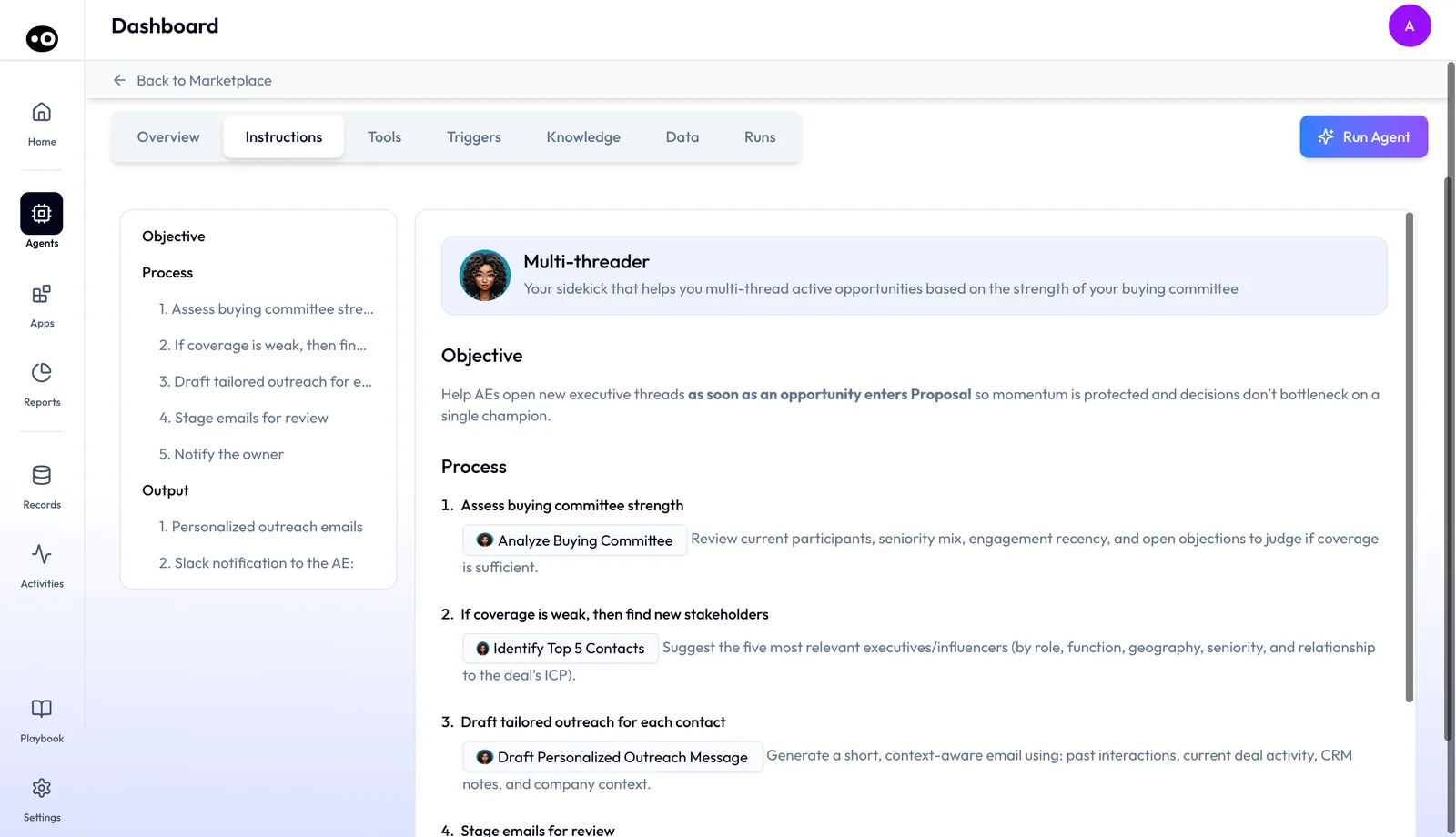
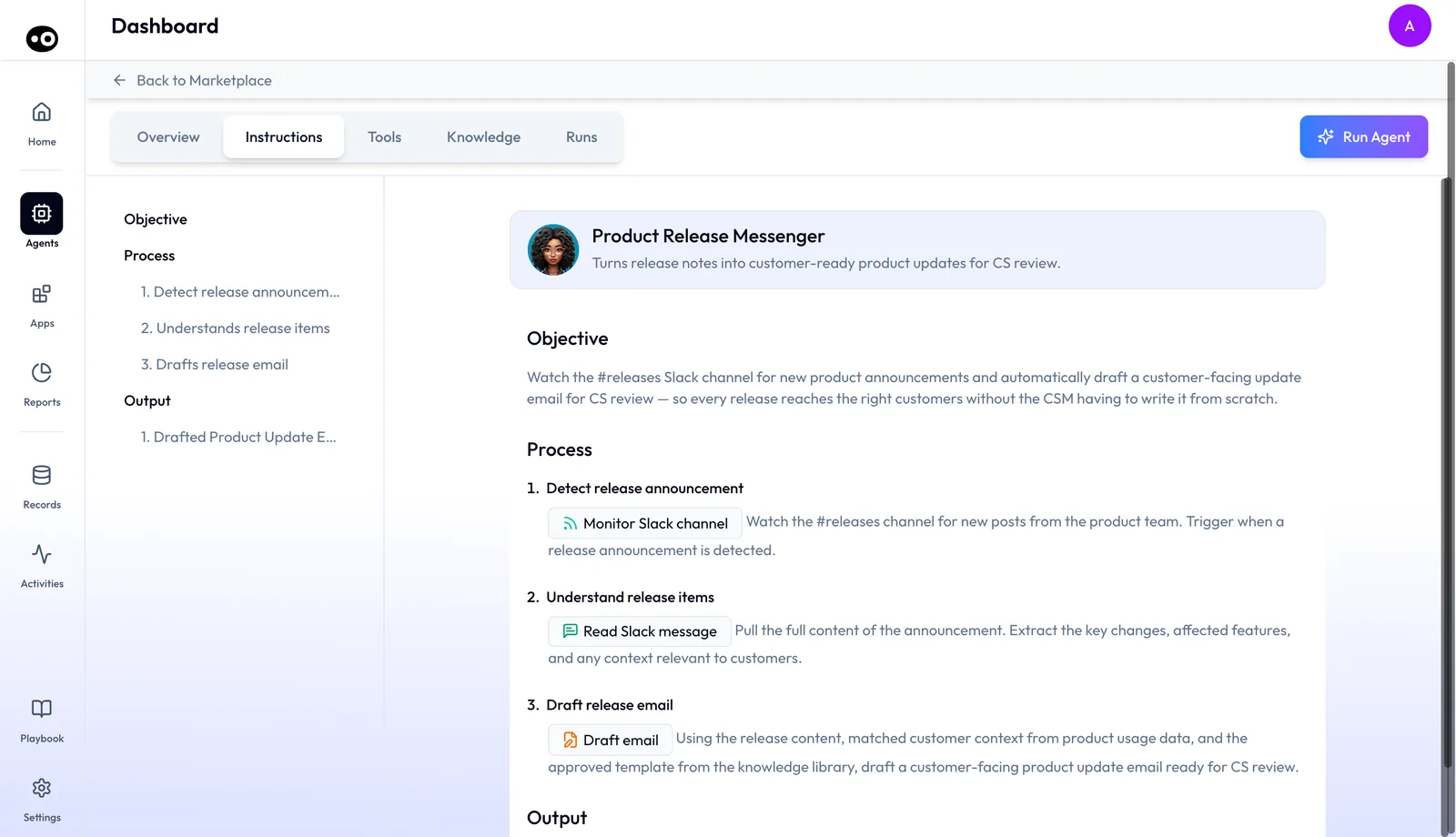
Before an agent does a real run, you should be able to read exactly what it will do, and AI agent instructions are where you read it. Oliv AI puts them on an Instructions tab on every agent with a detail page, in three parts: Objective, Process and Output. Each step names its tools, and pressing one opens its card, where the run mode shows whether that action needs a person's approval.
At a glance
| What instructions are | A written statement of what an agent does and how |
| Where they live | Agents › [agent] › Instructions, the second tab after Overview |
| Sections | Objective, Process, Output |
| Process steps | Typically 3 to 6 per agent, each with a title and a description |
| Output items | Typically 1 to 3 per agent, where the agent has any |
| Tool chips | Inside each step; pressing one opens that tool on the Tools tab |
| Navigation | A contents list down the left |
What agent instructions are
Instructions are how you understand an agent before you trust it. They spell out, in plain prose, what the agent is trying to achieve, the steps it takes and what it hands back.
| Section | What it says | Always shown |
|---|---|---|
| Objective | A short paragraph on what the agent is trying to achieve | Yes |
| Process | A numbered list of steps, each with a short title and a description | Yes, with at least one step |
| Output | A numbered list of what the agent produces, each with a title and a description | Only when the agent has output items |
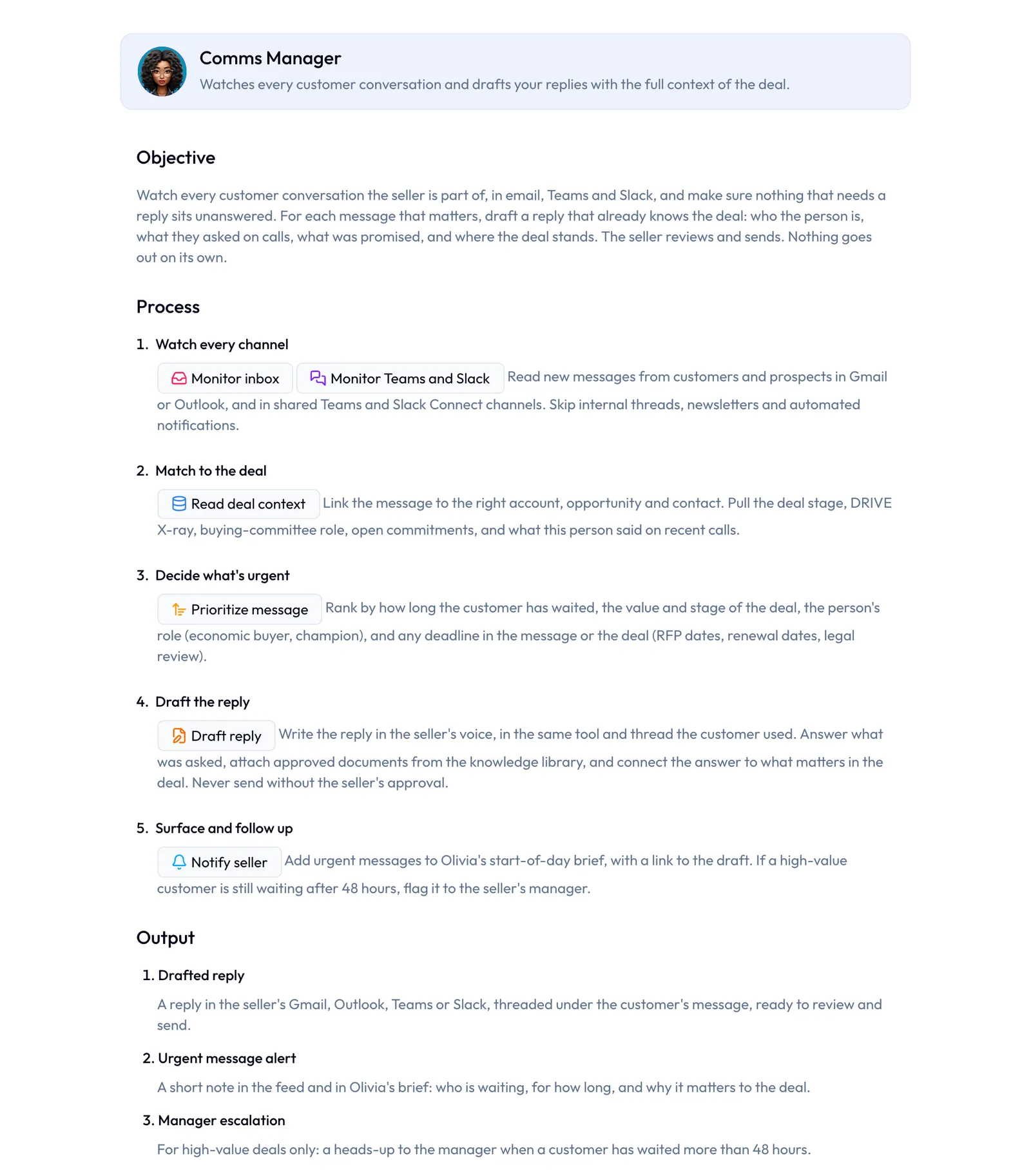
Within a step's description, each tool the step uses appears as a small bordered chip with the tool's name and icon. A step can carry two chips when it uses two tools, such as one for an inbox and one for team chat. That lets you see which outside action each part of the agent's work depends on.
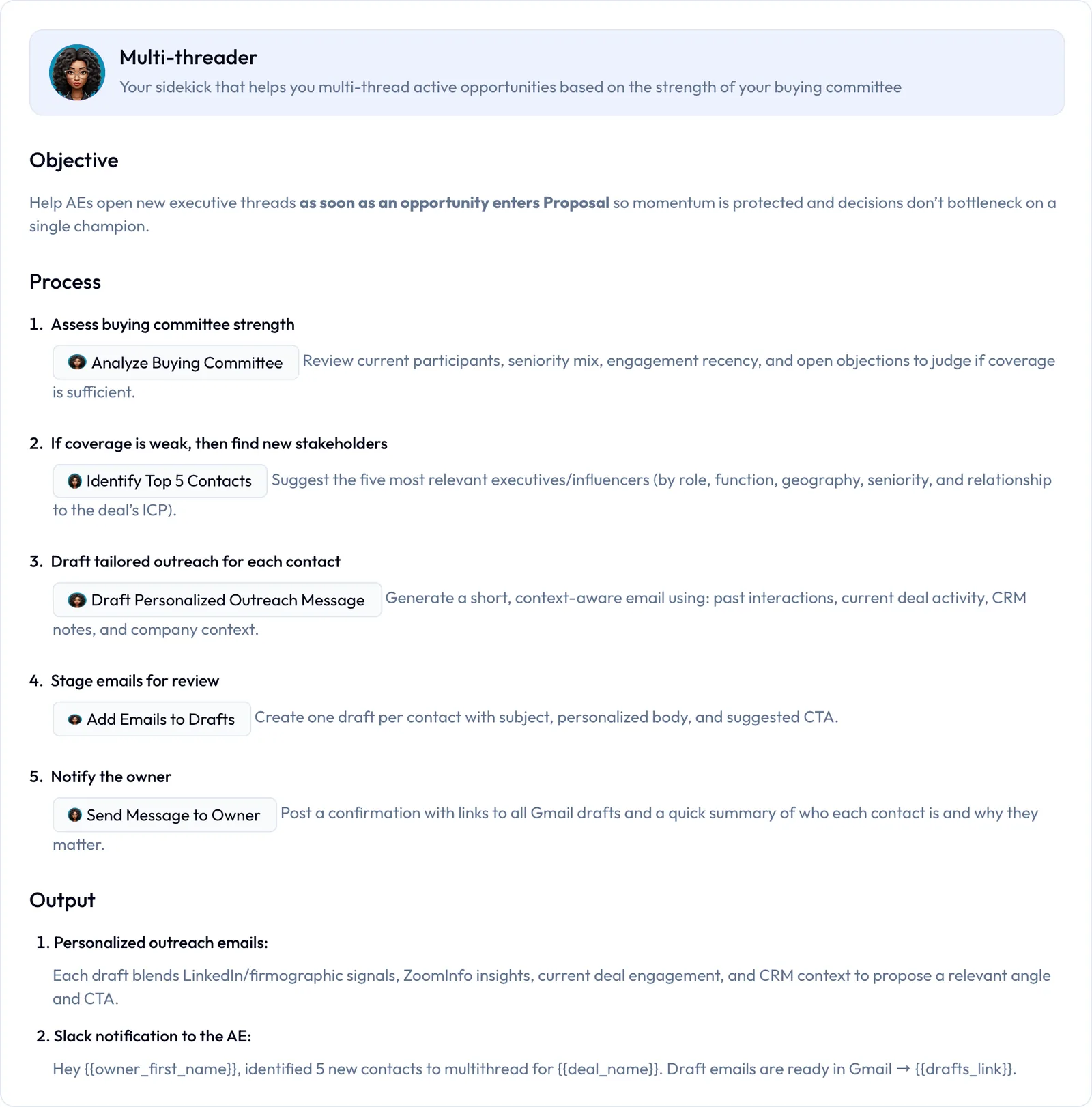
Steps can hold more than plain prose:
- Conditions. A step title can set a rule, such as "If coverage is weak, then find new stakeholders".
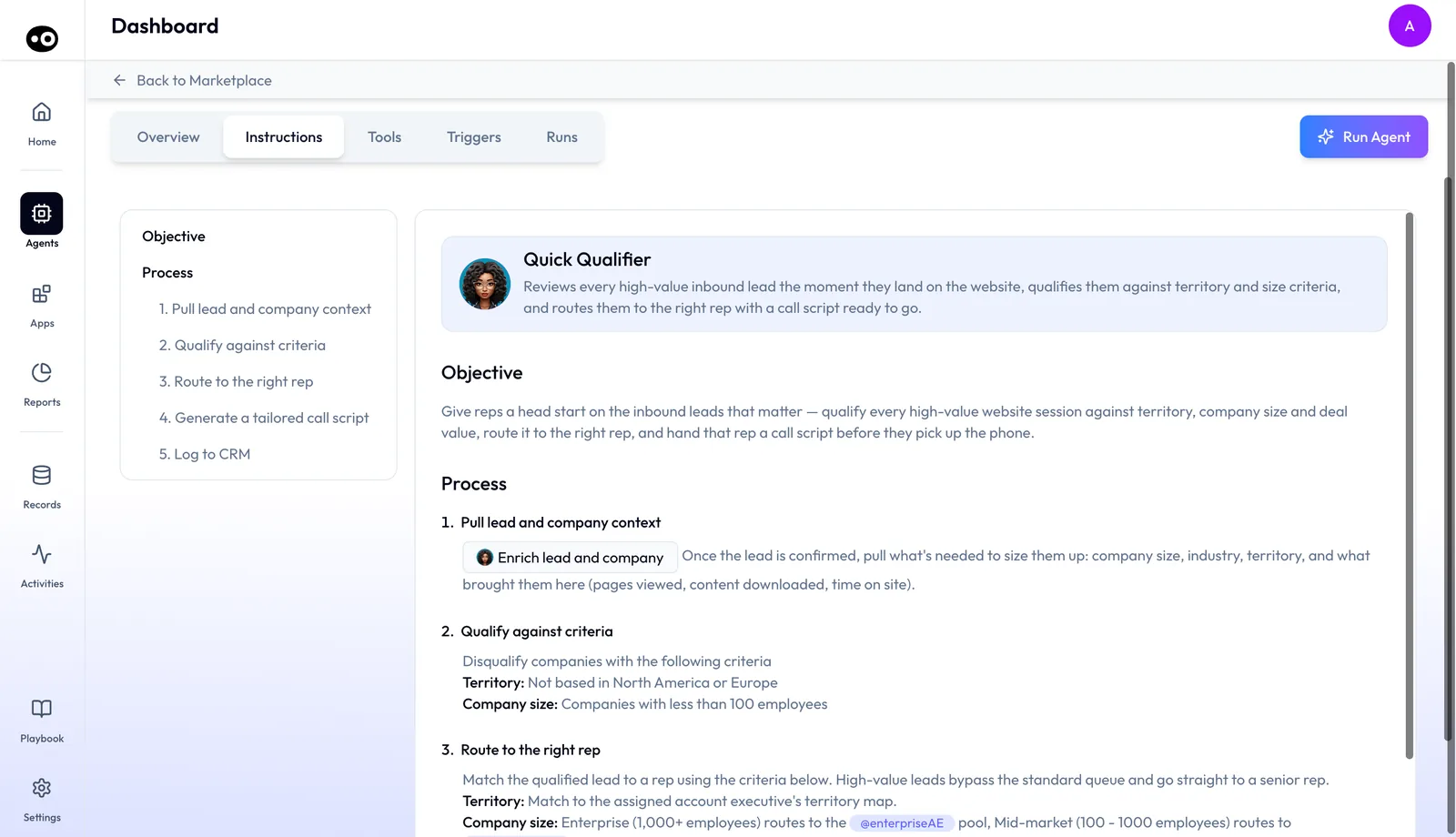
- Criteria. A step can list its rules under bold labels, such as Territory and Company size.
- Mentions. A routing step can name a rep pool as an @-mention chip, such as @enterpriseAE.
- Highlights. Key values, such as when the agent should start, are picked out in bold or color.
- Templates. An output can give the exact message the agent sends, with placeholders such as
{{deal_name}}.
Why agent instructions matter
What it's for
Use the tab to decide whether an agent is ready for your team. Compare its steps with how your team sells, then check which tool each step relies on. If a step doesn't match, you know before reps see its output.
How it helps
- The method is in writing. Process lists every step in order, with a title and a description.
- Results are named up front. Output says what the agent produces, so nobody guesses.
- Steps lead to tools. Pressing a tool chip opens that tool and its approval setting.
- Long instructions stay easy to move through. The contents list jumps to any section or step.
What happens without it
Without written instructions, an agent's method is a guess. A leader can't tell whether it follows the way the team sells. Reps get output with no account of how it was reached, so they have nothing to check it against.
Why buyers care
Sales leaders feel this most, because they answer for how their team sells. They need the written steps when deciding whether to back an agent. They need them again when the sales method changes, because the steps should still match it.
The Oliv AI approach to agent instructions
Imagine a sales director who has spent a year getting her team to qualify every deal the same way. Reps confirm the pain, the decision process and the economic buyer before a deal moves on. Now she wants an agent working those deals, and she wants that method in its steps.
Often an agent arrives as a black box with a one-line summary. Leaders tend to judge it by its first few outputs, which may take weeks to gather. By then reps have formed a view, and a step that skips the method is hard to spot.
The method is a sequence, so the agent's work should read as one. If its steps are written down in order, a leader can lay them beside the qualification method and check each one. Any gap shows up on the page, not in a lost deal.
Oliv AI writes each agent's method out on its Instructions tab. The sales director reads Process step by step against her method. Where a step relies on a tool, she presses its chip and checks how freely it acts.
Each step has a title and a description, and its tools appear as chips inside the text. The tab shows the agent's method, not what happened on a live deal, so she still checks real runs once it's working. The comparison further down shows how other platforms describe what an agent does.
Read an agent's instructions
- Open the agent from the agent marketplace and select the Instructions tab, the second tab after Overview.
- Read the header card at the top: the agent's picture, name and one-line description.
- Read Objective, a short paragraph on what the agent is trying to achieve. If that isn't the job you want done, stop here.
- Read Process. Each numbered step has a short title in bold and a description beneath. Note any step that's missing or out of order for how your team sells.
- Read Output, if the agent has one: a numbered list of what it produces.
Trace a step to its tool
- Find a tool chip inside a step's description. It's a small bordered pill with the tool's name and icon.
- Press the chip. The page switches to the Tools tab with that tool scrolled into view.
- Read the tool's card: what it does, and its run mode, such as Auto Run or Requires Approval.
The run mode decides whether that action needs a person's approval, as the guide to agent tools and run modes explains.
Move around with the contents list
The contents list runs down the left of the tab. The text pane on the right scrolls on its own.
- Top-level entries, such as Objective, Process and Output, appear in darker, heavier text. Pressing one scrolls to that section.
- Indented entries name each process step and output item, in lighter text. Pressing one scrolls to it and marks it as the active entry. Pressing it again clears the mark.
Long entries are cut short with an ellipsis, so the list stays one line per step.
How to check what an AI agent will do before it runs
You have four ways to check an agent, and each one catches something different. Work through them in this order, because the first three happen before the agent touches a live record.
Read the written process
Reading catches a step that's missing, out of order or at odds with how your team sells. It also shows you what the agent hands back. It misses how the agent behaves on a messy real deal.
Don't let clear writing settle the question. Writing about AI chat interfaces, Nielsen Norman Group warns that people who don't know the limits see a confident, plausible explanation and trust the output. Written instructions aren't chat answers, but the same habit applies. A tidy description is where your check starts, not where it ends.
Trace each step to what it can touch
Tracing shows which steps only read and which ones write or send. It won't show how far a single write travels in the connected system, so ask what else depends on the field.
HubSpot shows why this matters. Moving a deal into a closed-won or closed-lost stage sets its close date to today unless that automation is turned off. Its weighted amount is the amount multiplied by the deal probability, so a change to either one moves that figure too. One step on the page can change more than one number in a report.
Judge the approval points
Approval settings show where a person stands between the agent and your customer, but not whether that person really reads what they're approving.
Putting approval on every step isn't the safe answer. Nielsen Norman Group's guidance on confirmation dialogs says if you warn people too much, they stop paying attention, and it saves them for actions that cannot be undone or carry serious consequences. That guidance is about software dialogs, but an approval queue asks people the same question. Keep approval for the steps you'd hate to see go wrong.
Review real runs afterward
Run records show what the agent actually did on a real deal. They come too late to stop anything, so they back up the first three checks and don't replace them.
What Oliv AI shows for each check
Oliv AI gives you a screen for each of the four. The Instructions tab holds the written process, and its chips lead to the Tools tab. The dropdown on each tool card shows the run mode. The Runs tab lists past runs, and each record logs the changes that run made elsewhere, with a timestamp. Deciding what a write can reach, and which steps deserve approval, stays with you.
How to measure how much an agent does on its own
Once you've traced the steps, you can put two numbers on the agent. Neither one tells you the agent is safe. They tell you where to spend your reading time.
- Action share. Steps that write or send, divided by all the steps in Process. A higher share means more of the work reaches your CRM, inbox or chat channels.
- Steps acting alone. Steps that write or send with no person's approval in front of them. This is the number that sets your reading order.
Where these counts mislead
Both numbers count steps, and steps aren't equal. A note on a CRM record and an email to a buyer each count as one, so read what a step touches before you rank it. A step with two chips can read with one tool and send with the other, so count it by the stronger action. A step with no chip has no tool to trace, so mark it for a closer read.
Run modes shift the count as well. Auto Run is the default for a tool with no stored mode, and Agent Decides leaves the choice to the agent. For a strict check, count Agent Decides as acting alone.
The result is also a snapshot. The tab keeps no version history and has no export, so keep your own dated table. Run mode changes are saved, so recount whenever someone changes one.
Where you find the counts in Oliv AI
You build both numbers from two screens. Process and the contents list give you the steps. Each chip gives you the tool, and the dropdown at the right of its card gives you the run mode. Auto Run on a CRM, mailbox or channel tool means the agent may write to that system without asking, so look for those tools first.
How to check an agent's process by hand
Without a tab like this one, the same check is a spreadsheet job:
- Ask whoever built or sold the agent for its process, as the steps it runs in order. A one-line summary won't do.
- Put each step on its own row, in that order.
- Beside each step, write the tool or connection it uses. If nobody can name one, mark it unknown and treat it as acting.
- Mark each tool as read only, or as write or send.
- For each write or send, find out whether a person must approve it, and who that person is.
- Count all the steps, the ones that act, and the ones that act alone.
- Read the steps that act alone first. Note which field or which person each one reaches.
- Date the sheet, and repeat the check when the agent or its settings change.
Steps 3 and 5 are where this usually stalls. The tool list and the approval settings often sit somewhere other than the process, so you end up chasing answers and the sheet goes stale.
The same job in Oliv AI
Oliv AI puts steps 1 to 3 and step 5 on screen. The Instructions tab lists the numbered steps, each chip names the tool, and pressing the chip shows that tool's run mode. Steps 4, 6 and 7 are still your judgment, because you decide what counts as acting and what to read first. Step 8 stays with you too, since the tab keeps no history.
Worked example: tracing a six-step agent
This is an illustrative calculation with sample figures, not an Oliv AI output, and it claims no saving. A RevOps lead reads an agent with 6 process steps before rollout and traces each one to its tool.
| Step | What the tool does | Type | Run mode | Acts alone? |
|---|---|---|---|---|
| 1 | Reads the deal record | Read | Not relevant | No |
| 2 | Reads recent call notes | Read | Not relevant | No |
| 3 | Reads the email thread | Read | Not relevant | No |
| 4 | Reads the account's open deals | Read | Not relevant | No |
| 5 | Sends a follow-up email to the buyer | Send | Requires Approval | No |
| 6 | Writes the next step to the CRM record | Write | Auto Run | Yes |
| Count | Working | Result |
|---|---|---|
| All process steps | Counted from Process | 6 |
| Steps that only read | Steps 1, 2, 3 and 4 | 4 |
| Steps that write or send | 6 - 4 | 2 |
| Action share | 2 / 6 | 33% |
| Actions needing approval | Step 5 | 1 |
| Steps acting alone | 2 - 1 | 1 |
Step 6 gets checked first, because it's the only action with no person in front of it. The lead reads which field it writes, asks what else depends on that field, and decides whether Auto Run should stay. Step 5 comes next, to confirm who approves the email. The four reading steps come last. The 33% is neither good nor bad on its own. Its job is to tell the lead that 2 of the 6 steps deserve the closest reading.
How agent instructions work with other features
Tools and run modes
Instructions name the tools; the Tools tab sets how freely each one runs. Reading a step and then its tool's mode shows you both what the agent does and how much it does unasked.
The Overview tab
The Overview tab gives a short Goal statement and lists the agent's tools as pills. The Instructions tab is the longer account of the same agent.
Knowledge and triggers
On agents that have them, the Knowledge tab lists the files an agent works against, and the Triggers tab lists what starts it.
Deal work
Instructions are where you check how an agent handles the deal work it takes on. That includes the brief before a customer call and the daily deal work an account executive runs.
Who uses agent instructions, and how
These are typical patterns, shown to illustrate how the tab is used.
Account executives and sales leaders
A front-line manager reads an agent's Process before a team meeting and walks reps through each step. An account executive checks Output to know what the agent will hand over on a deal.
Revenue operations
A revenue operations team presses every tool chip in an agent's Process. It lists the steps that write to the CRM or reach customers, then checks each tool's run mode before a rollout.
Enablement
An enablement lead uses Objective, Process and Output as a ready-made outline when training reps on a new agent. The contents list makes it easy to jump to the step a rep asks about.
Customer success and account management
A customer success team reads the instructions of agents that work its accounts. It checks the steps before a renewal, so nobody is surprised by what the agent sends.
How Oliv AI compares for AI agent instructions
Oliv AI writes each agent's method out in three parts: what it aims for, the numbered steps it takes and what it produces. Each step names the tools it uses, and each tool links to its approval setting. Oliv AI is the only platform in this table that does all three.
Agent instructions, from each platform's public documentation:
| Platform | Objective, process and output written out | Each step names the tools it uses | Step links to the tool's approval setting |
|---|---|---|---|
| Oliv AI | Yes | Yes | Yes |
| Gong | Partly (one free-text Instructions prompt) | Partly (actions run in sequence) | Not in docs |
| Outreach | Partly (pre-defined MEDDPICC fields and prompts) | Not in docs | Not in docs |
| Fireflies.ai | Partly (one set of instructions per skill) | Not in docs | Not in docs |
| Avoma | Partly (saved prompts in a Prompt Library) | Not in docs | Not in docs |
Yes: documented and built in. Partly: documented with a limit, shown in brackets. Not in docs: not found in the vendor's public documentation.
Why Oliv AI is the stronger choice for AI agent instructions
- A method you can read in order. Oliv AI shows each agent's Process as numbered steps, each with a title and a description. Gong's agent builder asks for a prompt describing what you want the agent to do. See Oliv AI as a Gong alternative.
- Steps tied to the tools they use. Oliv AI draws each tool as a chip inside the step that uses it. Outreach's Deal Agent starts MEDDPICC users on pre-defined fields and prompts. See how Gong and Outreach compare.
- Instructions kept on the agent. Oliv AI keeps the Objective, Process and Output on each agent's own tab. Avoma keeps prompts in a central Prompt Library for Global Ask Avoma. See Avoma vs Oliv AI.
Competitor details checked against each vendor's public documentation on 21 October 2026. Features and plans change, so confirm with the vendor before you decide.
Limits and things to know
- Read-only. There's no text field, Edit or Save control anywhere on the tab.
- No history. There's no version history, author or last-changed date.
- No export. You can't export, print or copy the instructions as a block.
- No search. The text can't be searched; the contents list is the way to move around it.
- Only agents with a detail page. An agent without a detail page has no Instructions tab.
- Output can be missing. An agent with no output items shows no Output heading at all.
Common questions
What do AI agent instructions contain?
Three parts. Objective is a short paragraph on the agent's aim, Process is its numbered steps with their tools, and Output lists what it produces, where it has output items.
Where do I see what an agent actually does?
Open the agent and select the Instructions tab, the second tab after Overview. Read Process for the steps it takes, in order.
Can I edit an agent's instructions?
Not from the Instructions tab. It has no text field, Edit or Save control, so the instructions are read-only there.
How do I tell which tools a step uses?
Tool names appear as small chips inside each step's description. Pressing one opens that tool on the Tools tab.
How do I check whether a step needs approval?
Press the tool chip in that step. The Tools tab opens on that tool, and its run mode shows whether the action needs a person's approval.
How many steps does an agent's process have?
Typically between 3 and 6. To see an agent's own number, count the numbered steps under Process.
Why does one agent have no Output section?
The Output section is hidden when an agent has no output items stored.
Can I see who wrote the instructions, or when they changed?
No. No author, version or date is recorded on the tab.
How is the Goal on the Overview tab different?
The Goal on the Overview tab is a short statement kept separately from the instructions. The Instructions tab is the full account, in three sections.
Why does this agent have no Instructions tab?
Only agents with a detail page have instructions, so an agent without one has nothing to show.
Should every step that acts need approval?
Usually not. If people approve everything, they stop paying attention, so keep approval for steps with serious consequences. Check each step's tool on the Tools tab to see its current run mode.
What does Agent Decides mean when I'm checking a step?
Agent Decides means the agent judges whether to ask a person. For a strict check, count that step as one that may act alone, and read it early.
Do the instructions show what an agent did on a real deal?
No. They describe the agent's method. To see what happened on a past run, open the agent's run history, which lists each run with a link to its full record.
How do I keep a record of what I checked?
Keep your own dated table of steps, tools and run modes. The Instructions tab has no export, copy-all or version history, so your table is the record to compare against later.
Further reading
Related
Updated 3 November 2026: added ways to check an agent before it runs, two counts of what it does alone, the check by hand and a worked example.