
Apps Live
AI sales apps: which Oliv AI app does which job, and which plan or add-on brings it
AI sales apps your team works in: which Oliv AI app to open to find a conversation, read a forecast board, coach a rep or run outreach, and which seat or add-on brings it.
On this page
You need last week's call, a forecast submission or a coaching report, and you're not sure which of your AI sales apps to open. Start from the job, then open the Oliv AI app that does it. Go to Activities to find or read a conversation, Forecast for boards and submissions, Enable for coaching and clips, and Engage for outreach. If you're not sure a seat brings the app, check Plans and seat roles before you go looking.
Which AI sales app to open for each job
| Your job | Open this app | Where you find it | What brings it |
|---|---|---|---|
| Find or read a customer conversation | Converse | Activities › Meetings and Activities › Calls | Converse, Sell and Grow plans |
| Submit a forecast or read the rolled-up number | Forecast | Apps › Forecast, with Submissions and Boards tabs | Sell and Grow plans |
| Prepare a coaching conversation or find a clip | Enable | Apps › Enable, with People and Library tabs | Add-on |
| Run outreach or answer replies | Engage | Apps › Engage | Add-on |
| Review customer health, churn risks and renewals | Retain | Renewal views in Forecast and Reports | Grow plan |
Don't look for Converse under Apps. That menu opens Engage, Forecast and Enable, and your meetings and calls sit under Activities. If you work renewals, start from the renewal views in Forecast and Reports.
Evaluating before you log in? The Forecast app page on oliv.ai shows the opportunity views, and sales methodology tracking covers the frameworks Forecast tracks.
Converse: find or read a customer conversation
Open the Converse app when you need to check what a buyer said. Go to Activities › Meetings or Activities › Calls in the main navigation, because neither one is listed under Apps.
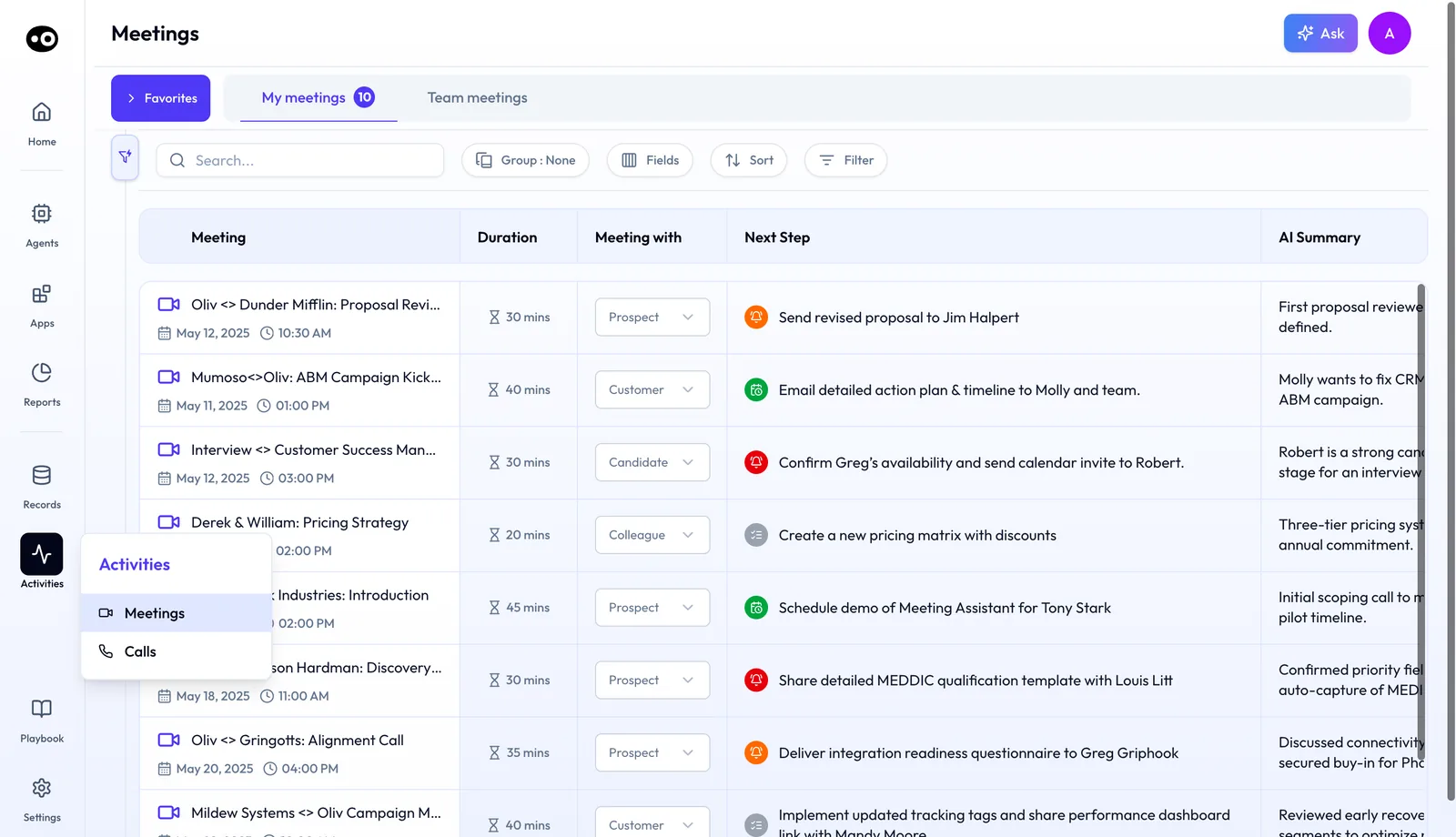
The lists only hold what was captured, so a conversation nobody recorded won't be there. Converse records and transcribes online meetings, phone calls and in-person conversations. It also captures email, and Slack as an option. A summary and next steps are ready as soon as a call ends, so check them before you open the full recording.
Converse joins Zoom, Google Meet and Microsoft Teams calls automatically. If your team runs on Zoom, work through the Zoom integration for the setup. The Converse page on oliv.ai shows the capture channels side by side, which helps if you're still deciding what to capture.
The Converse pages
Pick the page that matches what you're trying to do with the conversation.
- You need to find a meeting. Start with the Meetings list, on the My meetings tab, and switch to Team meetings for a colleague's call. Search by date or keyword, or open the meeting straight from the Slack message sent after the call.
- You need to read one meeting. Open Meeting details for the recording, transcript and notes, with the AI summary and next steps. Look there for the objections, pricing concerns, competitor mentions and product requests it picks out.
- You want to reuse the best moments. Use the clip library, built from your recorded calls. Describe the moments you want, and Oliv AI's Content Curator agent clips them from new recordings. Look for the libraries on Enable's Library tab, not under Activities.
- You need to know how a meeting gets recorded. Read Bot and botless recording before a customer asks whether a bot will join. When your company organizes the meeting, recording is botless. Otherwise a note taker named after your company joins.
New to all of this? Start with the Converse overview, which runs from capture to search, then come back for the page you need.
Engage, Forecast and Enable
Open these three from Apps in the main navigation, and pick by what's on your desk today.
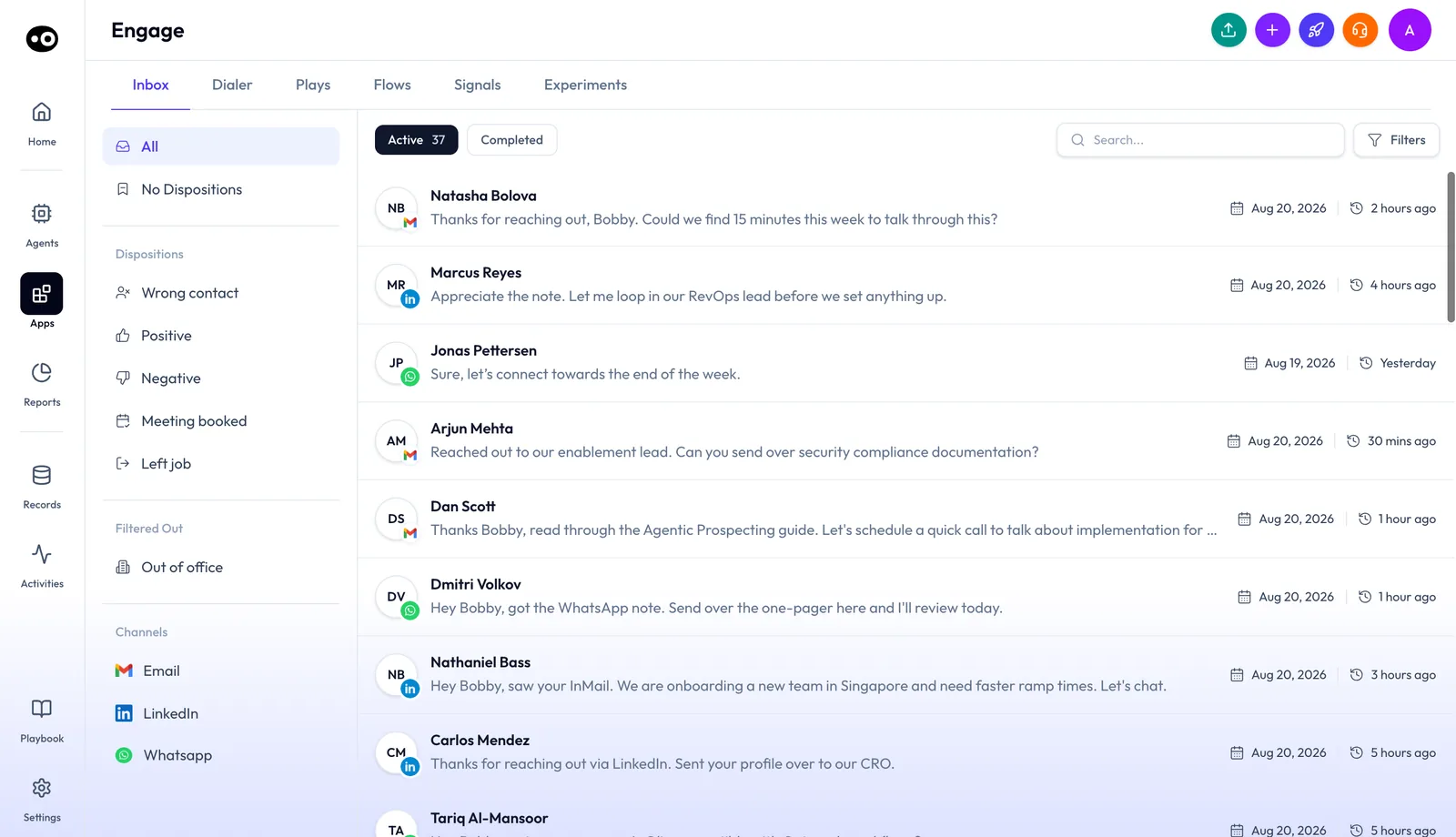
- Open Engage when you're working outreach. Start on Inbox, where replies from email, LinkedIn and WhatsApp arrive in one list. Move to Dialer, Plays, Flows, Signals or Experiments for the rest, and use the Engage app page to work through each tab.
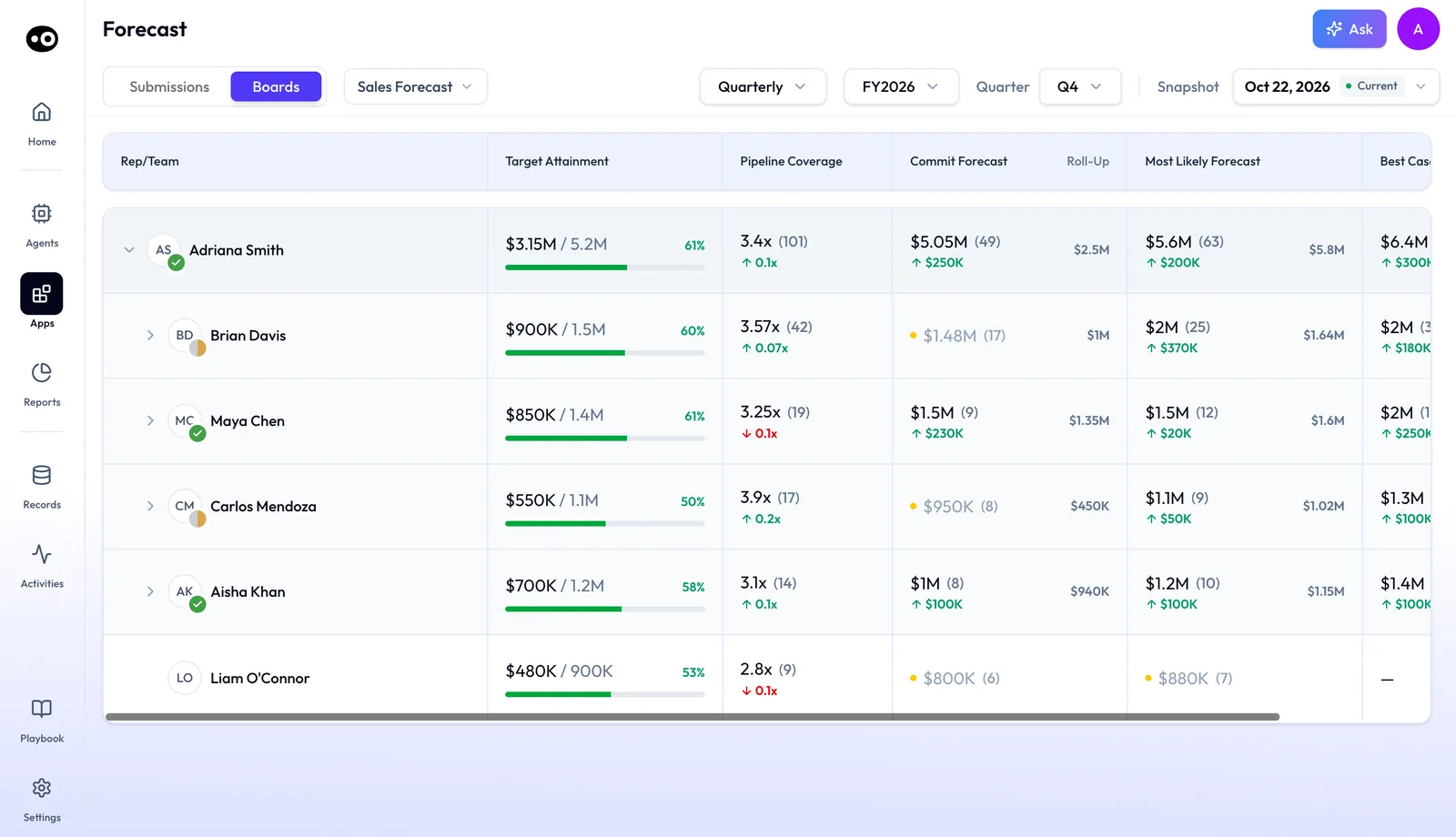
- Open Forecast when a number is due. Use Submissions to check who on the team has submitted and each person's inputs per period. Then use Boards to read the team's roll-up by target attainment, pipeline coverage, commit and most likely.
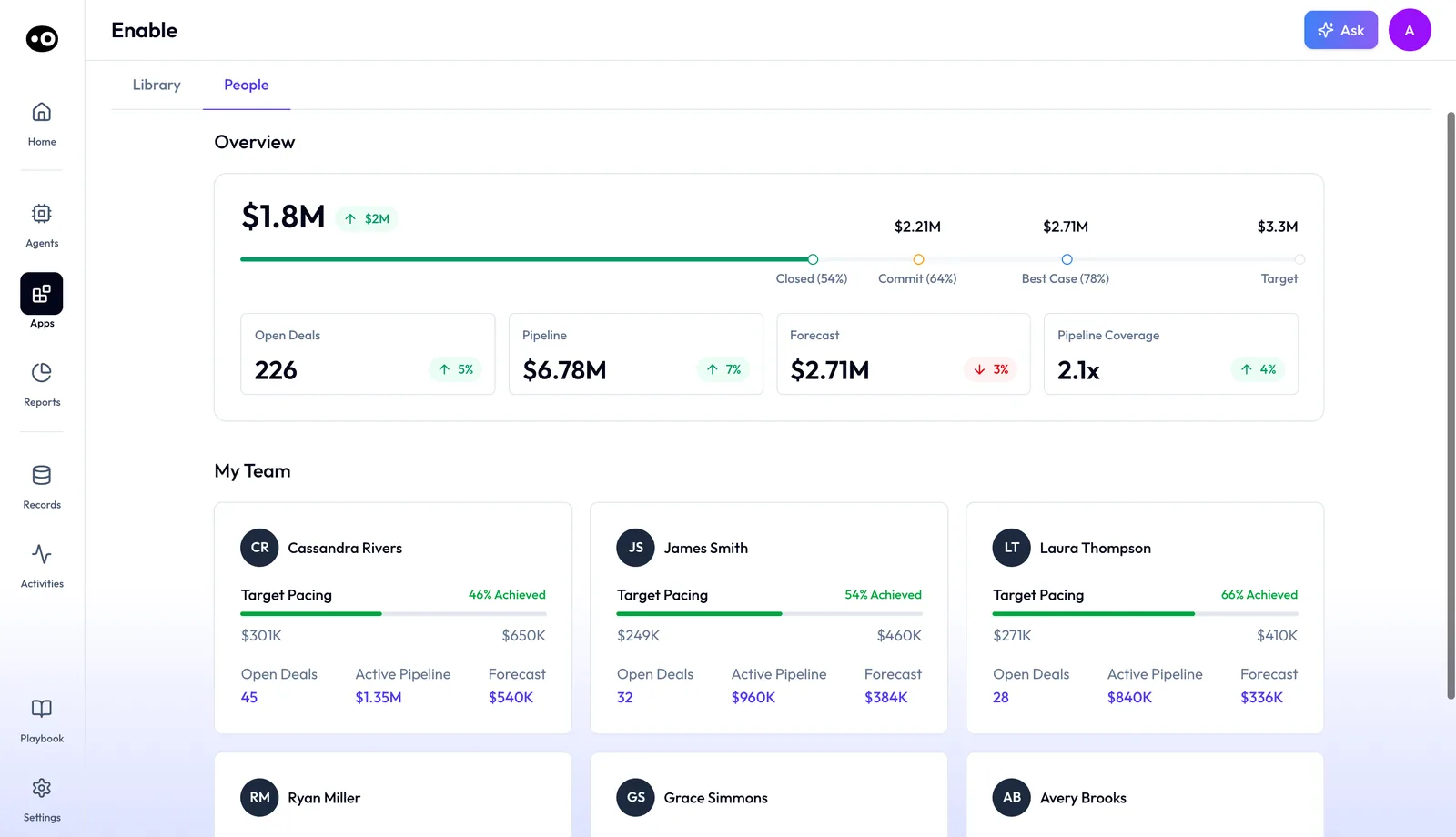
- Open Enable when you're preparing to coach. Start on People for the team's progress against target and a pacing card for each rep, then open a rep's card for that rep's report. Use Library for clip libraries, and check whether each one is Public or Private before you send a rep to it.
How the apps and agents share one record
If one call seems to turn up in several places, that's by design. Converse feeds the same context graph the rest of Oliv AI runs on, and your CRM, your forecast and every agent read from the same record. After a captured call, check these places for the work that follows from it.
- The follow-up. On meetings linked to active opportunities, Oliv AI's Meeting Assistant agent drafts the follow-up email and proposes CRM updates from what was said.
- The opportunity. Oliv AI's CRM Manager agent attaches the summary and transcript to the opportunity in Salesforce or HubSpot.
- The rep's scores. Oliv AI's Coach agent scores recorded calls against your scorecards to help reps improve.
- The clips. Oliv AI's Content Curator agent builds the clip libraries that enablement teams share.
Look in Slack for meeting summaries and prep notes as well. To work out which other agents your team needs around this record, go to the agents overview.
Which seat brings which app
Before you send someone to an app, check that their seat brings it. Oliv AI sells seats by role, and the plans stack: Sell includes everything in Converse, and Grow includes everything in Sell. So an SDR who only needs conversation capture takes Converse. An account executive who forecasts takes Sell, which adds the Forecast app. A customer success manager takes Grow, which adds the Retain app.
Enable and Engage are add-ons, so neither one comes with a seat on its own. Map each person on your team to a seat in Plans and seat roles, and take cost questions to Oliv AI's pricing page. If you're weighing app spend against agent budget, read the playbook for unbundling your sales tech stack.
Next steps
- You've just finished a recorded call. Record a meeting and follow up to turn it into a follow-up and CRM updates.
- You have a customer meeting coming up. Prepare for the meeting using your past conversations.
- You're going through the pipeline with your team. Run a pipeline review deal by deal to find the deals at risk.