
Agents Live
Human in the loop AI: set each agent tool to Auto Run, Requires Approval or Agent Decides
Choose which actions an Oliv AI agent runs alone and which wait for a person: human-in-the-loop AI set tool by tool, with Auto Run, Requires Approval or Agent Decides.
On this page
- At a glance
- What agent tools and run modes are
- Why agent tools and run modes matter
- The Oliv AI approach to agent tools and run modes
- Open an agent's tools
- Set a tool's run mode
- How teams decide which agent actions wait for a person
- How to measure what a person still checks
- How to choose which agent actions wait for approval
- Browse the tool catalog
- How agent tools and run modes work with other features
- Who uses agent tools and run modes, and how
- How Oliv AI compares for human-in-the-loop AI
- Limits and things to know
- Common questions
- Further reading
- Related
Human-in-the-loop AI starts with one decision: which of an agent's actions run on their own, and which wait for a person's approval. Oliv AI lets you make that decision one action at a time, by setting each tool on an agent's Tools tab to Auto Run, Requires Approval or Agent Decides. Every agent in the Oliv AI agent marketplace with a detail page has this tab, so check it before the agent goes live.
At a glance
| What to hold back first | Actions that change shared records or reach customers |
| What a tool is | One action an agent is allowed to take |
| Where tools live | Agents › [agent] › Tools, on every agent with a detail page |
| Run modes | Auto Run, Requires Approval, Agent Decides |
| Default mode | Auto Run, for any tool that doesn't store a mode of its own |
| Set for | One tool on one agent at a time |
| Tool catalog | Salesforce, HubSpot, Gmail, Google Calendar, Outlook, LinkedIn and Slack |
| Conversation setting | Ask before acting or Act without asking, on Oliv AI's Olivia and Oliver agents |
What agent tools and run modes are
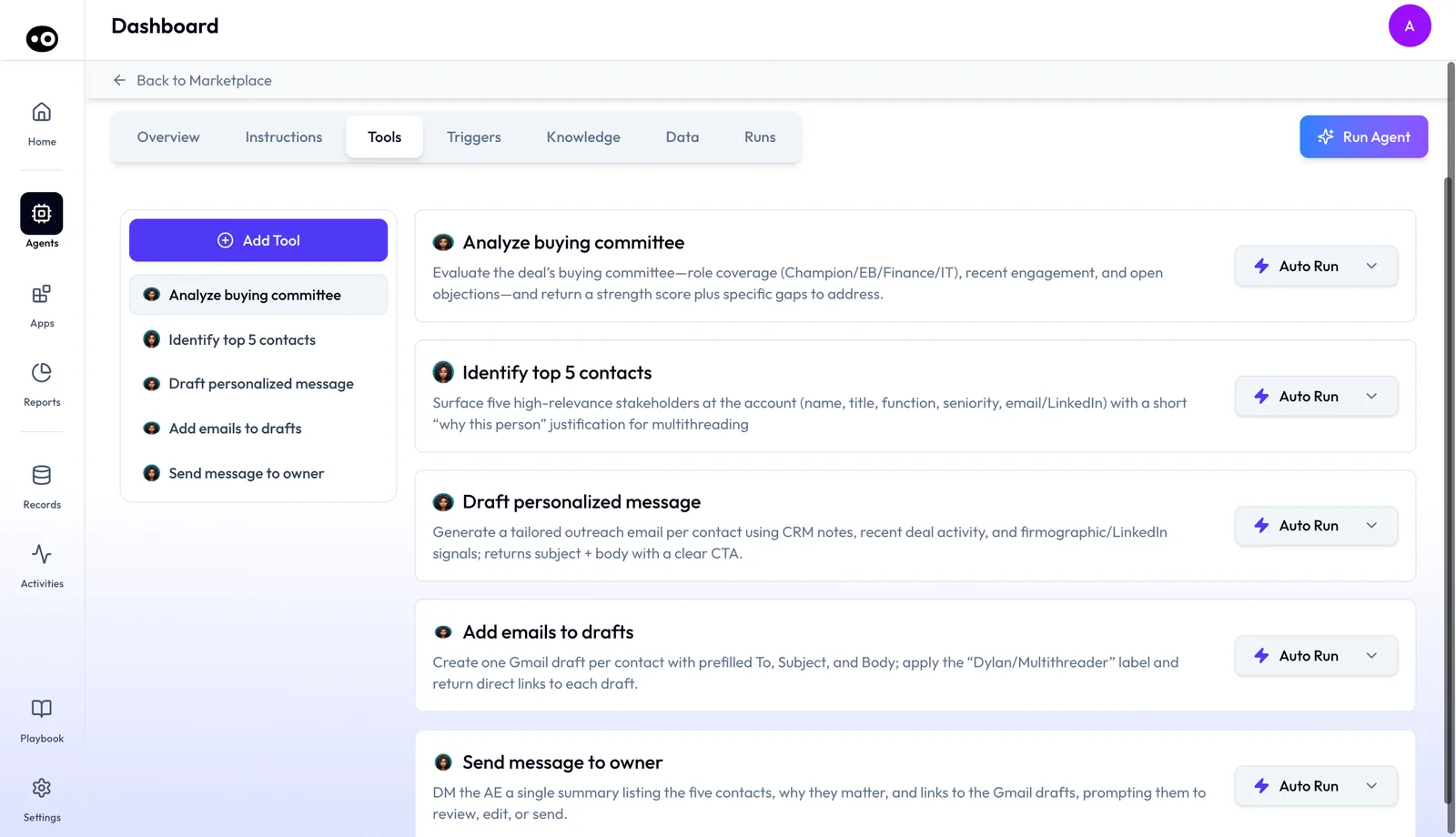
Open an agent's Tools tab and read it before you let that agent near live records. Each card names one action, with an icon and a one-sentence summary of what it does, and agents hold between 2 and 6 tools each. The actions cover reading records, creating and updating them, logging calls, meetings and emails, sending and drafting email, managing calendar events and posting to channels.
Then look at the right of each card. The run mode sits there as a dropdown, and it applies to that one tool on that one agent. Run mode changes are saved, and changing the mode on one tool changes nothing else.
| Run mode | Icon | What the agent does with the tool |
|---|---|---|
| Auto Run | A blue lightning bolt | Acts without asking |
| Requires Approval | A red circle with an exclamation mark | Waits for a person to confirm first |
| Agent Decides | A circled question mark, gray | Judges whether to ask |
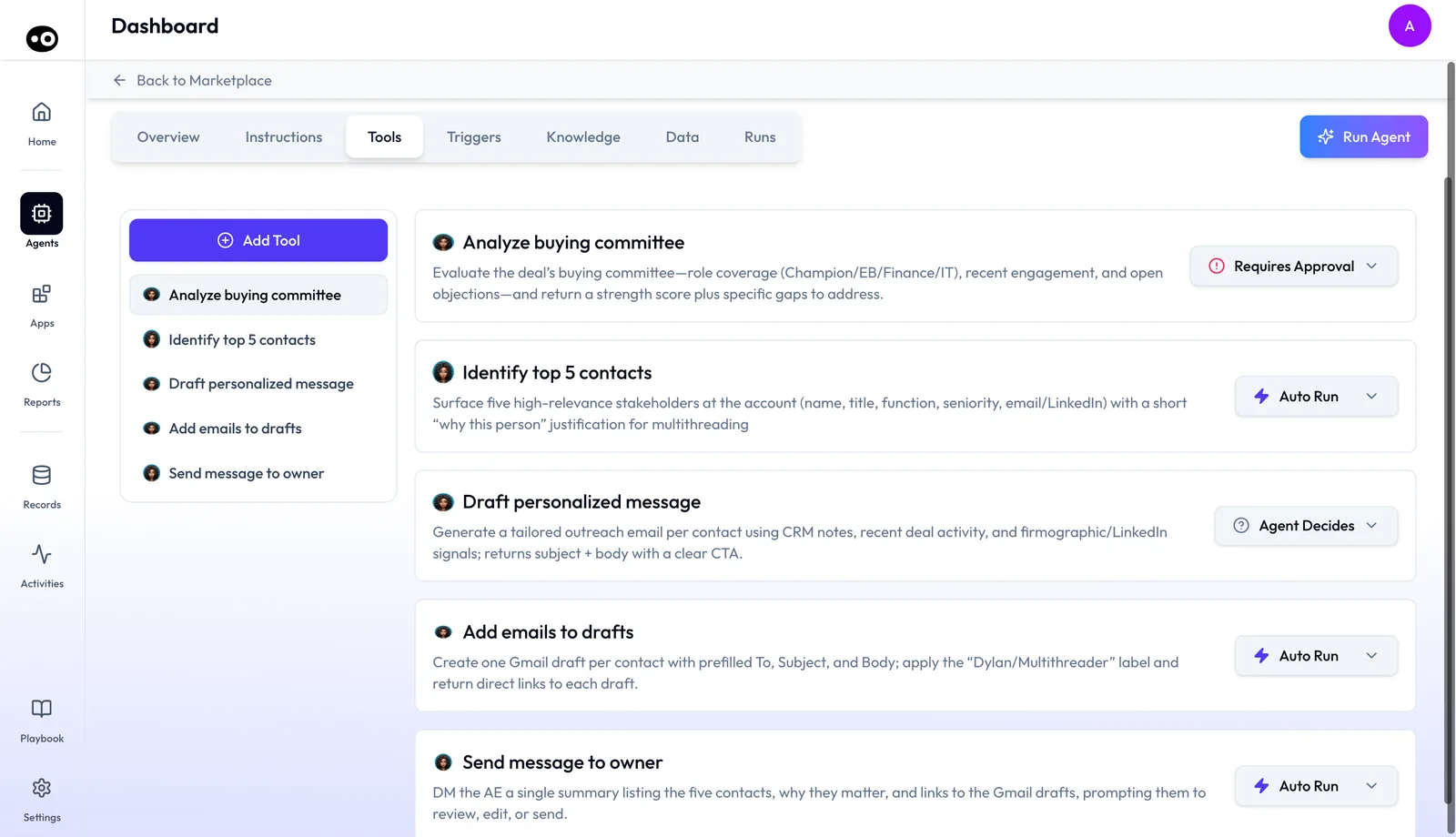
One agent can mix all three. Each tool keeps its own mode, so a lookup can run freely while the step before it waits for a person.
Where tool actions come from
The tool catalog groups actions by the system they come from. These are the same apps Oliv AI works alongside, from your CRM to your inbox.
| System | Tools offered | What they cover |
|---|---|---|
| Salesforce | 34, in 6 groups | Lookup / Search, Create / Update, Associations, Activities, Pipeline / Forecast, Utility |
| HubSpot | 32, in 6 groups | Lookup / Search, Create / Update, Associations, Activities, Marketing, Utility |
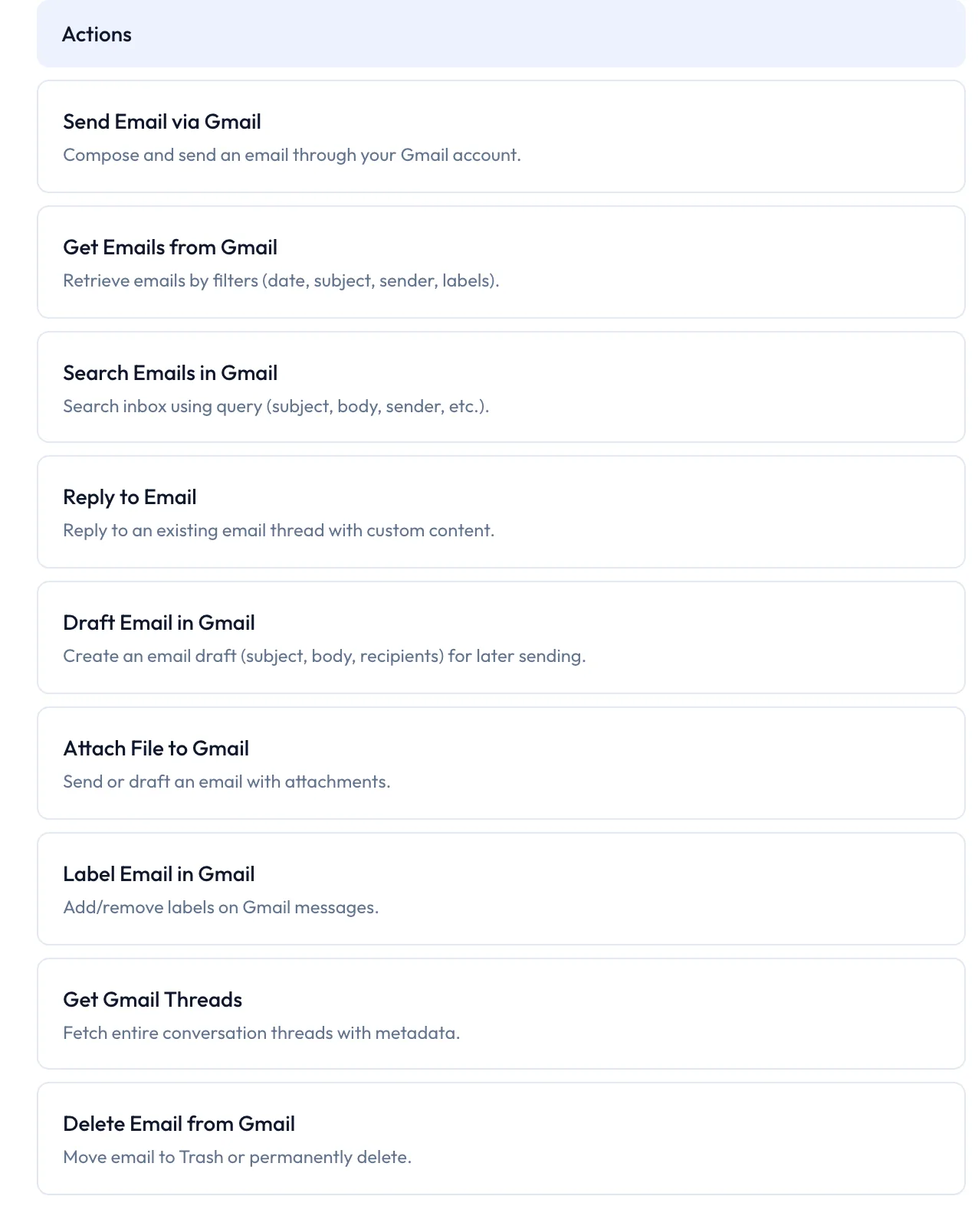
| Gmail | 9 | Send, retrieve, search, reply, draft, attach, label, read threads, delete |
| Google Calendar | 9 | Create, list, update and cancel events, read calendar details, find free slots |
| Outlook | 9 | Send, retrieve, search, reply, draft, attach, read calendar events, categorize, delete |
| 9 | Read public profile, company and post information, and comment on a post | |
| Slack | 5 | Send a message, read messages, create a channel, invite users, upload a file |
Why agent tools and run modes matter
What it's for
Use run modes at the point a rollout stops being a test: the day an agent can change live records or send mail. Human-in-the-loop AI only works if you've decided by then which actions run automatically and which wait for a person. Make that call tool by tool, in this order.
How it helps
- Hold back updates first. Put tools that change shared records on Requires Approval, so a person sees each change before your reports do.
- Hold back anything a customer will see. Keep sends and replies from Gmail and Outlook on Requires Approval.
- Check for deletes. Gmail and Outlook both offer a delete tool. If an agent holds one, treat it like an update.
- Leave reads on Auto Run. Searching records or reading a public LinkedIn profile changes nothing, and a prompt there only gives people more to click through.
What happens without it
Skip this step and every tool with no stored mode stays on Auto Run. The agent can then write to your CRM, mailbox and channels without asking. A wrong update reaches the records your forecast depends on, and a wrong email reaches a buyer.
Why buyers care
If you own the systems agents write to, as revenue operations teams and CRM admins do, this decision is yours. Make it at rollout, then again each time an agent gains a new tool, because a tool that stores no mode starts on Auto Run. If you lead the sales team, ask to see the rule before reps rely on the agent.
The Oliv AI approach to agent tools and run modes
Picture a revenue operations lead getting ready to switch on an agent for a sales team of 40. The agent can look up Salesforce opportunities, log calls and change fields such as stage and close date. Lookups worry nobody. A wrong stage change, though, lands straight in Monday's forecast call.
The common answer is a single switch for the whole agent. Teams often keep it read-only for weeks and paste its suggestions into the CRM by hand. That probably feels safe. It also means the agent saves little time, and the pile of suggestions grows with every rep added.
The risk isn't spread evenly across the agent. It sits in the handful of actions that write to shared records or reach customers. Reading a record can't break anything, so it makes sense to hold back only the actions that can.
Oliv AI puts the control on each tool instead of on the agent. Every card on an agent's Tools tab carries its own run mode. The RevOps lead leaves lookups on Auto Run and sets stage and close date updates to Requires Approval. Call logging goes on Agent Decides while the team watches how the agent behaves.
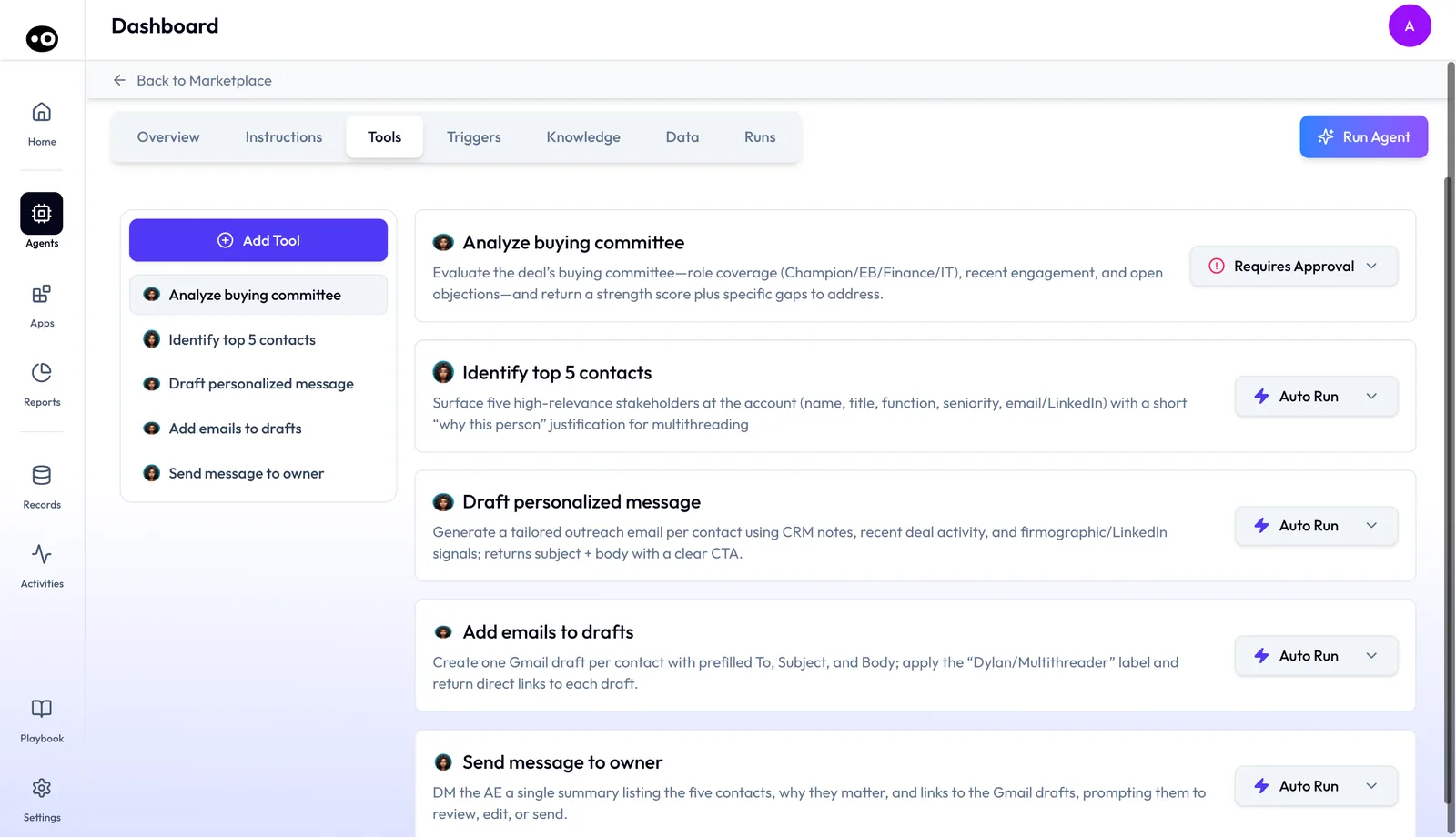
You can see the setting on the tab itself. The three modes always appear in the same order, and each keeps one icon and color on the button and in the menu. How other platforms handle an agent's freedom to act is covered in How Oliv AI compares for human-in-the-loop AI, below.
Open an agent's tools
There are three ways in:
- From the agent's detail page, select the Tools tab.
- On the Overview tab, press one of the agent's tool pills.
- On the Instructions tab, press a tool chip inside a process step. The Tools tab opens with that tool scrolled into view.
The tab has two columns. A sidebar down the left holds Add Tool above the list of the agent's tools. The main pane on the right shows the same tools as cards, in the same order. Press a tool's name in the sidebar and its card scrolls into view.
Set a tool's run mode
- Open the agent and select Tools.
- Find the tool. Scroll the main pane, or press the tool's name in the sidebar.
- Read the card: the tool's name as a heading, with a sentence beneath saying what it does.
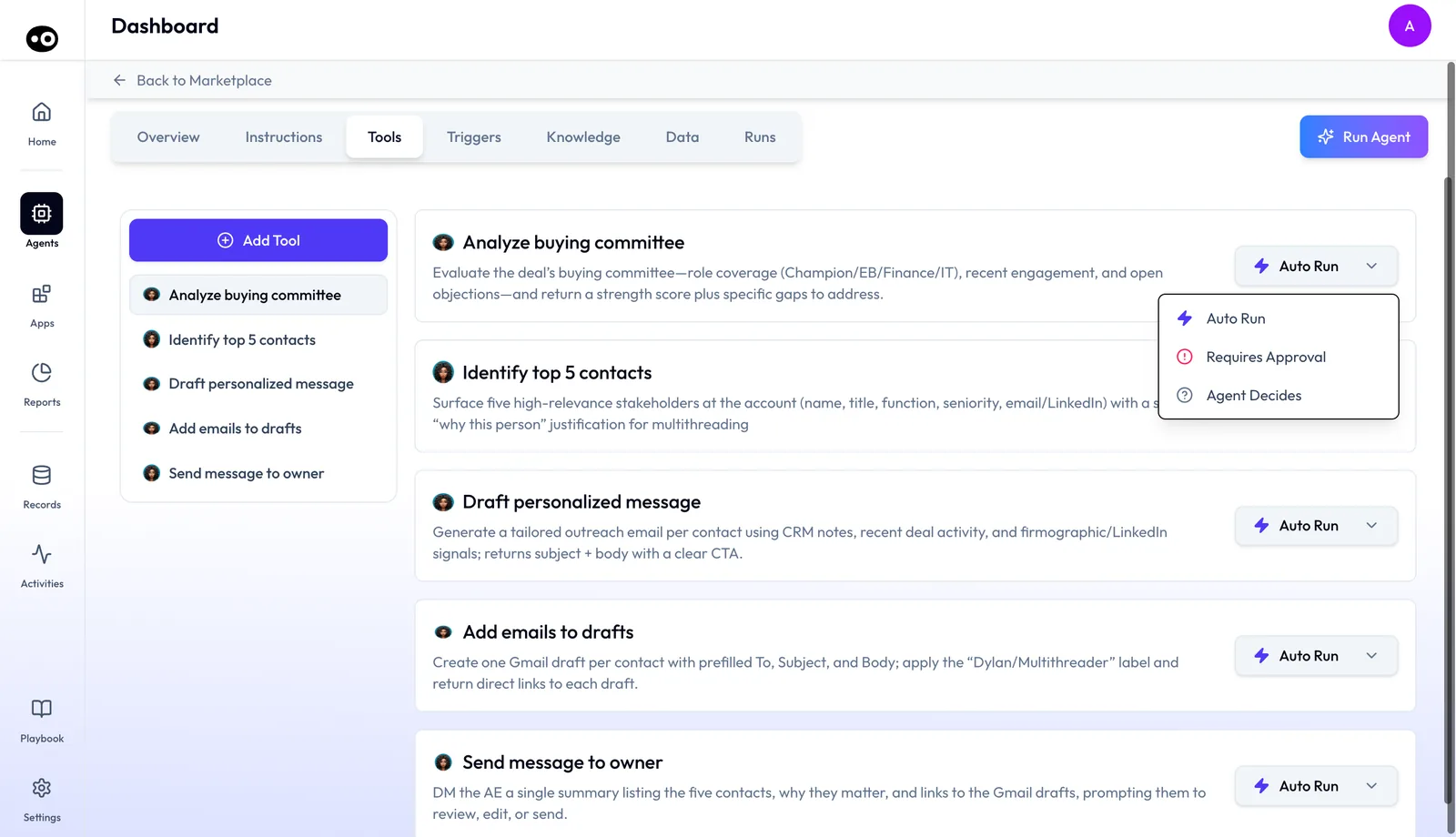
- Press the dropdown at the right of the card. It shows the tool's current mode with its icon.
- Choose Auto Run, Requires Approval or Agent Decides. The menu closes and the button shows the new mode.
- Repeat for each tool you want to change. To close the menu without changing anything, press anywhere outside it.
Choosing a mode
| Mode | A good fit for |
|---|---|
| Auto Run | Actions that only read, such as searching records or reading a public LinkedIn profile |
| Requires Approval | Actions that change shared records or reach customers, such as updating an opportunity or sending an email |
| Agent Decides | Actions where you're happy for the agent to judge when a check is worth it |
If you're weighing how much an AI agent should do alone, start writes on Requires Approval and widen them once you trust the output.
What to check before the agent goes live
The usual mistake is a send or update tool left on Auto Run because nobody touched its card. A card on the default looks the same as one somebody chose, so run these checks on every tool:
- Read the cards you didn't change. Auto Run is the most permissive of the three modes, and it's what a tool with no stored mode shows.
- Use the Tools tab as your answer. If another screen seems to say something different, go by the card's dropdown.
- Repeat when an agent gains a tool. The new card starts on Auto Run unless it stores a mode.
How teams decide which agent actions wait for a person
You have four ways to draw this line. Each one catches something and misses something, so choose by what a mistake would cost your team.
Approve every action
The agent waits for a person's yes on every action. That catches every bad update and every wrong email before it lands. It also has people confirming lookups all day, and it misses the problem that creates. NN/G's guidance on confirmation dialogs warns that people stop paying attention when routine actions ask for confirmation. Once approvers click through without reading, you've lost the protection and kept the delay.
Approve by what the action touches
Reads run alone. Updates to shared records, and anything that reaches a customer, wait for a person. This matches NN/G's advice to save confirmation for serious or irreversible outcomes, after weighing how severe each outcome is and how often the action happens. It catches the mistakes that land in a forecast or a buyer's inbox. It can miss a wrong lookup that feeds a later step, so whoever approves the draft should check the facts in it too.
Review after the action runs
The agent acts, and someone checks the results on a schedule. This catches patterns, such as close dates that keep moving the wrong way. It misses the single mistake, because a sent email is already with the buyer by the time you see it. On Salesforce, choose which fields to track before you rely on this. Salesforce keeps that history for up to 18 months when Field Audit Trail is off.
Let the agent judge
The agent chooses when to ask. You maintain fewer rules, but you also hand over the line itself, so you can't list in advance which actions will reach a person. Try this on a low-stakes tool first, and read what the agent produced before you use it on anything that writes.
Which of these Oliv AI's run modes cover
Oliv AI's run modes cover all four, because you set them tool by tool. Requires Approval on the tools that update or send gives you approval by what the action touches. The same mode on every card gives you approval of every action. Auto Run with a regular read of the agent's run records gives you review afterward, and Agent Decides hands the call to the agent.
How to measure what a person still checks
Two counts tell you whether your rule made it onto the tabs. Work them out per agent, then across the whole rollout.
- Write coverage: tools that update or send and sit on Requires Approval, divided by all tools that update or send. If your rule says those actions wait for a person, this should read 100%. Anything lower means a write still runs alone.
- Approval share: tools on Requires Approval, divided by all tools. This shows how much you're asking of the people who approve. A higher number isn't automatically safer, because approvers who see too many requests stop reading them.
Both counts have the same weak spots. They count tools, not runs, so one send tool that fires all day weighs the same as a lookup that rarely runs. They also can't tell you whether an approver really read the request, or whether the agent's work was any good.
Where to read these in Oliv AI
Each card on the Tools tab shows that tool's mode, so walk the tab and tally the modes per agent in a sheet. Then compare the tally with what happened. Run records show emails sent automatically and emails drafted and left for a person to send. If a send tool sits on Requires Approval and its emails still show as sent automatically, stop and raise it with your Oliv AI contact.
How to choose which agent actions wait for approval
Do this in a sheet before you touch a dropdown. It takes the argument out of the rollout, because the team agrees the rule once and each card just follows it.
- List every action each agent can take, with one row per action.
- Tag each row as read, update or send. Count a delete with the updates.
- Write your rule in one line, such as "updates and sends wait for a person."
- Give each row a mode by applying the rule, and don't argue row by row.
- Ask whoever owns the records, often the CRM admin, to read the sheet and challenge the tags.
- Apply the sheet to each agent, then read the screen back against every row.
Two things tend to go wrong. People tag by the tool's name instead of what it does, so a harmless-sounding label hides a write. The sheet also goes stale the moment an agent gains a tool, so give it an owner.
The same job in Oliv AI
Oliv AI does most of step 1 for you and gives you what step 2 needs. The Tools tab lists every tool the agent holds, and each card's one-line summary tells you what the action does. For step 6, the dropdown on the card takes the mode, and the icon colors let you scan the result. The rule stays yours, and so does walking each card, because each tool is set on its own. Keep the sheet as your own note of what you decided and why.
Worked example: approval settings for a 7-agent rollout
A RevOps lead prepares 7 agents for rollout, each with 5 tools. All the cards show Auto Run, because none stores a mode of its own. The team's rule is that updates and sends wait for a person, and each agent has 2 such tools. This is an illustrative calculation with sample figures, not an Oliv AI output, and it claims no saving.
| Step | Calculation | Result |
|---|---|---|
| Tool cards in the rollout | 7 agents x 5 tools | 35 cards |
| Cards showing Auto Run at the start | None stores a mode | 35 cards |
| Cards that move to Requires Approval | 7 agents x 2 tools | 14 cards |
| Cards that stay on Auto Run | 35 - 14 | 21 cards |
| Separate changes to make | No bulk control, so 1 per card | 14 changes |
| Share of cards that change | 14 / 35 | 40% |
Plan for 14 separate changes, not one rule applied once. Your read-back is still 35 cards, because the 21 you left alone are the ones nobody looked at. In this example, write coverage ends at 14 of 14, or 100%, and approval share ends at 40%.
Browse the tool catalog
Press Add Tool at the top of the sidebar to open the catalog, a panel headed Add Tool. It shows the actions an agent could be given, grouped by the system they come from. A Search tools... box and a New Tool button sit above the list of systems: HubSpot and Salesforce, then Gmail, Google Calendar, Outlook, LinkedIn and Slack.
- Pick a system in the list on the left. Salesforce is selected when the panel opens.
- Read the main pane. It lists that system's tools under category headings, such as Lookup / Search or Create / Update for a CRM, and Actions for Gmail, Google Calendar, Outlook, LinkedIn and Slack.
- Read each card: the tool's name, with a one-line description beneath.
- Close the panel with the × at the top right, or press the dimmed page behind it.
The catalog is the same whichever agent you opened it from.
How agent tools and run modes work with other features
When you start from the Overview tab
The Overview tab only lists an agent's tools as pills. To check or change a mode, press the pill to open the Tools tab, then go by the dropdown on that tool's card.
When a process step looks risky
Read the process steps on the Instructions tab, which name the tools each step uses. If a step updates a record or sends something, press its tool chip. That opens the tool's card, so you can check its mode against your rule and change it if it doesn't match.
Before a session with Olivia or Oliver
Check two settings before you start a session with Oliv AI's Olivia agent or Oliv AI's Oliver agent, because they're set separately.
- Look beneath the message box. The conversation setting opens on Ask before acting, and it stays there unless you choose Act without asking.
- Read the run mode on the tool cards for the actions you expect the session to touch.
- If you want a person to check the work, choose the stricter option in both places, so you aren't relying on one alone.
If you choose Act without asking for Oliver, a High Risk warning appears above the message box. Treat it as your cue to reread what you're about to ask for.
After an agent's first runs
Open the agent's run records before you widen any tool. They show emails sent automatically and emails drafted and left for a person to send. If an email went out that you wanted someone to see first, move that send tool to Requires Approval.
Who uses agent tools and run modes, and how
These are typical patterns, shown to illustrate how the settings are used.
Revenue operations
Before a rollout, a revops team walks each agent's Tools tab and lists every tool that writes to Salesforce or HubSpot. Those go to Requires Approval first. Read-only lookups stay on Auto Run, so the CRM work agents take on starts with a person checking each write.
Sales development
A sales development team lets an agent read public LinkedIn profiles and company posts on Auto Run. Sending email from Gmail or Outlook stays on Requires Approval, so no first touch reaches a prospect unseen. That keeps AI outreach from burning through the target list.
Customer success and account management
A customer success team lets an agent post account updates to an internal Slack channel on Auto Run. Anything addressed to the customer, such as a reply in Gmail, waits on Requires Approval.
Enablement
An enablement lead uses the one-line summaries on each tool card to brief new reps on what each agent may do in their accounts. The colored icons make it easy to point out which actions run unattended and which wait for a person.
How Oliv AI compares for human-in-the-loop AI
Oliv AI sets an agent's freedom to act on each tool, with a choice of three modes. One of them lets the agent itself judge whether a check is needed. Its tools act in the systems revenue teams work in, from CRM records to email, calendars and Slack. Oliv AI is the only platform in this table that does all three.
Human-in-the-loop AI features, from each platform's public documentation:
| Platform | Approval choice for each agent action | Agent judges when to ask | Agent actions in connected apps |
|---|---|---|---|
| Oliv AI | Yes | Yes | Yes |
| Gong | Not in docs | Not in docs | Outputs stay inside Gong |
| Outreach | Partly (fixed check before record changes) | Not in docs | Partly (read-only connector tools) |
| Fireflies.ai | Partly (allow or block per app) | Not in docs | Yes (custom connectors) |
| Avoma | Not in docs | Not in docs | Not in docs |
Yes: documented and built in. Partly: documented with a limit, shown in brackets. Not in docs: not found in the vendor's public documentation.
Why Oliv AI is the stronger choice for human-in-the-loop AI
- Approval set per action. Oliv AI gives each tool its own run mode, so lookups and writes on one agent can differ. Outreach's Omni pauses for confirmation before any change to a Prospect, Account or Opportunity record. Decide whether you need that check to differ from one action to the next.
- Agents that act beyond their own app. Oliv AI's tools update CRM records, send email and post to Slack. Gong's help center says its agents generate outputs within Gong Assistant and do not perform actions in external systems. See Oliv AI as a Gong alternative. If your rule covers CRM updates and sends, check where each vendor's agent can act at all.
- Writes as well as reads. Oliv AI's catalog includes Create / Update tools for Salesforce and HubSpot. Outreach's help center says only read-only tools are supported over its connectors at this time. List the writes you want an agent to make, then check each platform against that list.
- A middle setting between asking and acting. With Agent Decides, the agent judges whether to ask before it uses a tool. Fireflies.ai documents choosing which permissions AskFred has in each connected app. Decide which low-stakes tools you'd trust to an agent's judgment before you weigh this.
Competitor details checked against each vendor's public documentation on 21 October 2026. Features and plans change, so confirm with the vendor before you decide.
Limits and things to know
- One tool at a time. There's no bulk control, and no agent-wide or workspace-wide default mode.
- Auto Run is the default. A tool that stores no mode shows Auto Run. Check new tools before an agent goes live.
- Tools can't be removed or reordered. There's no delete control on a tool card or in the sidebar.
- Tools have no settings of their own. There are no parameters, field mappings or filters, so you can't limit a tool to certain records or fields.
- No connection status. The tab doesn't show whether a tool's system is connected.
Common questions
What does human in the loop AI mean for a sales agent?
It means a person confirms certain actions before the agent takes them, while other actions run on their own. In Oliv AI, you choose that for each agent tool with its run mode on the Tools tab.
Which AI agent actions should need human approval?
Start with actions that change shared records or reach customers, such as updating an opportunity or sending an email. Actions that only read, such as searching records, can usually stay on Auto Run.
What is a tool in Oliv AI?
A tool is one action an agent is allowed to take, such as finding a record, drafting an email or posting to a channel. Each one is listed on the agent's Tools tab with a one-line summary.
What run mode does a new tool start on?
Auto Run, unless the tool stores a different mode. That means the agent acts without asking, so set writes to Requires Approval if you want a person to check them.
Why does one of my tools already show Requires Approval?
A tool can store its own mode, and its dropdown opens on that mode. Only a tool with no stored mode opens on Auto Run, so a single agent can show a mix before you change anything.
What's the difference between Requires Approval and Agent Decides?
With Requires Approval, a person confirms before the agent uses the tool. With Agent Decides, the agent judges for itself whether to ask first.
Can I set every tool on an agent at once?
No. Each tool is set on its own card, one at a time. There's no agent-wide or workspace-wide default.
How many changes will a multi-agent rollout take?
One for every tool whose mode has to move. Count the update and send tools on each agent and add them up. With 7 agents holding 2 such tools each, that's 14 separate changes.
What happens if I set every tool to Requires Approval?
Every action then waits for a person, including lookups that can't change anything. Approvers who see many routine requests tend to stop reading them, so hold back the actions that update or send and leave the reads on Auto Run.
How do I see what an agent did on Auto Run?
Read the agent's run records. They show emails sent automatically and emails drafted and left for a person to send, so you can check the output before you widen any other tool.
Which systems can tools come from?
Seven: Salesforce and HubSpot, plus Gmail, Google Calendar, Outlook, LinkedIn and Slack. Salesforce offers 34 tools and HubSpot 32; Slack offers 5 and the others 9 each.
Can I remove a tool from an agent?
No. There's no delete control on the tool card or in the sidebar.
Is Ask before acting the same as Requires Approval?
No. Ask before acting covers a whole conversation with Oliv AI's Olivia or Oliver agent. Requires Approval covers one tool on one agent, and the two are set separately.
Can I limit a tool to certain records or fields?
No. Tools carry no parameters, field mappings or filters.
Further reading
Related
Updated 3 November 2026: added the ways teams draw the approval line, approval coverage counts, the manual method, a worked example and more common questions.