
Agents Live
AI agent triggers: see what starts each agent, from CRM events and messages to schedules
How event-triggered AI agents start in Oliv AI: where to read each agent's triggers and schedules, how the trigger picker is laid out, how to set a schedule, and how to check automatic runs.
On this page
- At a glance
- What agent triggers are
- Why agent triggers matter
- The Oliv AI approach to agent triggers
- Read an agent's triggers
- Browse the trigger picker
- Set a schedule
- How an AI agent gets started
- How to measure whether triggers fire as expected
- How to start agent work on a stage change by hand
- How agent triggers work with other features
- Who uses agent triggers, and how
- How Oliv AI compares for event-triggered AI agents
- Limits and things to know
- Common questions
- Further reading
- Related
An agent that waits for someone to press run gets forgotten, so AI agent triggers start it for you, from a CRM event, a message or a schedule. In Oliv AI, a trigger is the event that starts an agent without anybody pressing anything, such as a deal reaching a stage in your CRM. In the Oliv AI agent marketplace, agents list those events as Overview pills, and those with a Triggers tab also show cards and schedules there.
At a glance
| What a trigger is | The event that starts an agent on its own |
| What can start an agent | A CRM event, a message, a website session, a company signal, a completed meeting or a fixed time, or a person pressing Run Agent |
| Check this first | The Overview tab, as trigger pills, including on agents with no Triggers tab |
| Where triggers live | Agents › [agent] › Triggers |
| What a card shows | The source's icon, the event in one line, when the agent fires, and a menu button |
| Schedules | The Schedule messages section of the same tab |
| Schedule frequencies | Daily, Every Week, Monthly, Yearly |
| How automatic runs show | Auto-triggered or Auto Trigger in the run history, apart from Manually run or Manual |
What agent triggers are
You're about to rely on an agent, and you need to know what will start it with nobody watching. Run this check first. Write down the moment you care about in one line, such as "a deal reaches Proposal", then test the agent against it.
Read each card
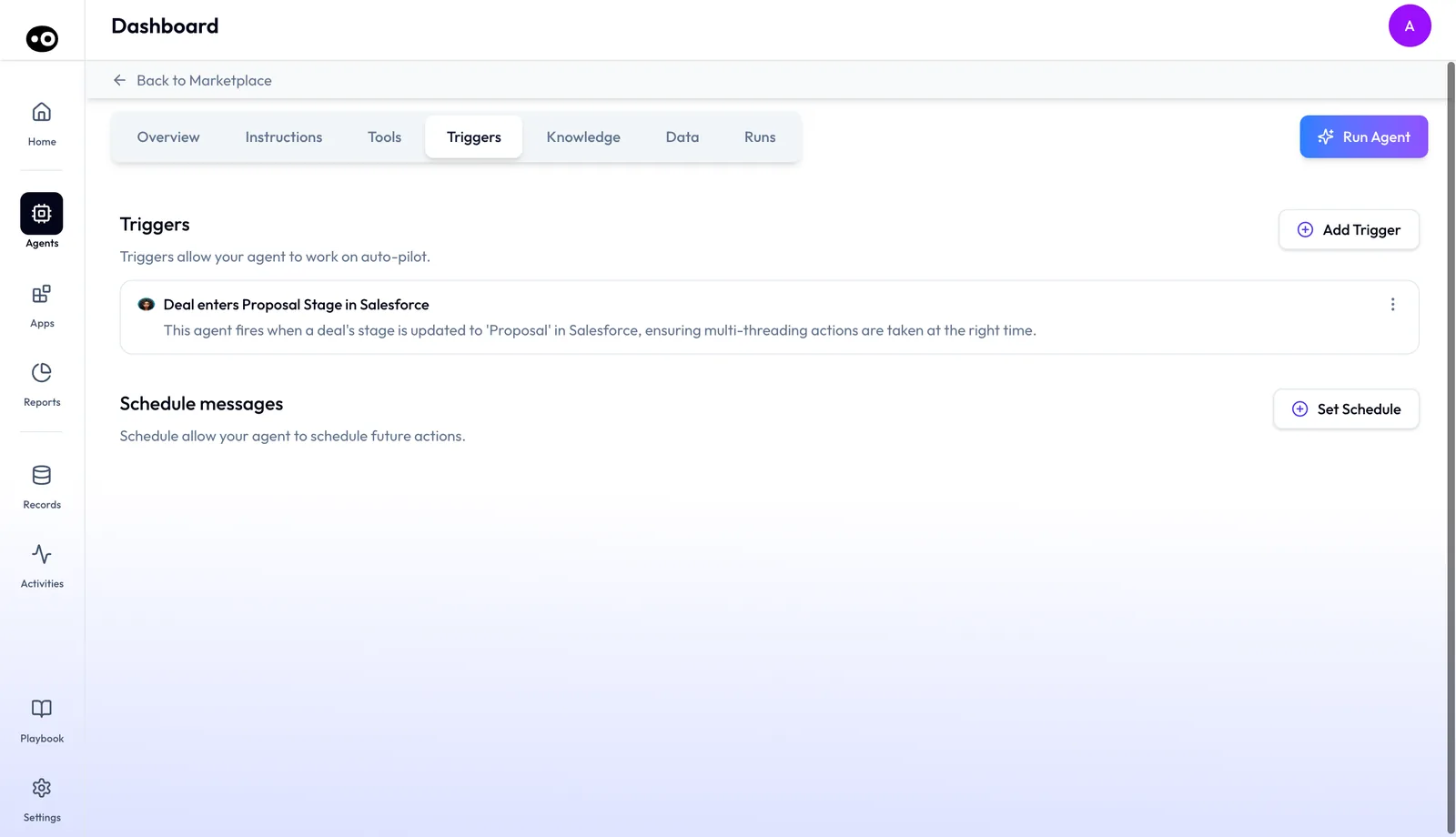
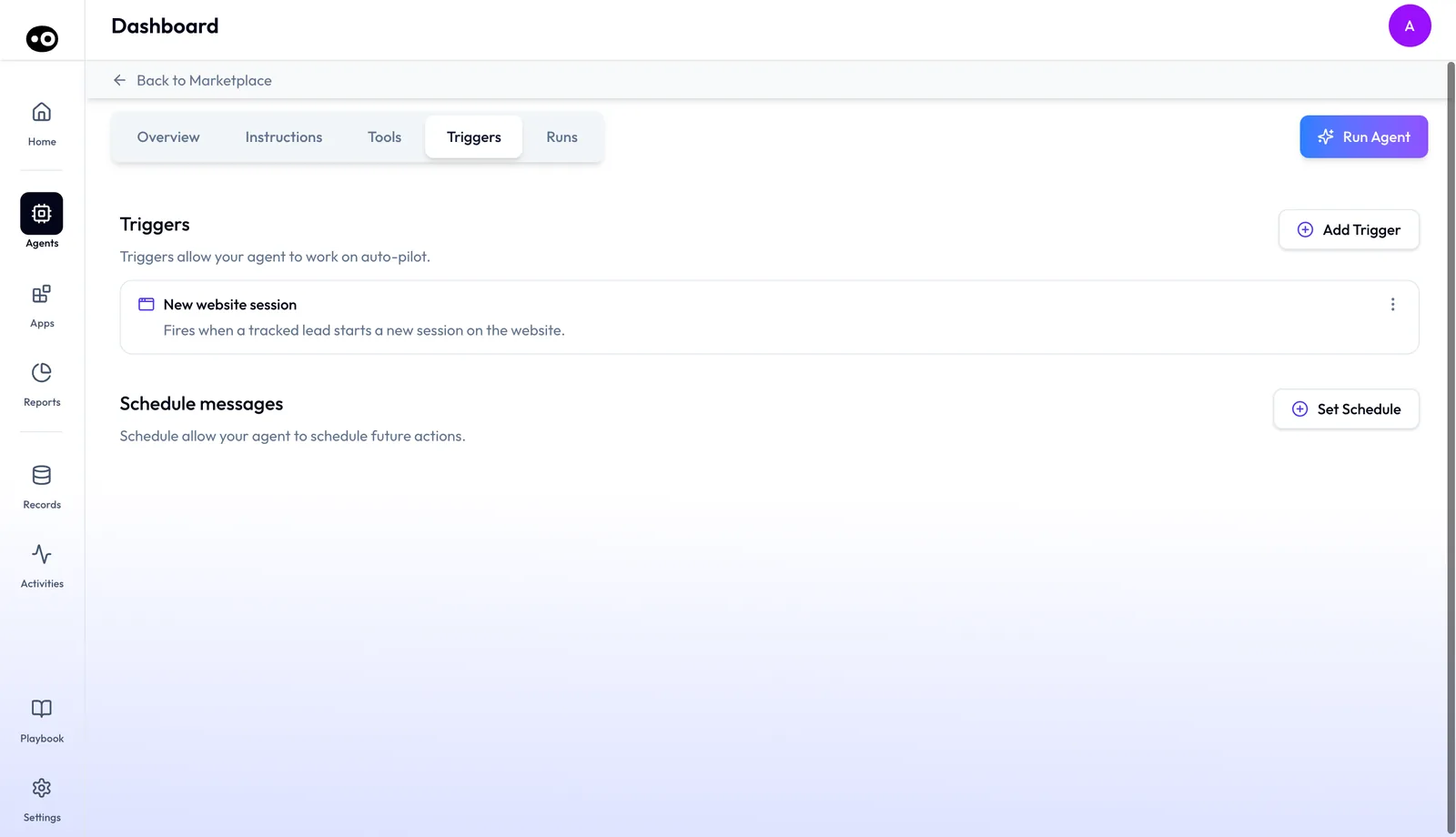
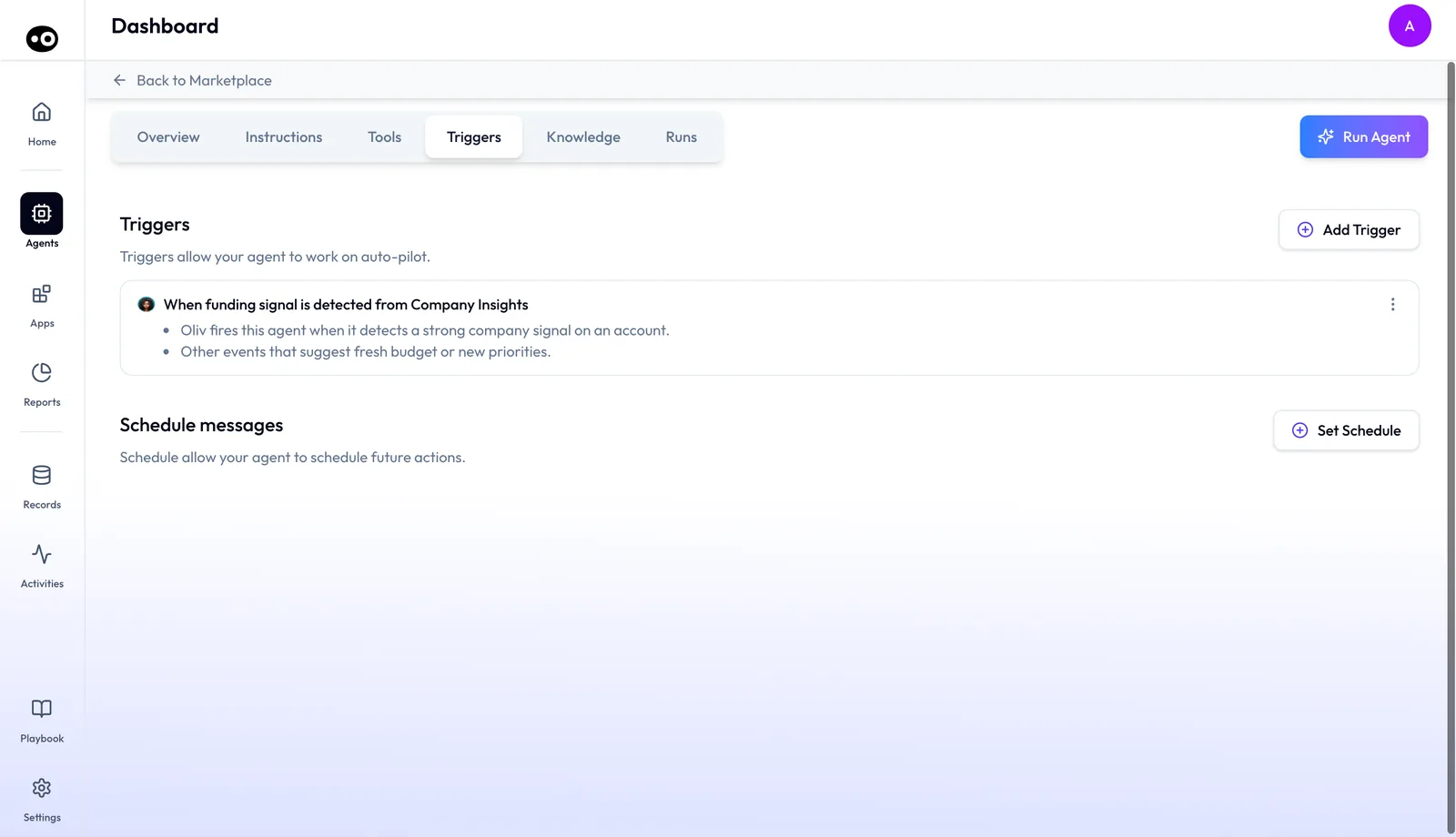
Start at the pills on the Overview tab, then open Triggers if the agent has that tab. On each card, read the icon for the source system, the title for the event, and the line beneath for when the agent fires. That line can be a sentence or a short list, so read all of it. Then read the cards under Schedule messages, because those start the agent too.
Confirm the event matches your moment
Compare your line with the card, word for word. An agent carries between 1 and 5 triggers, so check every one. These are the kinds of event you'll find:
| Event that starts the agent | Example |
|---|---|
| A deal's stage is set to Proposal in Salesforce | Oliv AI's Multithreader agent |
| A tracked lead starts a new session on your website | Oliv AI's Quick Qualifier agent |
| Company Insights detects a funding signal on an account | Oliv AI's Momentum Reviver agent |
| A new customer email in Gmail or Outlook, a message in a shared Teams or Slack Connect channel, a deadline, or a message unanswered for 24 hours | Oliv AI's Comms Manager agent |
| A meeting is completed | Oliv AI's Content Curator agent |
| A release announcement in a Slack channel | Oliv AI's Product Release Messenger agent |
Decide what to do if it doesn't match
- The card is wider than your moment. A trigger can't be narrowed to a team, a region or a deal size, so the card as written is the rule. Decide whether you can accept that before the agent runs unattended.
- The event you want isn't there. Don't assume the agent will catch it. Start the run by hand where the agent shows Run Agent, as Oliv AI's Multithreader agent does, and raise the missing event with your Oliv AI contact.
- The card matches. Move on to the agent's tools, because the trigger only decides when the agent starts.
Why agent triggers matter
What it's for
Say a deal moved to Proposal on Tuesday, nobody spotted the stage change, and the run came late the following week. Event-triggered AI agents exist to close that gap. Use this section to decide whether this agent should start unattended, and what to review first.
How it helps
- Let it start unattended when waiting costs you. If the work loses its value after a few days, tie it to the event.
- Keep it by hand when judgment picks the deals. A trigger has no conditions, so it won't choose for you.
- Review tool run modes first. A trigger plus an Auto Run tool can act with no person involved.
- Review the runs next. The run history marks automatic runs Auto-triggered, so check that they appear when you expect them.
What happens without it
Without a trigger, every run starts with a person. Someone has to spot the stage change, open the agent and press run. In a busy week that run comes late or never. The deals that most needed the work are often the ones it misses.
Why buyers care
This decision usually sits with revenue operations teams, who own the stage definitions in the CRM. Make it when a team first lets agents start unattended. Make it again whenever the stage process changes, and reread each card against the new stages.
The Oliv AI approach to agent triggers
Picture a revenue operations manager whose team has just redrawn the opportunity stages. The new rule says every deal that reaches Proposal needs a wider buying committee before pricing goes out. Around sixty deals a quarter cross that line, spread over several teams.
The usual fix is a saved CRM report and a reminder. Someone checks the report on Monday and nudges each deal owner in chat. That probably works for a while. But a deal that hits Proposal on a Tuesday can wait six days, and the check quietly stops when its owner goes on leave.
The stage change is already the signal. The CRM records the moment a deal moves, so the work can start from that moment rather than from somebody's calendar. What the team needs is a way to tie the agent to the event itself.
Oliv AI starts the agent from the event. Oliv AI's Multithreader agent fires on its own when a deal's stage is set to Proposal in the connected CRM. It then judges whether the buying committee is broad enough and drafts outreach for the seller to review. The RevOps manager reads that trigger on the agent's Triggers tab before rolling the agent out.
Each trigger is written out on the tab. Every card shows the source system's icon, the event in one line and a sentence on when the agent fires. Runs it starts appear in the run history as Auto-triggered. How other platforms start agents on their own is covered in How Oliv AI compares for event-triggered AI agents, below.
Read an agent's triggers
- Open the agent and select the Triggers tab. You can also press one of the trigger pills on the Overview tab, which opens the same tab.
- Read the first section, headed Triggers. Its description reads "Triggers allow your agent to work on auto-pilot."
- Read each card. The icon shows the system the event comes from. The title names the event, and the line beneath says when the agent fires.
- Scroll down to Schedule messages to see any fixed times the agent acts at.
On some agents, the Overview tab also carries a plain-language sentence above the trigger pills. It explains what kind of event wakes the agent. It's collapsed to one line, and pressing it expands the rest.
Browse the trigger picker
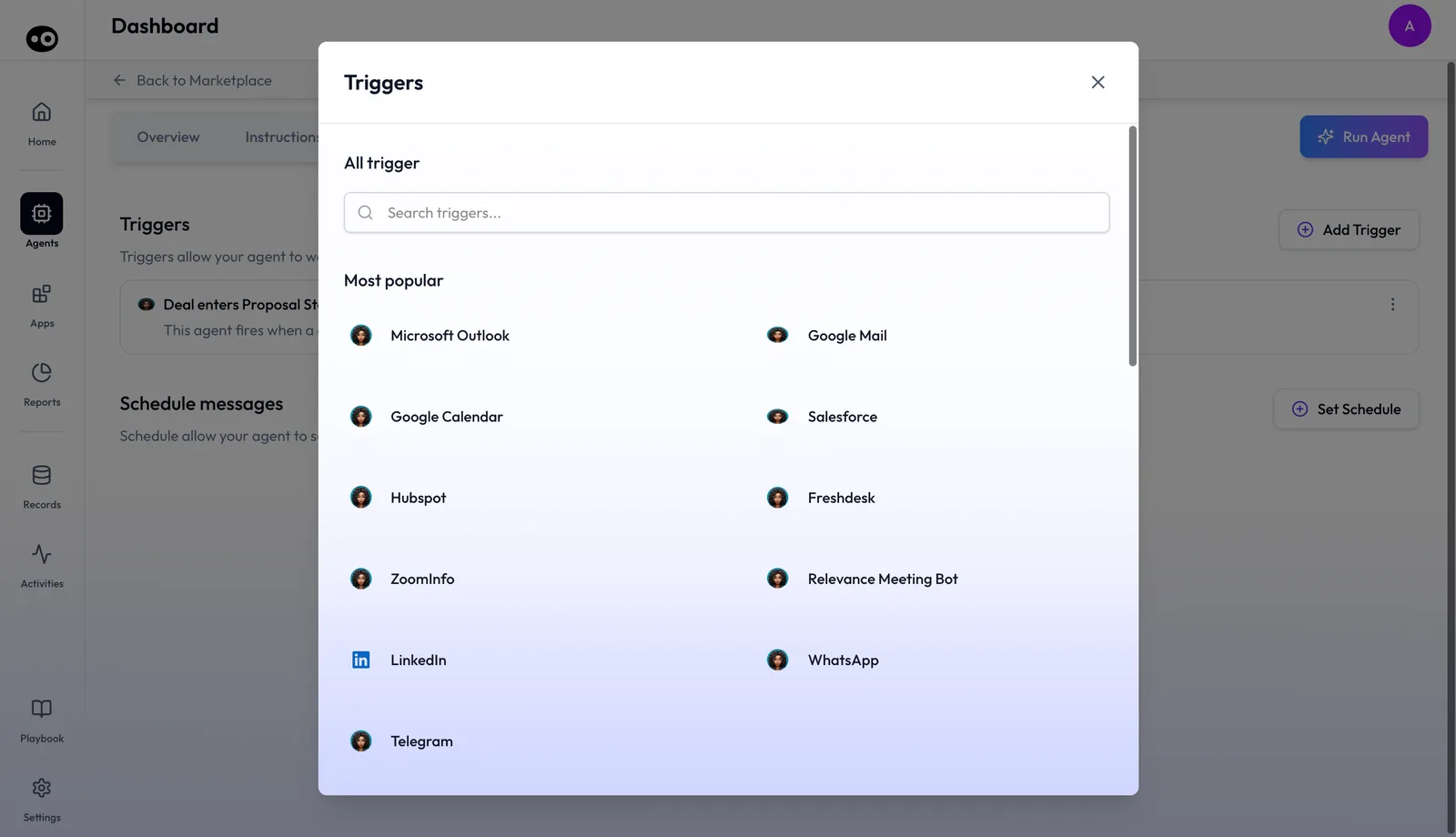
Press Add Trigger at the right of the Triggers heading to open the picker. It opens as a panel headed Triggers, over a dimmed page.
- Type in the search box, marked "Search triggers...". It narrows both groups as you type, matching any part of a system's name and ignoring case.
- Read the Most popular group: a fixed list of 11 systems, each shown with its logo, two to a row. They are Microsoft Outlook, Google Mail, Google Calendar, Salesforce, HubSpot, Freshdesk, ZoomInfo, Relevance Meeting Bot, LinkedIn, WhatsApp and Telegram.
- Read the All triggers group beneath it, a longer list that starts with WhatsApp Business, Airtable and Aircall. A Show more link sits at its foot.
- Close the picker with the × at the top right, or press the dimmed page behind it.
The picker is the same whichever agent you opened it from.
Set a schedule
A schedule lets an agent act at fixed times, alongside its event triggers. The section describes itself as the place to schedule an agent's future actions. Use these steps to set one.
- Open the agent's Triggers tab and scroll to Schedule messages.
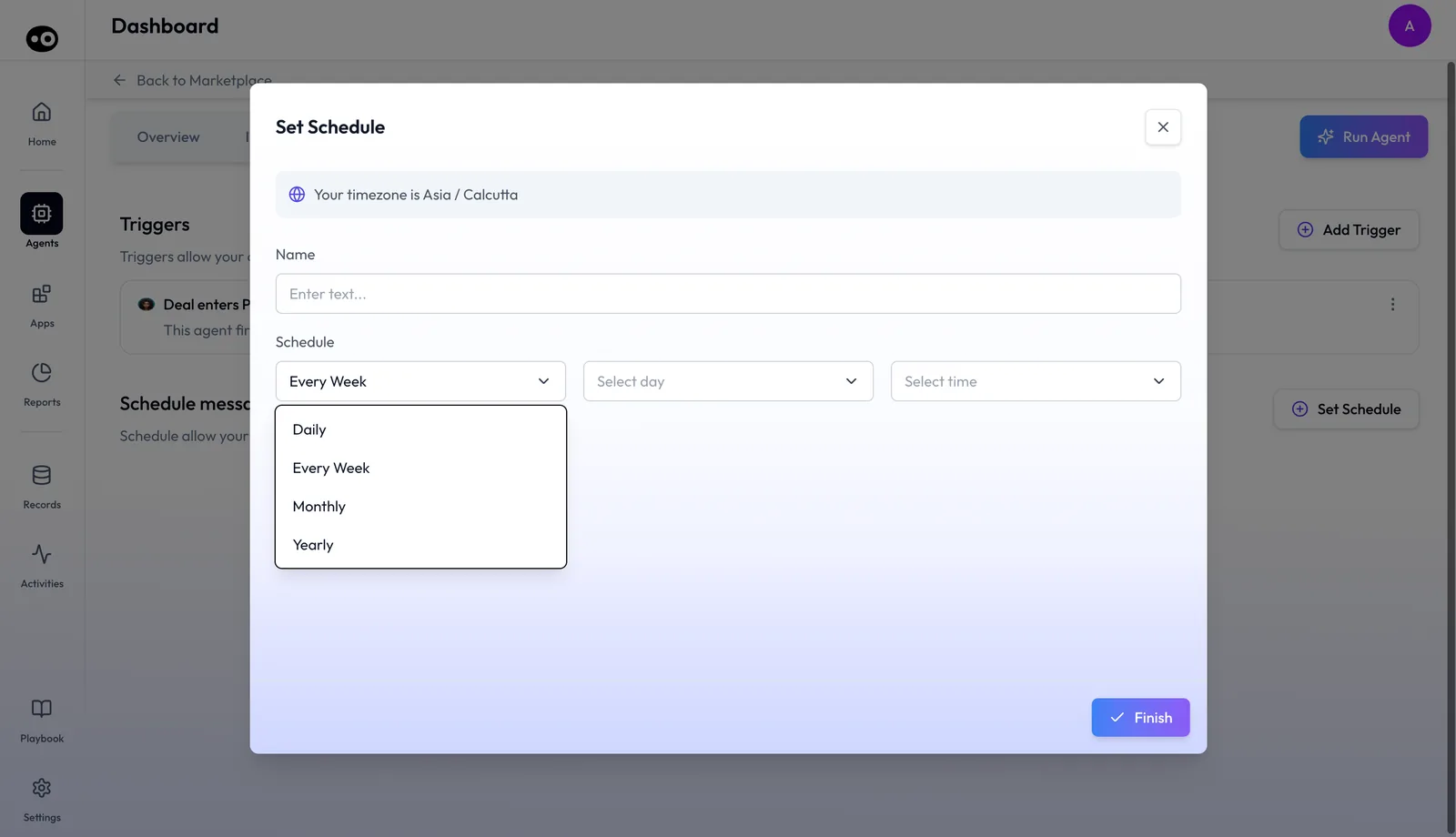
- Press Set Schedule. A form headed Set Schedule opens. A line at the top names a timezone.
- Type a name in the Name field, marked "Enter text...".
- Choose how often in the first Schedule dropdown: Daily, Every Week, Monthly or Yearly. It opens on Every Week.
- Fill in the dropdowns that appear to its right, such as Select day and Select time. They change with the frequency, as the table below shows.
- Press Finish to save the schedule.
| Frequency | Further dropdowns |
|---|---|
| Daily | Hour, then minute, at quarter-hours (:00, :15, :30, :45) |
| Every Week | Day of the week, then a time at half-hour steps |
| Monthly | Day of the month (1 to 31), then a time |
| Yearly | Month, then day of the month, then a time |
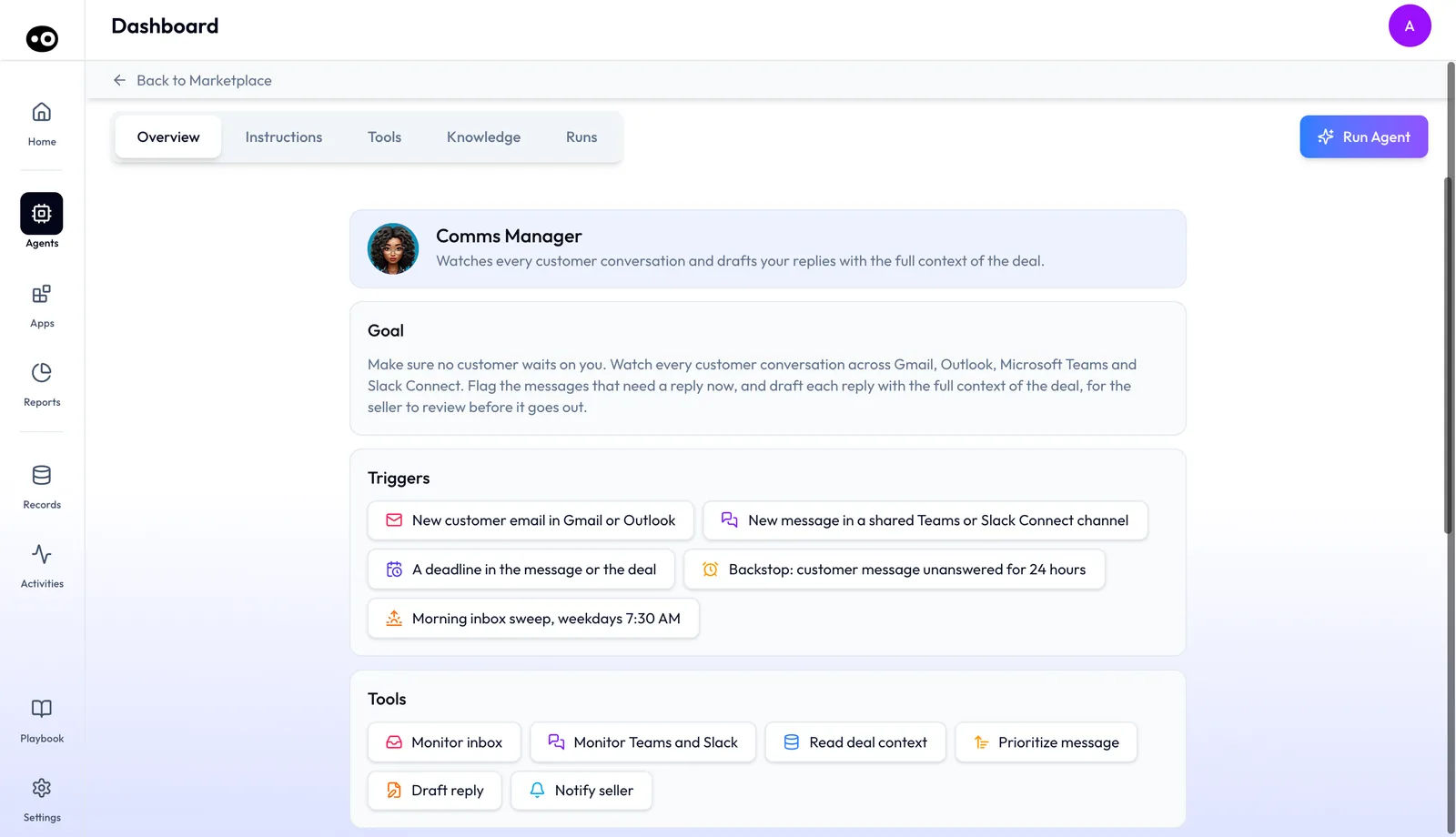
A fixed time can also show as a trigger. Oliv AI's Comms Manager agent lists "Morning inbox sweep, weekdays 7:30 AM" among its trigger pills.
How an AI agent gets started
When you map agents to moments in your sales process, you are choosing among four kinds of start. Each one catches some moments and misses others, so check the fit before you rely on it. This is one early decision in wider agentic sales automation, and a wrong fit shows up as work that arrives late or never.
By hand: someone presses run
A person decides the moment is right and starts the run. This catches judgment calls that no rule would spot, such as a deal that feels wrong after a tense call. It misses anything nobody notices, and it slips first when the team is busy.
Event triggers: something happens
The start is tied to an occurrence, such as a stage change, a new email or a completed meeting. This catches work on time, because the event itself is the cue. It misses silence. HubSpot's help page on its own workflows says events are based on an occurrence, so you can't determine that an event did not occur. The same logic applies to any event trigger: a buyer who stops replying fires nothing.
Filter conditions: a record matches
The start is tied to a record meeting set criteria, such as deals in one region. This catches a narrower group, and it misses every record outside the filter. HubSpot's filter-based workflow triggers work this way and enroll a record the first time it meets the criteria by default, so a second pass needs its own rule.
Schedules: a fixed time comes round
The start is tied to the clock. This catches work that should happen whatever the events, such as a morning sweep of an inbox, and it can pick up what has gone quiet. It misses timing, because something that happens just after a run waits for the next one.
Which of these Oliv AI agents use
Oliv AI's agents show three of the four. Event triggers appear as cards on the Triggers tab or as pills on the Overview tab, and schedules sit under Schedule messages. Run Agent starts a run by hand, as on Oliv AI's Multithreader agent.
Filter conditions aren't among them, because a trigger carries a title, a description and nothing you can configure. So treat a card's words as the whole rule. To see how silence can be covered, read the Comms Manager agent's pills, which include "Backstop: customer message unanswered for 24 hours".
How to measure whether triggers fire as expected
Once an agent starts unattended, nobody watches each start. Two measures tell you whether the starts you planned actually happened. Work them out per agent each week during a rollout.
| Measure | How to work it out | Where it's weak |
|---|---|---|
| Trigger coverage | Automatic runs divided by the runs you expected | The expected figure is your estimate until you check it against the CRM. A deal that re-enters a stage can count twice, so set one counting rule and keep it. |
| Start delay | The time on the run minus the time the event was recorded | Run history times end in GMT, so convert your CRM's time before you compare. One slow start tells you little, so read the typical gap. |
Where Oliv AI shows these numbers
- The weekly run count. The Runs section of the Overview tab shows a weekly total, with a line beneath splitting it into automated and manual. It's the only place runs are counted.
- Each run's label and time. The Runs tab lists a Time and a Type for every run. Use the Type column to separate automatic runs from manual ones.
- Coverage per agent, not per trigger. A run doesn't name its trigger, and a card has no firing count. On an agent with several triggers, you can only work out coverage for the agent as a whole.
How to start agent work on a stage change by hand
Here's the job a stage trigger takes over, as a team would run it without one. Walking through it also shows you what to check once a trigger takes over.
- Build a saved CRM report of deals that entered the stage since your last check. In HubSpot, use the date-entered property for that stage, which holds the date and time. In Salesforce, turn on field history tracking for the stage field, so changes reach the History related list.
- Set a recurring reminder to check the report, such as every Monday.
- Open each new deal and start the agent by hand.
- Mark the deals you've run, so nobody runs one twice.
- Name a backup for when the owner is away. This is where the routine usually breaks.
Keep your history window in mind when you look back. Salesforce retains field history for up to 18 months when Field Audit Trail is off.
The same job with a trigger
- Open the agent's Overview tab and read its trigger pills. Press a pill to open the Triggers tab, where the agent has one.
- Read the card and confirm it names the event you care about. There's nothing to narrow, so the card has to fit as written.
- Check each tool's run mode before the first unattended run, using agent tools and run modes.
- Write down how many automatic runs you expect in a week.
- Each week, compare that number with the agent's weekly run count and its Auto-triggered rows.
Worked example: expected runs against the weekly count
Say a RevOps lead is setting expectations for an agent before a wider rollout. Its Triggers tab shows one trigger, a deal's stage being set to Proposal, and one Daily schedule. The lead expects 30 stage moves in a week.
| Line | Arithmetic | Runs in the week |
|---|---|---|
| Stage moves to Proposal | Expected by the lead | 30 |
| Daily schedule | 1 a day for 7 days | 7 |
| Expected Auto-triggered runs | 30 + 7 | 37 |
| Automated runs in the weekly count | Read from the Overview tab | 31 |
| Gap | 37 minus 31 | 6 |
| Gap as a share of expected | 6 divided by 37 | 16% |
This is an illustrative calculation with sample figures, not an Oliv AI output, and it claims no saving.
The count is 6 runs short, about 16% of what the lead expected. The weekly count can't say which source fell short, because a run doesn't name its trigger. So the lead pulls the deals that moved to Proposal that week from the CRM, then compares them with the run records on the Runs tab, using Time and View.
Start with the real number of moves. If the CRM shows 24 moves rather than 30, then 24 + 7 = 31 and the gap is in the estimate, not the runs. If it shows 30, any deal with no matching run is a gap to raise with your Oliv AI contact.
How agent triggers work with other features
Tools and run modes
Before the first unattended run, check each tool's run mode. The trigger decides when the agent starts, and the run mode decides how freely it then acts. If a tool shows Auto Run, the agent can act with no person involved at any point. If that isn't acceptable for that tool, don't rely on the trigger yet.
Run history
After the first unattended run, open the agent's Runs tab and read the Type column. Auto-triggered or Auto Trigger means the run started on its own. Manually run or Manual means a person started it. If an event happened and no automatic run shows, check the event in your CRM against the card's wording, then follow the run history guide.
The Overview tab
When an agent has no Triggers tab, read its pills on the Overview tab, because that's where its triggers show. When it has the tab, press a pill to go straight there. Do this whenever someone asks what starts an agent you're about to rely on.
Deal work that starts from a stage
When a seller asks why outreach drafts appeared after a deal reached Proposal, open the agent's Runs tab and look for an Auto-triggered row. Then read the trigger card with them. Oliv AI's Multithreader agent, for example, leaves its drafts for the seller to review, so the next step is the seller's.
Who uses agent triggers, and how
These are typical patterns, shown to illustrate how the tab is used.
Revenue operations
Before a rollout, a revops team walks each agent's Triggers tab and lists which agents can start on their own. It then checks those agents' tools, since a trigger plus an Auto Run tool means unattended action. The Oliv AI guide for RevOps covers where this fits in the wider process.
Account executives and sales leaders
When an agent's draft lands on a deal, an account executive can open the run history and see it marked Auto-triggered. The trigger card then explains which deal event started it, such as reaching Proposal. Sales managers use the same cards to explain agent activity in 1:1s.
Customer success and account management
When a customer success team is about to count on an agent acting at a fixed time, read its Schedule messages cards first, then the event triggers above them, since either can start the agent.
Enablement
Before new reps get their first opportunities, an enablement lead reads the trigger cards for each agent they'll work with. Add each deal event to the rep's onboarding brief. Then show reps the Type column, so they can check whether a draft came from an automatic run.
How Oliv AI compares for event-triggered AI agents
Oliv AI lets one agent carry several event triggers, such as a deal reaching a stage in the CRM, and fixed-time schedules on the same tab. Runs that start on their own are labeled in the agent's run history. Oliv AI is the only platform in this table that does all four.
Agent start rules, from each platform's public documentation:
| Platform | Starts when a CRM deal changes | Several triggers on one agent | Event triggers and schedules on one agent | Automatic runs marked in run history |
|---|---|---|---|---|
| Oliv AI | Yes | Yes | Yes | Yes |
| Gong | Yes (brief when a deal reaches a stage) | One trigger per agent | Partly (schedules are one trigger type) | Yes (Run history per automation) |
| Outreach | Yes (opportunity updated event) | Not in docs | Partly (event or a scheduled time) | Yes (Runs tab for each schedule) |
| Fireflies.ai | After each meeting | Not in docs | Partly (per-meeting or scheduled skill) | Not in docs |
| Avoma | Not in docs | Not in docs | Partly (scheduled prompts) | Not in docs |
Yes: documented and built in. Partly: documented with a limit, shown in brackets. Not in docs: not found in the vendor's public documentation.
Why Oliv AI is the stronger choice for event-triggered AI agents
- Several triggers on one agent. Oliv AI agents carry between 1 and 5 triggers each. Gong's help center says each automated agent uses one trigger. See Oliv AI as a Gong alternative. Count the events one agent has to answer to before you decide.
- Events and schedules in one place. Oliv AI lists an agent's event triggers and its schedules on one Triggers tab. Outreach documents scheduled Research Agent runs as their own scheduled workflows. See how Gong and Outreach compare. Decide whether you need to read both in one place when you audit an agent.
- Started by a deal event, not only the clock. Oliv AI's Multithreader agent fires when a deal's stage is set to Proposal. Avoma's scheduled prompts run a question on a recurring basis. See Avoma vs Oliv AI. Check whether your job starts from a deal event or a fixed time.
- Automatic runs you can pick out. Oliv AI's run history marks each run Auto-triggered or Manually run. Fireflies.ai documents skills that run after every meeting or on a schedule. Check that your team can tell automatic runs from manual ones before an agent runs unattended.
Competitor details checked against each vendor's public documentation on 21 October 2026. Features and plans change, so confirm with the vendor before you decide.
Limits and things to know
- Not every agent has the tab. Only some agents show a Triggers tab. For the others, the trigger pills on the Overview tab say what starts them.
- No pause or off switch. A trigger or schedule can't be paused from the tab, and there's no agent-wide off switch.
- No conditions or filters. A trigger can't be narrowed to a team, a region or a deal size.
- No firing record on the card. There's no last-fired time, firing count or failure marker on any trigger.
- Runs don't name their trigger. The run history says a run was Auto-triggered, not which trigger or schedule started it.
Common questions
What is a trigger in Oliv AI?
A trigger is the event that starts an agent on its own, with nobody pressing anything. The tab puts it as "Triggers allow your agent to work on auto-pilot."
How do I see what starts an agent?
Open the agent and select Triggers. Each card names the event and explains when the agent fires. You can also press a trigger pill on the Overview tab.
Can an agent start when a deal changes stage?
Yes. Oliv AI's Multithreader agent, for example, fires on its own when a deal's stage is set to Proposal in the connected CRM.
Can a trigger come from outside the CRM?
Yes. Oliv AI's agents show triggers from new website sessions, funding signals, customer emails, shared channel messages and completed meetings, as well as CRM stage changes. The agent's card or pill names the source.
Can one agent have more than one trigger?
Yes. Agents carry between 1 and 5 triggers each. One agent starts on new customer messages, deadlines, a 24-hour backstop and a weekday morning sweep.
What's the difference between a trigger and a schedule?
A trigger starts the agent when an event happens. A schedule starts it at a fixed time, set as Daily, Every Week, Monthly or Yearly. Both sit on the Triggers tab.
How can I tell whether an agent has a schedule?
Look under Schedule messages on the agent's Triggers tab. A schedule the agent has shows there as a card.
How do I tell whether a trigger fired?
Open the agent's run history. Runs that started on their own are marked Auto-triggered. The run doesn't say which trigger was responsible.
Why is my weekly run count lower than I expected?
Check your estimate first. Pull the deals that really moved from your CRM and recount. If the count is still short, compare those deals with the agent's run records. A run doesn't name its trigger, so the weekly count alone can't show which source fell short.
Can I still run a triggered agent by hand?
Yes, on agents that show the button. Oliv AI's Multithreader agent starts by hand with Run Agent. The run history then marks that run Manually run, so it stays apart from automatic runs.
Does a triggered agent act with nobody reviewing?
It can. The trigger only decides when the agent starts. Each tool's run mode decides how freely it acts, and a trigger plus an Auto Run tool can act with no person involved. Check the run modes before you rely on the trigger.
Can I pause or remove a trigger?
No. A trigger can't be paused or disabled from the tab, and there's no off switch for the whole agent.
Can I limit a trigger to certain deals or people?
No. A trigger carries a title and a description and nothing you can configure, so it can't be narrowed by team, region or deal size.
Why does this agent have no Triggers tab?
Only some agents offer one. Their triggers still show as pills on the Overview tab.
Further reading
Related
Updated 3 November 2026: added how agents get started, how to measure trigger coverage, the manual method, a worked example and more common questions.