
Agents Live
AI agent knowledge base: how to check which files an agent has and add your own to it
How to run an AI agent knowledge base in Oliv AI: check and open each agent's files on the Knowledge tab, add your own in the formats it names, and plan around what the tab can't do.
On this page
- At a glance
- What agent knowledge files are
- Why agent knowledge files matter
- The Oliv AI approach to agent knowledge files
- Check what an agent knows
- Add files to an agent
- How company material reaches an AI agent
- How to measure whether an agent's knowledge is current
- How to build an AI agent's reading list by hand
- How agent knowledge files work with other features
- Who uses agent knowledge files, and how
- How Oliv AI compares for an AI agent knowledge base
- Limits and things to know
- Common questions
- Further reading
- Related
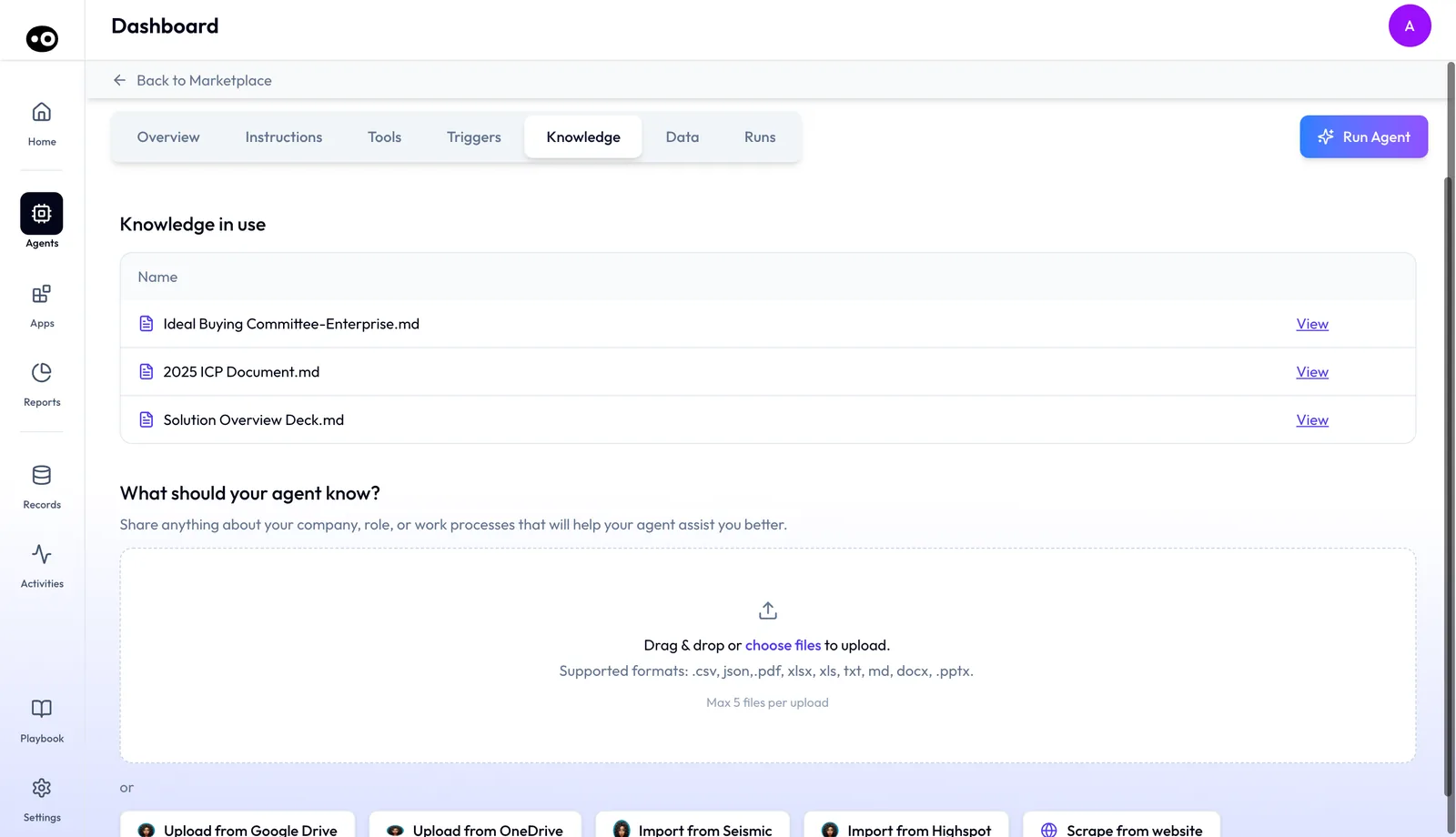
An agent working from the wrong playbook gives you the wrong answer, so an AI agent knowledge base has to show you which files each agent has and let you add your own company material. Oliv AI keeps that list on the agent itself: background reading such as a buying-committee profile, an ideal-customer document or a solution deck. Each agent with a Knowledge tab lists the files it is using, and you can open any of them from there. The tab also carries an upload area that names the file formats it takes, and buttons to bring files in from other tools.
At a glance
| What knowledge is | The files an agent works from |
| Where it lives | Agents › [agent] › Knowledge |
| File list | Knowledge in use, one row per file, each with a View link |
| Stated formats | .csv, json, .pdf, xlsx, xls, txt, md, docx, .pptx |
| Stated upload limit | "Max 5 files per upload" |
| Import buttons | Upload from Google Drive, Upload from OneDrive, Import from Seismic, Import from Highspot, Scrape from website |
| Also shown on | The Overview tab, as knowledge pills |
What agent knowledge files are
An agent's instructions say what it does. Its knowledge is the material it works from while doing it. The tab states its purpose in its own words: "Share anything about your company, role, or work processes that will help your agent assist you better."
The Knowledge tab is one column with two sections.
| Section | What it holds |
|---|---|
| Knowledge in use | A table of the agent's files. Each row shows a document icon, the file's name and a View link. |
| What should your agent know? | A line explaining the purpose, then a dashed upload area and a row of import buttons. |
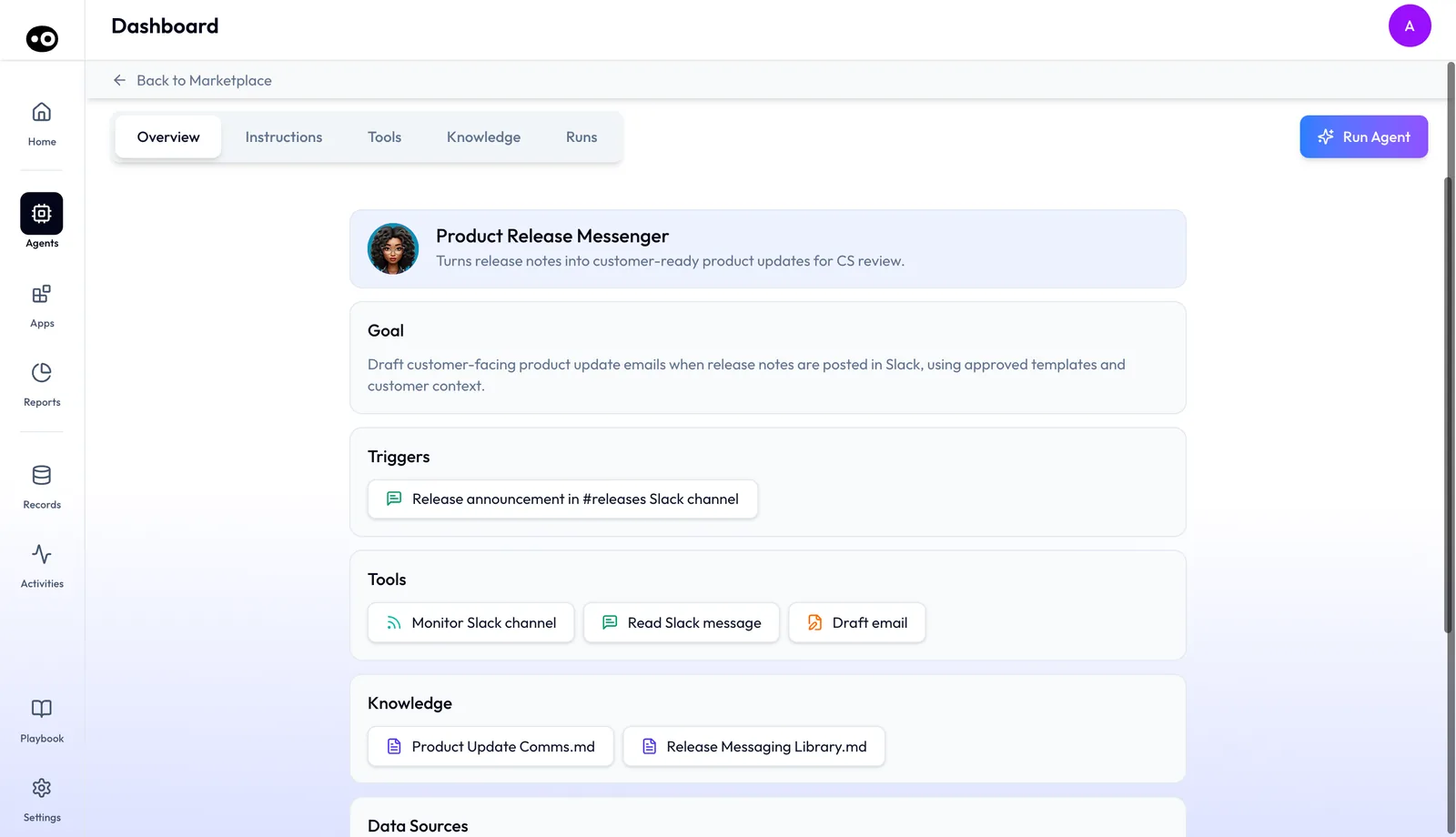
On the Overview tab, an agent's knowledge appears as pills under a Knowledge heading, so you can see at a glance what background it has.
Why agent knowledge files matter
What it's for
Knowledge files give an agent the material your team already works from. They hold the context about your company, your roles and your processes that an agent needs to help well. The tab keeps that reading list on the agent itself.
How it helps
- The reading list is visible. Knowledge in use names every file an agent has.
- Every file opens in one press. View opens a file in a new browser tab, so you can check its content.
- Common formats are named. The upload area lists slide decks, documents and spreadsheets among its formats.
- The Overview shows it too. Knowledge pills tell you what background an agent has without opening the Knowledge tab.
What happens without it
Without knowledge files, an agent has none of the material your team wrote down about how you sell. Its answers can then drift from what reps hear in training, and nobody can see which material was missing.
Why buyers care
Enablement teams feel this most, because they own the decks and guides reps learn from. Check an agent's list when it first goes to a team, and again each time that material changes. Its reading list should match what reps are taught.
The Oliv AI approach to agent knowledge files
Think of an enablement manager who rebuilt the team's battlecards last month. She also keeps a set of one-page product sheets with no pricing in them. Reps were trained on both. Now an agent drafts answers for those same reps, and she wants it to say what they were taught.
A common habit is to paste lines from the latest deck into each request. Some teams send a link and hope it gets used. That probably works some of the time. Old versions tend to linger in shared folders, though, and nobody can tell which copy an answer came from.
If the agent reads the same files reps are taught from, the answers can line up. So the files belong on the agent, in a list the team can open and check. When a battlecard changes, the list is the one place to look.
Oliv AI puts that list on each agent. The Knowledge tab shows Knowledge in use, with every file the agent works from and a View link beside each one. The enablement manager opens each file and checks it against her current set. The tab's upload area names the formats her material comes in, including .pptx, .pdf and docx.
A line beneath the formats reads "Max 5 files per upload", so she plans her battlecards and product sheets in batches of five. For other platforms, see How Oliv AI compares for an AI agent knowledge base, below.
Check what an agent knows
- Open the agent and select the Knowledge tab.
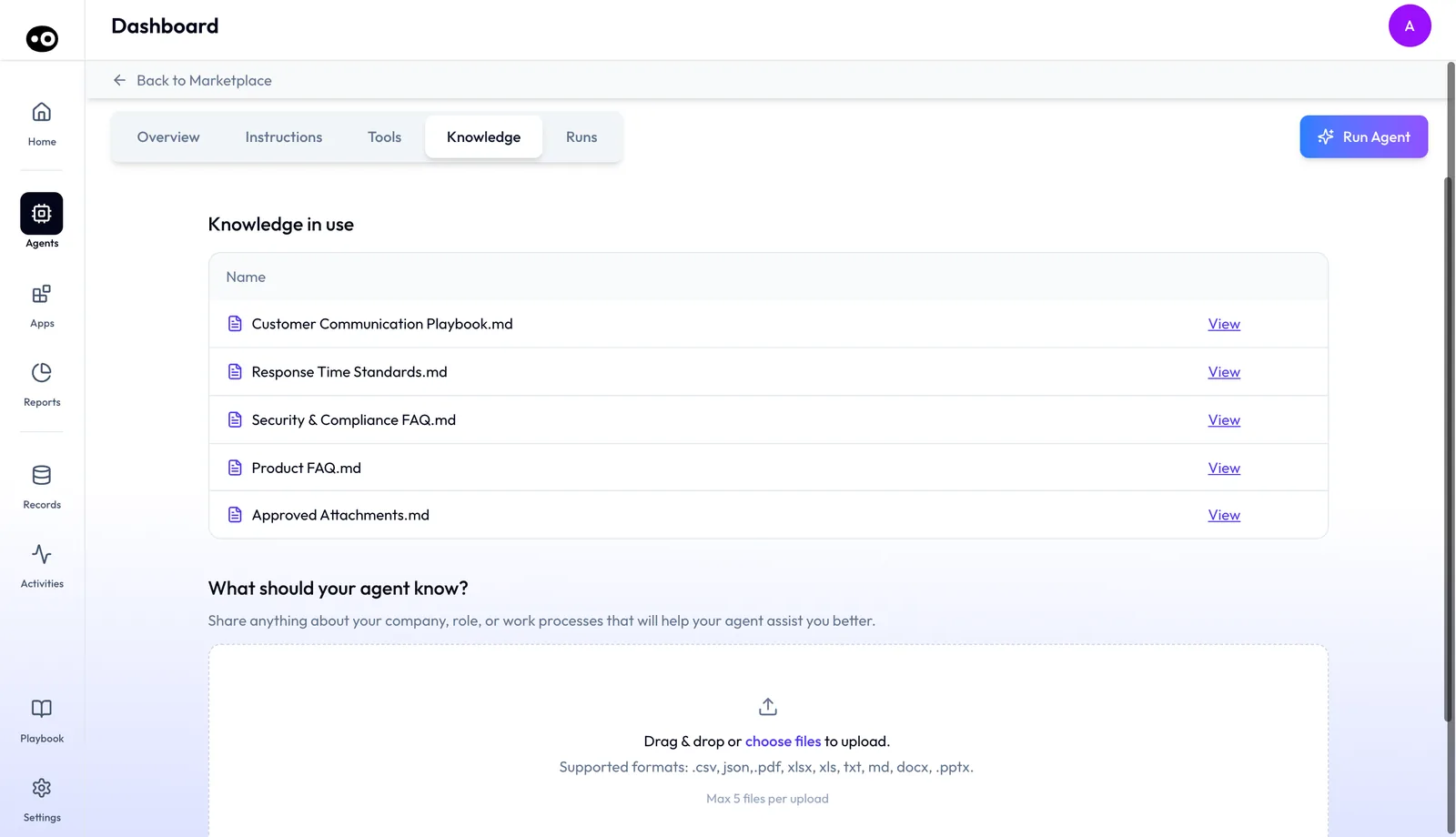
- Read the Knowledge in use table. It has a Name column and one row per file, each with a document icon.
- Press View on a row. That file opens in a new browser tab.
The list grows with the agent's job. A customer-facing agent can carry a playbook, response-time standards, FAQs and a file of approved attachments.
You can also press a knowledge pill on the Overview tab. Unlike the tools and trigger pills beside it, a knowledge pill doesn't switch tabs. It opens that file in a new browser tab instead.
Add files to an agent
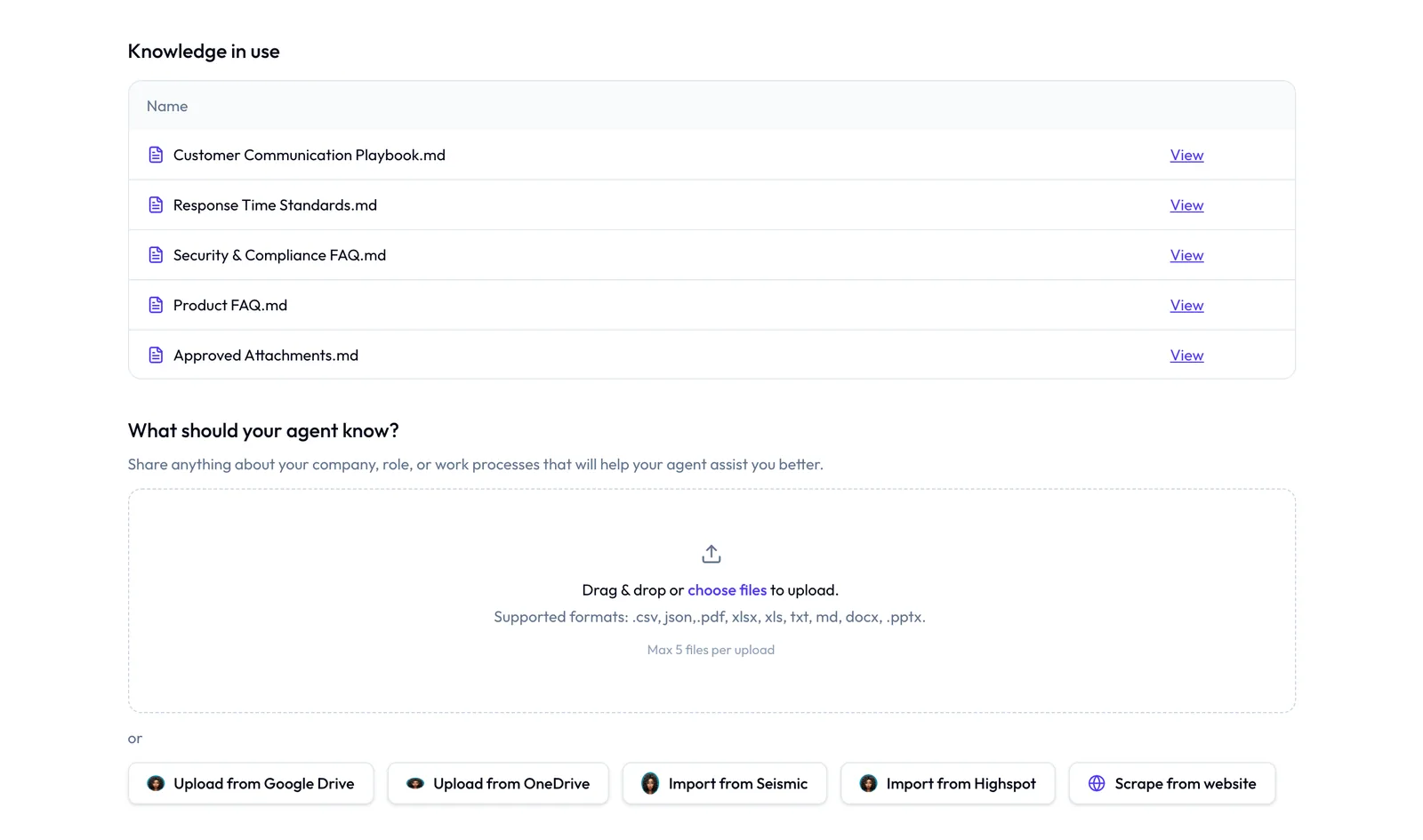
The second section, What should your agent know?, holds the upload area. First read What to settle before you upload, below, because a file can't be removed once it's in.
- Scroll down to What should your agent know? on the Knowledge tab.
- Drag files onto the dashed area marked "Drag & drop or choose files to upload."
- Or press choose files inside that line. Your computer's file picker opens and lets you pick several files at once.
- Keep to five files at a time. The area states "Max 5 files per upload".
- Or press one of the buttons beneath the area, after the word "or": Upload from Google Drive, Upload from OneDrive, Import from Seismic, Import from Highspot or Scrape from website.
Drag-and-drop needs a mouse or trackpad. The choose files link works without one.
Formats the tab names
| Kind of file | Formats named |
|---|---|
| Documents | .pdf, docx, txt, md |
| Slide decks | .pptx |
| Spreadsheets and data | .csv, xlsx, xls, json |
That's nine extensions in all, as the upload area lists them.
What to settle before you upload
Treat every upload as permanent. There's no delete control on any row, so a file you add by mistake stays on the agent's list. Settle three things first.
- Which version. Add the current battlecard, not the copy you found in a shared folder.
- Which format. Check each file against the nine extensions above. Save anything else in a listed format, or leave it out.
- Which agent. Knowledge sits on each agent, so add only what this agent's job needs.
After each upload, read Knowledge in use again and look for each file's name. Count a file as added only when its name appears, then press View to confirm it's the right copy.
How company material reaches an AI agent
There are three common ways to put your material in front of an AI agent. Your choice decides what you can check later.
Pasted into each request
You copy the lines you want into a request, or attach a file to one chat. This catches the exact wording you care about today. It usually misses everything after that, because the next request starts without it. Nobody else can see what you pasted, so a team ends up with private versions.
A shared library that syncs
You connect one library, and the agent draws on it. HubSpot's customer agent, for example, re-syncs when a synced knowledge base article changes and re-syncs other sources weekly. Updates arrive without anyone uploading again. It can be harder to answer the question a rollout raises: what does this one agent hold? An old page in the library also travels as easily as a new one.
Files kept on each agent
You pick the files for one agent, and they sit on that agent's own list. That answers the rollout question directly, because you can read the list and open each file. Its weak spot is upkeep. Someone has to compare each list with your current material, agent by agent.
Which of these Oliv AI does
Oliv AI's Knowledge tab is the third way. Each agent carries its own list under Knowledge in use. The tab also shows buttons for cloud drives, enablement libraries and web pages. Plan your upkeep around lists you check by hand. A playbook can also shape how an agent works, and the page on your playbook written for agents covers that side.
How to measure whether an agent's knowledge is current
Two counts tell you whether an agent's reading list is in shape. You take both from your own list of approved material, one agent at a time.
Coverage: what's missing
Coverage is the share of the files this agent's job needs that appear under Knowledge in use. If the job needs 10 files and 8 are listed, coverage is 80%. These are sample figures. The weak spot is that a matching name doesn't prove matching content, so open the file before you count it.
Stale files: what's out of date
Count the listed files that no longer match your current set. Don't judge by the file name, because no row shows an upload date or a version. Press View and compare the content. A stale file can't be taken off the list, so record it where whoever reviews the agent's work will see it.
Where Oliv AI shows these counts
Knowledge in use gives you the names, View gives you the content, and the Overview pills give you a quick look. You work out both counts yourself. Neither one tells you whether a run drew on a file, so read the agent's drafts against your current material as well.
How to build an AI agent's reading list by hand
Do this outside the product first, in a spreadsheet. It's quicker to fix a row than to live with a file you can't take back.
- List every candidate file. Nielsen Norman Group calls this a content inventory, a list of every piece of content you have. Note each file's name, owner and format.
- Give each file a status. The same guide suggests recording keep, update or remove for each piece. Name who fixes each file marked update.
- Match files to agents. For each agent, mark only the files its job needs.
- Check formats. Mark any file whose format the upload area doesn't list.
- Name an owner for the list. Nielsen Norman Group warns that inventories and audits go out of date quickly without care. Set a date for the next check.
The same job in Oliv AI
Your spreadsheet stays the plan, and the Knowledge tab is where you check it. Open the agent, compare Knowledge in use with your rows, and press View on anything you doubt. Then add the files marked keep, five at a time. The list can't be searched or sorted, so keep your filtering in the spreadsheet.
Worked example: pruning 23 files into uploads
An enablement manager gathers 23 files for one agent before a rollout. Three are in formats the upload area doesn't list, so the manager sets them aside. This is an illustrative calculation with sample figures, not an Oliv AI output or a claimed saving.
| Step | Arithmetic | Result |
|---|---|---|
| Files gathered | Starting list | 23 files |
| Set aside: formats the area doesn't list | 23 - 3 | 20 files |
| Uploads needed at five per upload | 20 / 5 | 4 uploads |
The manager prunes before the first of those 4 uploads, not after it. A file can't be removed once it's in, so the spreadsheet is the last place a mistake is cheap. The 3 files set aside go back through the same check once they're saved in a listed format.
How agent knowledge files work with other features
Instructions
The Instructions tab says what an agent is for and the steps it takes. Knowledge is the background it brings to those steps. Read the two together when you check an agent before a rollout.
Tools and run modes
Knowledge is what an agent works from. Tools are what it does, and each tool's run mode decides how freely it acts. Both sit on the same agent, as the guide to agent tools and run modes explains.
Data sources
An agent also reads structured data, shown on its Data tab: a Sources list of the systems it draws on, such as Salesforce, and a card for each field with a plain-language description. On agents without that tab, the Overview can list Data Sources instead, such as product usage and Salesforce accounts.
The Overview tab
Use the Overview pills for a quick check, on agents in the marketplace and on the ones your team runs. For the full list with View links, go to Knowledge in use.
Who uses agent knowledge files, and how
These are typical patterns, not customer reports.
Enablement
An enablement team opens each agent's Knowledge in use list after a content refresh. It presses View on each file and compares it with the current set of guides. The sales enablement software guide covers where this sits beside content tools.
Account executives and sales leaders
Before trusting an agent's draft on a deal, an account executive checks its knowledge pills on the Overview tab. It's a quick way to see which profiles and decks the agent works from while you prepare for a meeting.
Customer success and account management
A customer success team reads the knowledge list on agents that work its accounts. A solution deck or customer-profile document there tells the team what context the agent brings to a renewal.
Revenue operations
Revenue operations reviews which company documents each agent holds before the agent goes out to a wider team.
How Oliv AI compares for an AI agent knowledge base
Oliv AI keeps an agent's files on the agent, in a list you can open, and names spreadsheets and slide decks among its formats. The agent's knowledge also shows on its Overview as pills. Oliv AI is the only platform in this table that does all three.
Agent knowledge, from each platform's public documentation:
| Platform | Knowledge files kept on each agent | Slide decks and spreadsheets accepted | Knowledge shown on the agent's overview |
|---|---|---|---|
| Oliv AI | Yes | Yes | Yes |
| Gong | Yes (files available across all runs) | Yes (PPTX and XLSX among file types) | Not in docs |
| Outreach | Partly (Knowledge switched on per agent) | PPT, PDF, DOCX, TXT and MD | Not in docs |
| Fireflies.ai | Partly (one central Knowledge Base) | PDF, DOCX, XLSX, CSV, TXT, MD, HTML | Not in docs |
| Avoma | Partly (files scoped to one chat session) | PDF, images, TXT, DOCX and CSV | Not in docs |
Yes: documented and built in. Partly: documented with a limit, shown in brackets. Not in docs: not found in the vendor's public documentation.
Why Oliv AI is the stronger choice for an AI agent knowledge base
- Knowledge that stays on the agent. Oliv AI lists each agent's files under Knowledge in use on the agent itself. Gong Assistant takes up to 10 uploaded files per message. See Oliv AI as a Gong alternative.
- Spreadsheets and data files too. Oliv AI's upload area names .csv, json, xlsx and xls beside .pdf, docx and .pptx. Outreach's guidance covers knowledge documents such as product brochures, persona guides and battle cards. See how Gong and Outreach compare.
- Knowledge you can see at a glance. Oliv AI's Overview tab shows each agent's files as pills before you open it. Fireflies.ai connects a Knowledge Base to the agents it runs on calls.
Competitor details checked against each vendor's public documentation on 21 October 2026. Features and plans change, so confirm with the vendor before you decide.
Limits and things to know
- Not every agent has the tab. Check for it on each agent before you plan an upload.
- Files can't be removed. There's no delete control on any row.
- No sign a file was used. No file shows a processed or ready state, and no run record cites a knowledge file.
- No search, sort or history. The list can't be searched or filtered, and files show no upload date or version.
Common questions
What is knowledge in an Oliv AI agent?
Knowledge is the background material an agent works from: documents about your company, your roles or your processes. Each file is listed on the agent's Knowledge tab.
How do I see which files an agent has?
Open the agent and select Knowledge. The Knowledge in use table lists its files, and View opens each one in a new browser tab.
Which file types does the Knowledge tab name?
The upload area lists .csv, json, .pdf, xlsx, xls, txt, md, docx and .pptx. That covers documents, slide decks, spreadsheets and data files.
How many files can I upload at once?
The upload area states "Max 5 files per upload".
Why does a knowledge pill open a new browser tab?
Knowledge pills on the Overview tab open the file itself, not the Knowledge tab. Tool and trigger pills switch tabs instead.
Can I remove a file from an agent?
No. There's no delete control on any row of the Knowledge in use table.
How do I know the agent actually used a file?
You can't tell from the tab. No file shows a processed state, and no run record cites a knowledge file as its source.
Why does this agent have no Knowledge tab?
Only some agents have one. Look at the agent's Overview tab instead, because some agents list knowledge files there without the tab.
What is an AI agent knowledge base?
It's the company material an AI agent works from, such as playbooks, FAQs and solution decks. In Oliv AI, each agent with a Knowledge tab keeps its own list of files, and you can open each one from there.
How do I add files to an AI agent?
Open the agent's Knowledge tab and go to What should your agent know?. Drag files onto the dashed area or press choose files, keeping to five files at a time.
How do I upload more than five files?
Split them into batches, because the upload area states "Max 5 files per upload". At that limit, 20 files take four uploads. Prune the list first, since a file can't be removed later.
What do I do with a file in a format the tab doesn't list?
Save it in a listed format, such as .pdf or .pptx, and check the new copy before you upload it. The upload area names .csv, json, .pdf, xlsx, xls, txt, md, docx and .pptx.
Will an agent's output match how my team sells once the files are in?
Don't assume it. The Knowledge tab shows which files an agent has, not whether a run drew on one. Read the agent's drafts against your current material before you roll it out.
Further reading
Related
Updated 3 November 2026: added how material reaches an agent, how to measure an agent's knowledge, the manual method, a worked example and more common questions.