
Agents Live
No code AI agent builder: how an Oliv AI agent is set up and how much it may do alone
Before an agent acts on your CRM and inbox, use this no-code AI agent builder guide to check what it does, how much it may do alone, when it starts, what it reads and what it did.
On this page
Oliv AI is a no-code AI agent builder, so you set up agents without writing code. Before you let one touch your CRM and inbox, you want to know what it will do without asking. Open Agents in the sidebar, press View Agent on the agent you're checking, and go to the tab that answers your question. If this is your first look at an agent, work through its tabs in the order below.
This page works with the agents already in your marketplace. If none of them fits the job, the section on custom agents below tells you who to ask.
Open the tab that answers your question
Each agent's detail page opens on Overview, which summarizes its goal, triggers, tools, knowledge and recent runs. Start there for a quick read, then take the tab that matches your question.
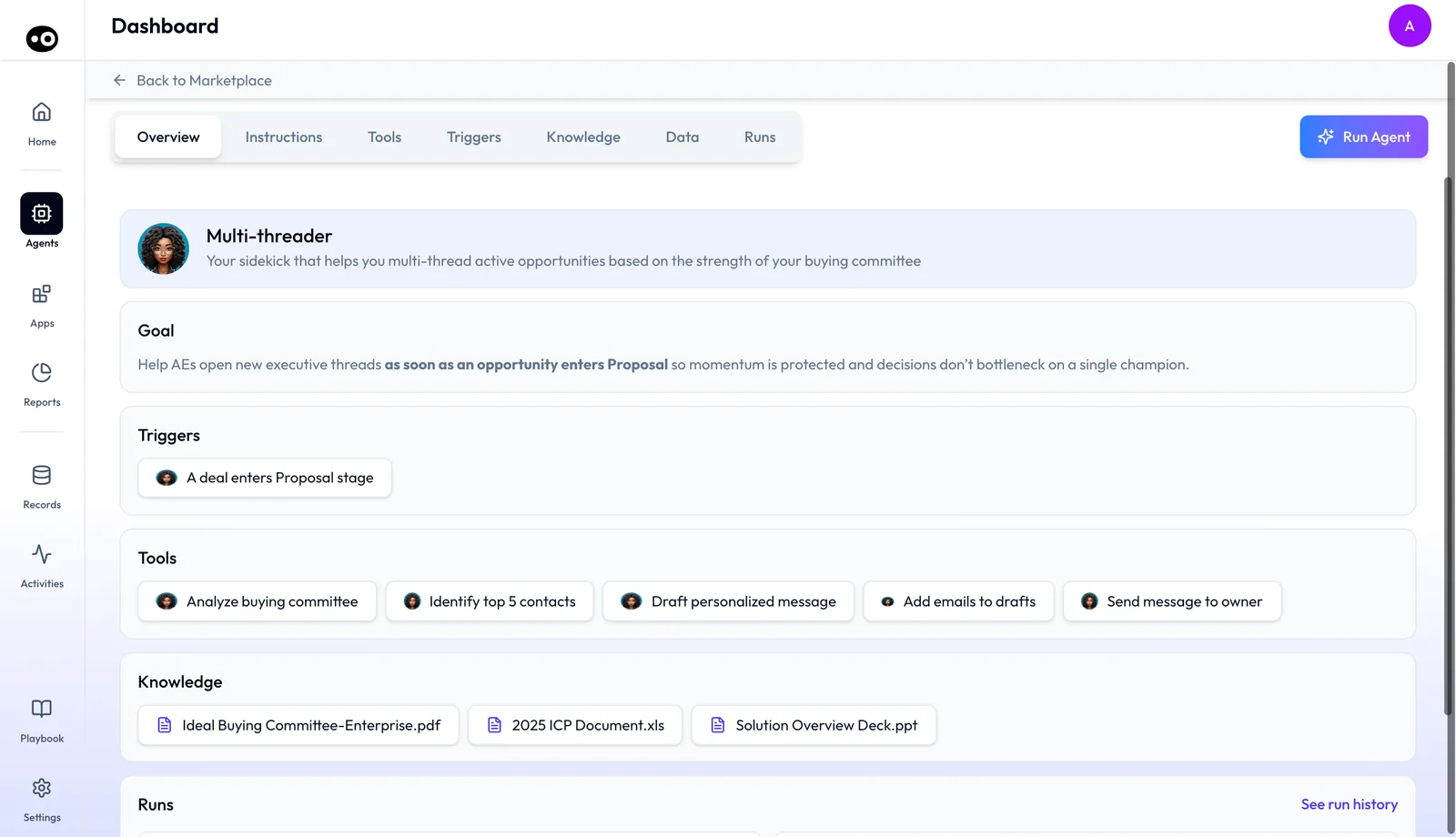
| Your question | Open | What to check there |
|---|---|---|
| What will this agent do? | Instructions | The Objective, the numbered Process steps and the Output. Each step names the tool it uses. |
| How much may it do alone? | Tools and run modes | The run mode on each action: Auto Run, Requires Approval or Agent Decides. |
| When does it start? | Triggers | The events and fixed times that start it without anybody pressing anything. |
| What does it read? | Knowledge | The files it works against. Press View to open one, or add your own. |
| What has it done? | Run history | Each run, whether it was Auto-triggered or Manually run, with the full record behind View. |
Every agent's page has Overview, Instructions, Tools and Runs. Triggers, Knowledge and Data appear only on agents that use them, so don't hunt for a tab that isn't there. Some agents add a tab of their own, such as Moments on Oliv AI's Content Curator agent, or Sequence on an agent that runs outreach in steps. Run Agent at the top right starts a run by hand.
Go through a new agent in this order
- Read the instructions. Confirm the job is the one you expected, because you can read this tab but not edit it. If the steps don't suit you, look for another agent or request a custom one. Press a tool's name in any step to jump to that tool, so you can see which action the step relies on.
- Set the tools. A run mode applies to one tool on one agent, and changing it changes nothing else. A tool with no stored mode runs on Auto Run, so go through every card rather than assume anything waits for a person.
- Read the triggers. An agent with an Auto Run tool and a trigger can act with no person involved at any point. Skip this step and the first you hear of an action may be its run record.
- Check the knowledge files. These are the background the agent works against, so an out-of-date deck shapes its work. A file can't be removed from an agent, so look it over before you upload it.
- Read the runs. Do this before you loosen any run mode. A run says it was Auto-triggered, not which trigger started it.
Decide how much an agent may do alone
Say an agent holds tools that update CRM records and send email, and your team wants to know who signs off. Two settings decide that.
- Per tool. On the Tools tab, Auto Run acts without asking, Requires Approval waits for a person to confirm, and Agent Decides judges whether to ask.
- Per conversation. In a chat with Oliv AI's Olivia agent or Oliv AI's Oliver agent, each conversation is set to Ask before acting or Act without asking. It opens on Ask before acting. Setting Oliver to act without asking lets him change your settings, so switch only when you mean that.
Check the runs before you give more freedom
Start any tool that writes to your CRM or sends email on Requires Approval. Then read the agent's past runs. A record shows what that run produced: each email in full with the contacts the agent picked, a clipped call with its transcript, each step of an outreach sequence, or a drafted reply with the deal context behind it.
Move a tool to Agent Decides or Auto Run only once those records look right. If they don't, leave it waiting for a person and go back to the instructions and knowledge files. Oliv AI's Multithreader agent shows a useful pattern: it fires on its own when a deal's stage is set to Proposal, and it leaves its outreach as drafts for the seller to review. CRM updates follow the same path, from reviewed to automatic, in keep the CRM updated.
Find the agents available to your team
Open Agents in the main sidebar. The marketplace is the single place you see every agent available to you, each as a card with a picture, a name, a short description and one button. Press View Agent to open that agent's detail page, and Back to Marketplace to return. Clone Agent appears on template agents, as the way to take one as a starting point.
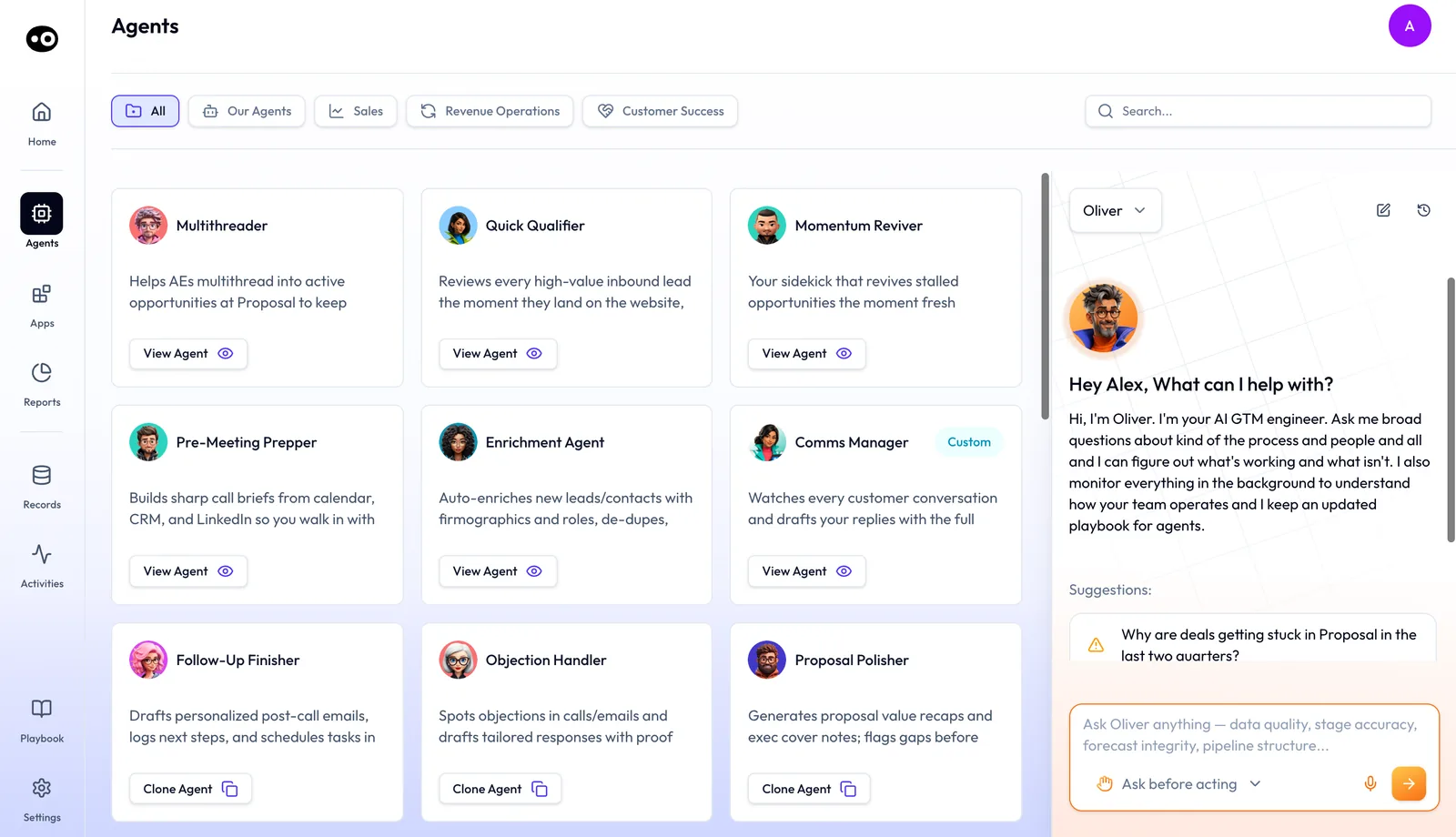
If you don't know an agent's name, type what it does in the search box at the right. Search matches each agent's name and description. To see the pre-built agents grouped by the roles they serve, use the Oliv AI agent marketplace on oliv.ai.
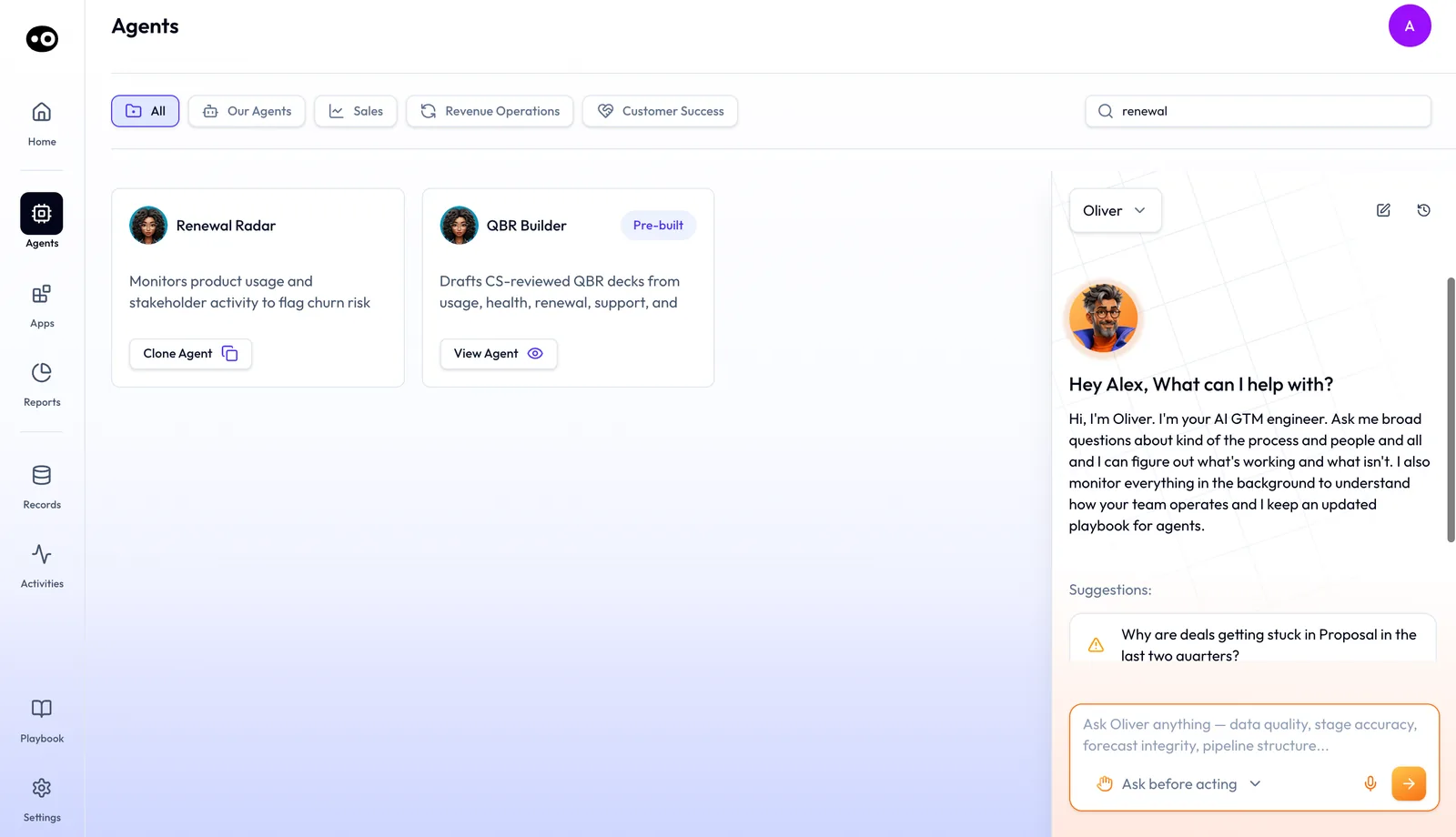
Narrow the list by team and badge
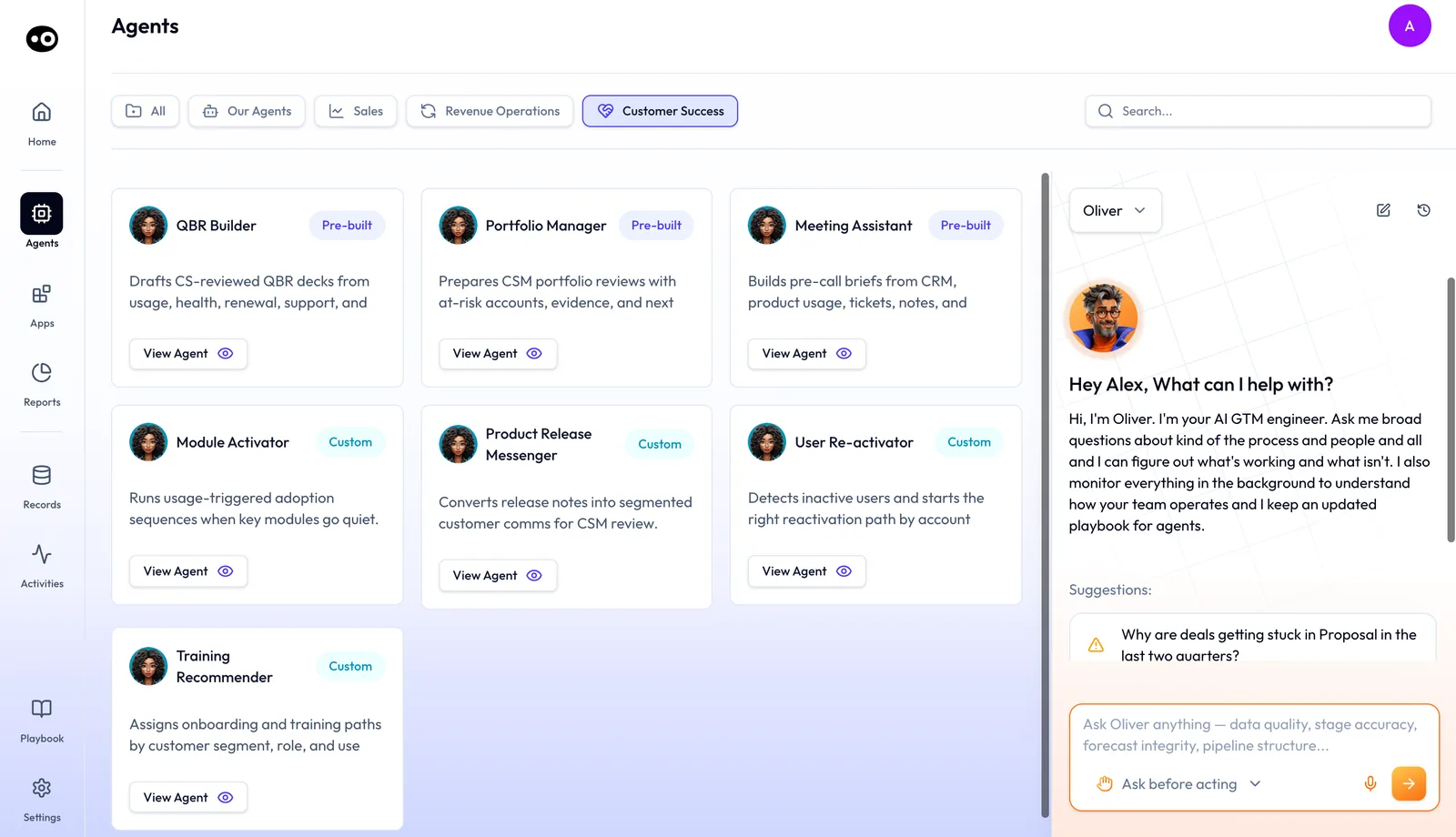
Agents are grouped by the revenue team they serve. Use the five buttons above the grid to narrow the list: All, Our Agents, Sales, Revenue Operations and Customer Success. The buttons and the search box work together, so an agent must match both to stay listed. If the list looks too short, set the button back to All first.
A Pre-built or Custom badge on a card tells you where that agent came from. For a question about agents, use the chat with Oliv AI's Oliver agent on the right of the marketplace, so you don't leave the screen. The panel has its own new chat and history buttons, a suggested question to start from and the Ask before acting setting under the message box.
Check what sits around the agent
An agent's tabs show you one agent. When its behavior depends on the rest of your setup, look here next.
To change which agents are active, what they monitor or what thresholds trigger their actions, go to Oliv AI's Oliver agent. RevOps managers talk to Oliver in natural language to define and update the sales process, and Oliver keeps the playbook current. Oliv AI's Olivia agent runs the frontline and routes work to the right specialist agent. Each agent gets the tools, memory, permissions and guardrails for the job, scoped to the task at hand.
If your CRM data is messy
You can still start. Every agent and every rep works from the same context graph, and Olivia reads what's already there, messy data included. Oliv AI's Forecaster agent doesn't need a clean CRM to start. When you override one of Forecaster's recommendations, it learns from that feedback.
If alerts come too often or in the wrong place
Look for the agent's thresholds first. With Oliv AI's Deal Driver agent, inactivity windows, field completion requirements and deal value thresholds are configurable per manager or per team. Then check where the agent delivers its work: Deal Driver reaches you in Slack, email or the Oliv AI app. Tools in the catalog act in systems such as Salesforce and HubSpot, so read the page for the system an agent will write to.
Request a custom agent when nothing fits
If no card fits the job, ask for one. The marketplace on oliv.ai offers pre-built agents designed for specific challenges, and invites you to request a custom agent. Oliv AI's GTM engineering team stays with you after launch. It reviews agent output, tunes the playbook and adds custom agents as your territory, comp or ICP shifts, as the RevOps page describes.
A custom agent has the same parts as every other, so check it in the same order. If you're still weighing up your options, this build vs buy post covers when a custom agent makes sense.
Next steps
- If you're ready to decide which actions wait for a person, set run modes on each tool.
- If you're planning who gets which agent and when, follow the 30-day rollout plan.
- If you need the whole lineup first, open the agents overview to see how Olivia, Oliver and the specialist agents fit together.
- If CRM updates are your first concern, open Oliv AI's CRM Manager agent, the agent that moves from reviewed to automatic updates.
- If you want to see agents at work on a deal, run a pipeline review with Deal Driver's per-rep reports, or record a meeting and follow up.