# Zoom AI note taker: record with or without a bot and update deal data during the call
How to run a Zoom AI note taker on customer calls: Oliv AI's two Zoom apps, host consent, the lobby, recording when the host is absent, and updating CRM fields inside Zoom.
- Applies to: Account executives, sales development, customer success and Zoom admins
- Status: Live
- Verified: 2026-11-03
- Canonical page: https://www.oliv.ai/product-docs/integrations/zoom/
If your customer calls happen on Zoom, a Zoom AI note taker should record and summarize each one, with or without a bot, and let you update the CRM from inside the meeting, not after it. Oliv AI can record botlessly through Zoom when your company organizes the call, and joins as a named note taker when someone else does. Its **Oliv.ai** app opens in the meeting window, so you can [update CRM fields](https://www.oliv.ai/product-docs/workflows/keep-the-crm-updated/) while you talk.
## At a glance {#at-a-glance}
| | |
|---|---|
| **What it does** | Records Zoom calls and feeds them to Oliv AI's agents |
| **Who it's for** | SDRs, account executives, customer success managers and Zoom admins |
| **Two Zoom apps** | **Oliv - Meeting bot** for recording, **Oliv.ai** for use during the call |
| **Recording modes** | Botless on calls your company hosts, a visible note taker on calls others host |
| **Needs** | A connected calendar, plus a Zoom admin for host-free recording |
| **During the call** | CRM fields you can edit in the Zoom window, with the **Oliv.ai** app |
| **After the call** | Summary and next steps, a follow-up draft and a shareable recording |
| **Why a call gets missed** | No host permission, a note taker waiting in the lobby, or no connected calendar |
## What the Zoom integration is {#what-it-is}
Check who organizes your customer calls, then install the app and turn on the mode that fits. Open last week's calendar and see whose Zoom link each call used.
- **Your company organizes most calls.** Ask Oliv Support and your Zoom admin to turn on botless recording. On the next call, check that attendees see Zoom's recording indicator and no Oliv participant.
- **Customers organize most calls.** Log in to Oliv and connect your calendar, so the note taker joins those calls. On the next one, check that it appears under your company's name and got past any waiting room.
- **You want to edit the CRM during calls.** Install the **Oliv.ai** app as well. On the next call, check that Oliv opens inside your Zoom window.
Then check the result. [Oliv AI's Converse app](https://www.oliv.ai/product-docs/apps/converse/) labels every speaker, and each recorded call should appear under **Activities** › **Meetings**. Once a call ends, look for the summary and next steps, then for the follow-up draft within minutes.
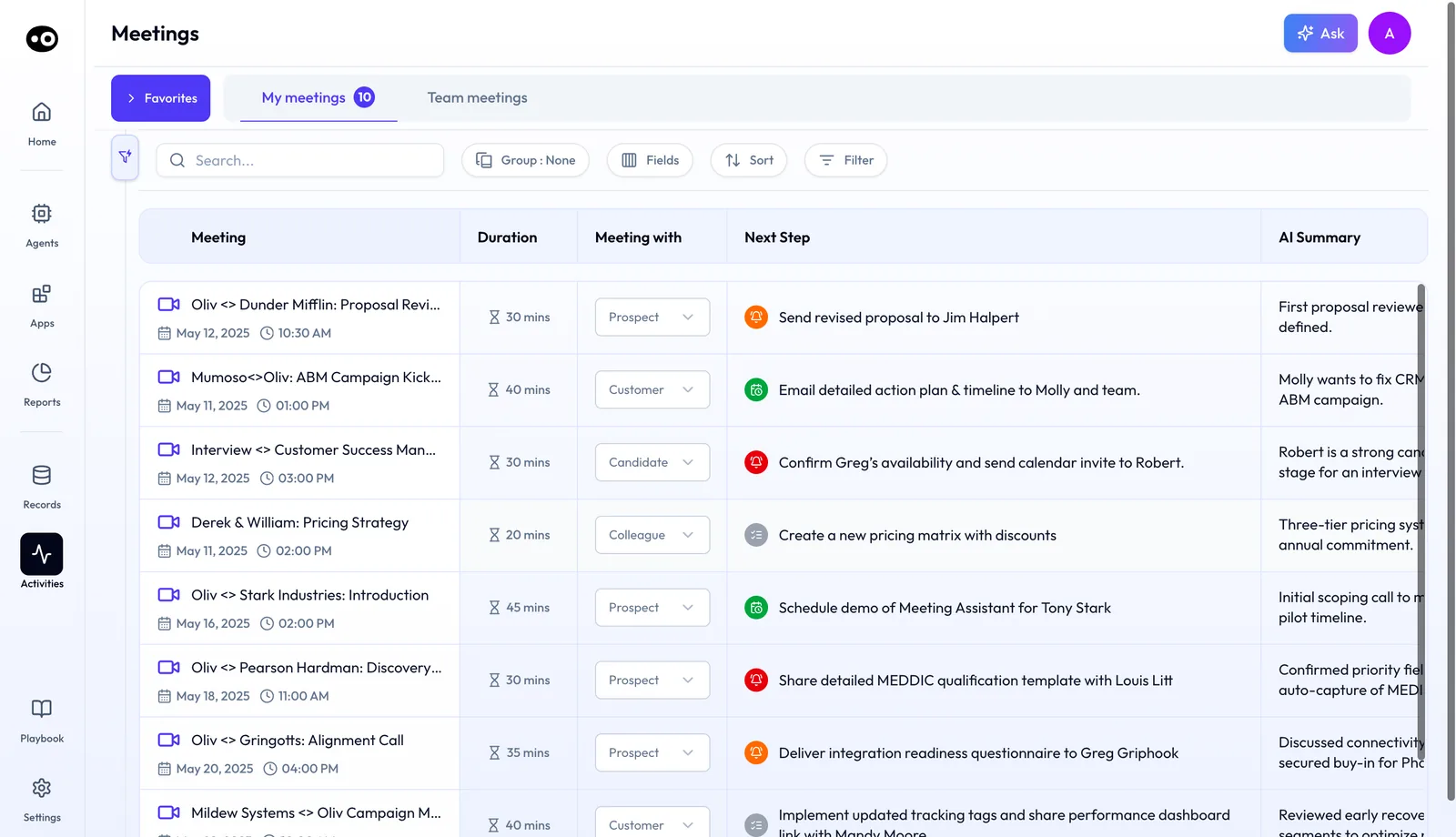
Where your recorded Zoom calls end up: one list of captured meetings, each with its duration, who it was with, the agreed next step and a short AI summary. The meetings and durations shown are sample data.
### The two Zoom apps {#two-apps}
Oliv offers two apps on the Zoom marketplace. Start with the first, and add the second if you want Oliv open during the call.
- **Oliv - Meeting bot.** Adds a meeting bot that records your meetings with your consent. After the meeting, it analyzes the call and surfaces the meeting details for you.
- **Oliv.ai.** The richer in-meeting app. It has the bot join the call, cuts the steps needed for recording consent, and shows Oliv inside Zoom so you can edit CRM fields directly.
### How Oliv AI picks a recording mode {#recording-modes}
When botless recording is turned on for your organization, [Oliv chooses the method by who organized the meeting](https://www.oliv.ai/product-docs/apps/converse/recording-modes/).
- **Your company organized it.** Oliv records directly through Zoom. No Oliv participant joins, though everyone still sees Zoom's own recording indicator.
- **Someone outside your company organized it.** The note taker joins as a visible participant, shown with your company's name. If the meeting has a waiting room, someone may need to admit it.
## Why the Zoom integration matters {#why-it-matters}
### What it's for {#what-its-for}
You use a Zoom AI note taker so each customer call gets recorded and summarized while you stay in the conversation. To see whether yours is working, check last month's calls for the symptoms below.
### How it helps {#how-it-helps}
- **A call has no transcript.** Check that the host gave permission and that the calendar is connected. If you host, switch on auto-record.
- **A call is missing because the host never joined.** Ask a Zoom admin to grant shared access, then tell the Oliv team.
- **A handoff is a few typed notes.** Have the account executive look for the call under **Activities** › **Meetings**. If it isn't there, connect the SDR's calendar.
- **A customer objects to an extra participant.** On calls your company organizes, ask Oliv Support and your Zoom admin to turn on botless recording.
- **Deal fields lag behind the call.** Install the **Oliv.ai** app and edit them in Zoom. Afterwards, check **CRM Updates** for a pending stage move.
### What happens without it {#without-it}
Without a recording, nobody can check what the customer said. The follow-up rests on what the rep wrote down, and the CRM gets whatever the rep remembers to type. Agents that prepare the next meeting have nothing to read from the last one.
### Why buyers care {#why-buyers-care}
Reps and CSMs feel this on every customer call, because the follow-up and the CRM update depend on what the note taker caught. Sales development leaders feel it at the handoff to the account executive. Zoom admins come in at rollout, since they grant the permissions that decide how calls get recorded.
## The Oliv AI approach to the Zoom integration {#approach}
{/* 5P */}
Picture a sales development team of ten that books every first call on Zoom, and you're its lead. Some calls sit on an SDR's own Zoom account. Others run on the prospect's link. Often an account executive joins halfway, and now and then the SDR who booked the call is out sick.
The usual habit is to have each SDR press record, or invite a recorder, at the start of every call. That tends to break on busy days. A call hosted by the prospect may never get recorded, and a call whose host is missing can go unrecorded too. The handoff to the account executive then runs on a few typed notes.
Each call is still a Zoom meeting on a calendar, with a known organizer. So the recording can follow the calendar and the organizer, instead of depending on someone remembering a button.
Oliv AI records calls your company organizes botlessly through Zoom, and joins calls others organize as a visible note taker under your company's name. Set it up in this order. First, have every SDR log in and connect a calendar. Next, ask your Zoom admin to grant shared access, so a call still records when its host is out, and tell the Oliv team. Then ask Oliv Support and that admin to turn on botless recording.
In the first week of calls, open **Team meetings** and confirm three cases. Look for a call on an SDR's account, a call on a prospect's link and a call whose host was absent. If one is missing, check host permission, the lobby and the calendar, in that order. Every permission each app asks Zoom for is listed in Permissions Zoom asks for. The features they enable are covered in How Oliv AI compares as a Zoom AI note taker, below.
## Set up the Zoom integration {#set-up}
1. **Connect your calendar.** Calendar integration is required for Oliv to work. Without it, Oliv can't take notes during your meetings.
2. **Log in to Oliv.** Sign in at web.oliv.ai and set up your account. Oliv starts joining and summarizing your Zoom calls.
3. **Install the Oliv.ai Zoom app.** Open web.oliv.ai/apps/zoom-meeting-bot. That's all the in-meeting app needs.
4. **Choose auto-record if you host.** By default, Oliv asks the host for permission to record. To auto-record meetings you host, use the same page.
### Record when the host isn't on the call {#admin-recording}
A Zoom admin has to complete these steps, because they grant the needed permissions.
1. **Open the meeting bot settings.** Go to web.oliv.ai/apps/zoom-meeting-bot.
2. **Grant admin permissions.** Check the **Permissions** box on the page.
3. **Enable shared access.** Click **Allow** to turn on the Shared Access Permission.
4. **Tell the Oliv team.** They finish the remaining setup on the backend.
### Turn on botless recording {#botless-setup}
Botless recording is set up per organization. If it isn't on for your team yet, contact Oliv Support and connect your Zoom admin with them. They'll help enable it.
## How a Zoom call gets captured for your CRM {#methods}
There are several ways to get a Zoom call into a deal record, and each one fails differently. Knowing which one you're on tells you where to look when a call goes missing. If you're still comparing products, these [meeting recorder picks](https://www.oliv.ai/blog/meeting-recorder-picks-for-productivity) and this list of [AI note-taking tools](https://www.oliv.ai/blog/ai-note-taking-tools) are a place to start.
### Pressing record in Zoom {#press-record}
This catches the calls you remember, on meetings where you have the controls. It misses the busy day, and often the call on a customer's link. The recording also stays a file until someone writes up the notes and types the CRM update.
### Syncing Zoom cloud recordings to your CRM {#cloud-sync}
This catches calls recorded to the cloud on your own Zoom accounts, with nobody moving a file. It misses any call where the settings or a rep's connection aren't in place. [HubSpot's Zoom integration](https://knowledge.hubspot.com/integrations/use-hubspots-integration-with-zoom) shows the catches. Cloud recording and audio transcripts must both be on in Zoom, and each user must connect their own Zoom account. The recording must also stay available in Zoom, and Personal Meeting IDs aren't supported.
### A note taker that joins the call {#joining-note-taker}
This catches calls on a customer's Zoom link, because the note taker arrives as a participant. It misses calls where nobody admits it from the waiting room, or where the host says no. Everyone on the call can see it, so a customer who objects to bots will notice.
### Recording through Zoom with no bot {#recording-no-bot}
This catches calls your own company organizes, with no extra participant in the room. It can't reach calls a customer organizes on their own account. A rep who sells mostly on customer links still needs a note taker.
### An app inside the Zoom window {#app-in-window}
This doesn't decide whether the call gets recorded. It changes when the CRM gets updated: during the call, while the customer is still confirming details. It misses whatever you don't stop to enter, so you still want a recording behind it.
### Which of these Oliv AI does {#what-oliv-does}
Oliv AI does the last three. It joins calls others organize as a visible note taker, records calls your company organizes through Zoom once botless recording is on, and shows its **Oliv.ai** app inside Zoom. The full rules on what attendees see are in [the guide to recording modes](https://www.oliv.ai/product-docs/apps/converse/recording-modes/).
## Use Oliv AI during a Zoom call {#in-meeting}
With the **Oliv.ai** app installed, you can open Oliv directly in the Zoom window. From there, you can update the deal data for the account while you talk. You can also see the important moments you highlighted through Oliv during the meeting. If Oliv isn't in your Zoom window, check that you installed **Oliv.ai** and not only the meeting bot.
Once the call is done, the recording shows up in the Oliv app, where you can share it. The meeting's **Recording** tab has the player, a speaker **Timeline** with talk time and engagement, and **Chapters**, **Transcripts** and **Comments**, with **Clip** and **Share** under the player.
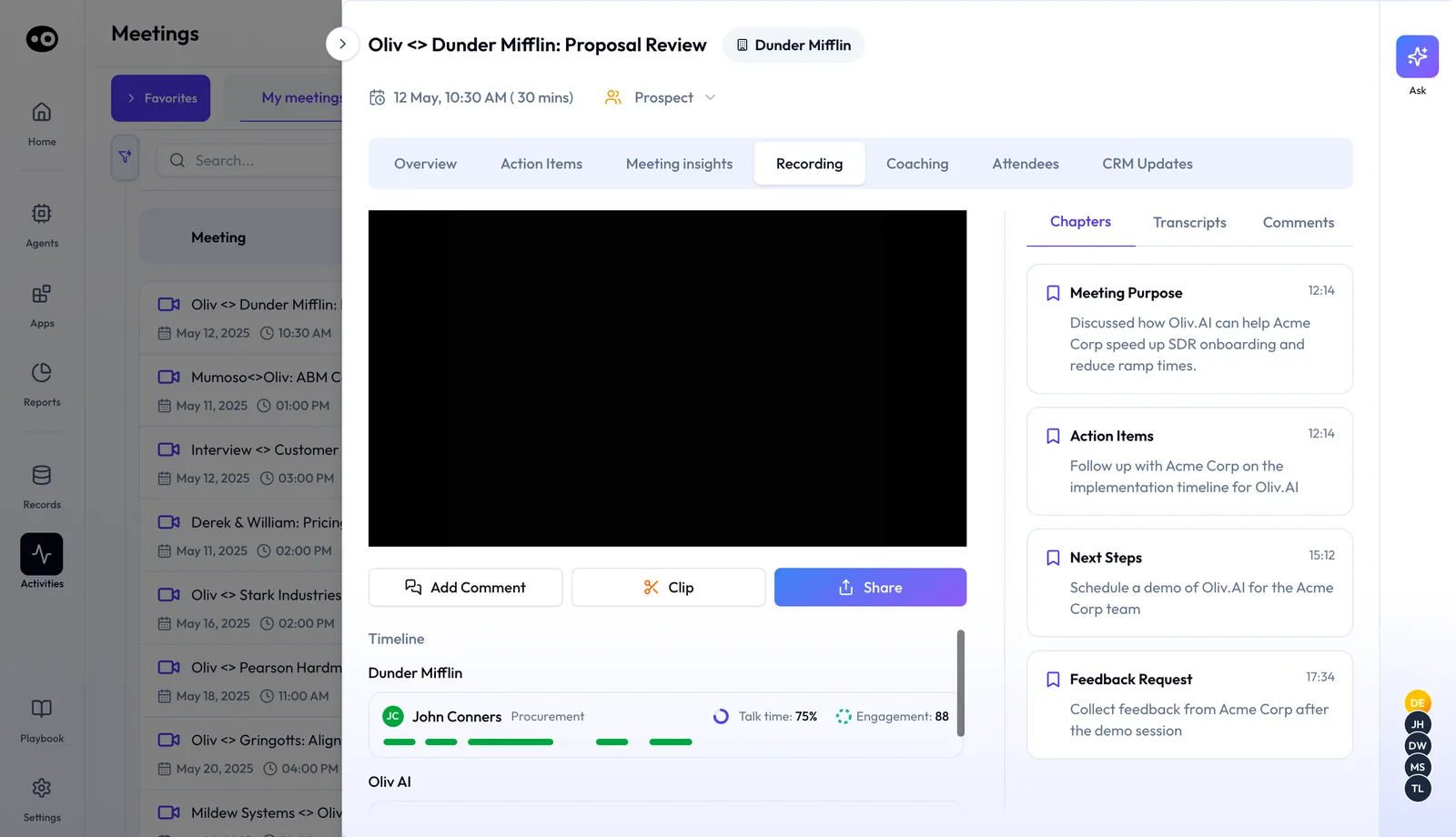
What a recorded Zoom call becomes in Oliv AI: the recording split into chapters and a transcript, with speaker stats and controls to clip or share a moment. The stats on screen come from a demo meeting.
CRM changes that come out of the call are listed on the meeting's **CRM Updates** tab. Completed writes carry a check, and a stage move waits as a **Pending Update** until you press **Update Deal**.
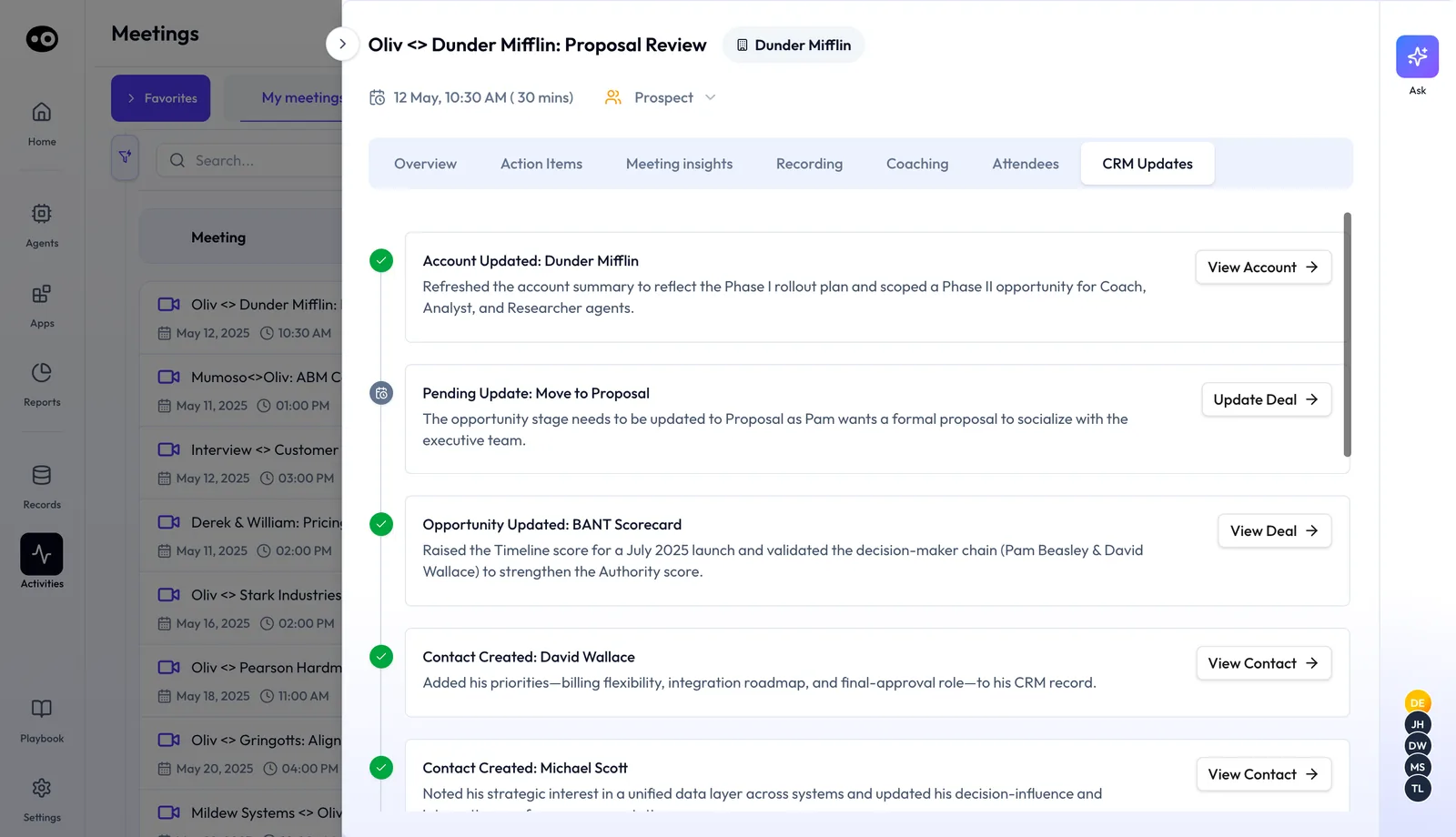
Alongside the fields you edit inside Zoom, this tab records every CRM change made from the call and holds a stage move until someone confirms it.
The app also matches the Zoom meeting you're in to its calendar event, so the call lands on the right meeting.
## Consent and the lobby on a Zoom call {#consent-lobby}
Before a customer call, work out which of these situations you're in. Each one has its own check.
### You host the call {#you-host}
By default, Oliv asks you for permission to record, and without it Oliv can't summarize the meeting. To stop answering that on every call, switch on auto-record at web.oliv.ai/apps/zoom-meeting-bot. The **Oliv.ai** app also cuts the steps needed for consent.
Auto-record doesn't replace telling the people on the call. Zoom's recording indicator shows that a recording is running, but it's better to say so out loud. Nielsen Norman Group's [script for remote sessions](https://www.nngroup.com/articles/moderated-remote-usability-test/) waits for a yes before recording starts, and that habit works on a customer call too.
### The customer hosts the call {#customer-hosts}
The note taker joins as a visible participant under your company's name. If the meeting has a waiting room, someone may have to admit it before recording can begin. Mention the note taker when the call opens, and check that it has made it in. If it's still in the lobby, ask the host to admit it.
### The host isn't on the call {#host-missing}
Oliv needs either the host's permission or a Zoom admin's shared access. If hosts on your team often miss calls, ask your Zoom admin to complete the host-free steps under Set up the Zoom integration.
### Someone says no {#someone-says-no}
Stop the note taker with the link in the Zoom chat, or remove it directly from Zoom. Nielsen Norman Group's [guidance on research consent](https://www.nngroup.com/articles/informed-consent/) lets people take part in a session while opting out of the recording, and you can treat a customer call the same way. [HubSpot's article on its own calling tool](https://knowledge.hubspot.com/calling/what-are-the-call-recording-laws) puts consent on the users who record and says it isn't legal advice. Ask your legal team which rules cover the people on your calls.
## Manage or stop the note taker {#manage-note-taker}
Oliv joins external calls automatically. You can stop it from joining a call in five ways:
1. The Oliv AI Chrome extension or the Oliv AI Outlook add-in.
2. The **Meetings** page in Oliv AI, under **Activities**.
3. The link to remove it in the meeting preparation summary, by email or in Slack.
4. The link to remove it in the Zoom chat.
5. Removing it directly from Zoom.
To remove the whole Zoom integration, send Oliv a message through Intercom in the Oliv app.
## Permissions Zoom asks for {#permissions}
| App | Zoom permission | What it allows |
|---|---|---|
| **Oliv - Meeting bot** | user_zak:read | The Oliv bot joins the calls you want it to |
| **Oliv.ai** | meeting:read | Reads the meeting you're in and matches it to its calendar event |
| **Oliv.ai** | user:read | Keeps track of the meeting recordings you own |
| **Oliv.ai** | meeting_token:read:local_recording | Shows you the recording in Oliv after the call, ready to share |
| **Oliv.ai** | zoomapp:inmeeting | Opens the Oliv app directly in the Zoom window |
## Find a Zoom recording later {#find-recordings}
If Oliv sends you a [Slack message](https://www.oliv.ai/product-docs/integrations/slack/) about a meeting, click **Open Meeting** in it to jump to the call in Oliv. You can also go to **Activities** › [**Meetings**](https://www.oliv.ai/product-docs/apps/converse/meetings/) and search for it, on **My meetings** or **Team meetings**.
To share part of a call, open its [**Recording** tab](https://www.oliv.ai/product-docs/apps/converse/meeting-details/), find the moment in **Chapters** or **Transcripts**, and press **Clip**. If you need ideas for what to capture, read about [taking notes during sales calls](https://www.oliv.ai/blog/how-to-take-meeting-notes-during-sales-calls).
## How to measure your Zoom note taker's coverage {#measure-coverage}
A Zoom note taker only helps on the calls it caught, so check that before you judge anything else. Two measures are enough.
- **Recording coverage.** Divide recorded customer Zoom meetings by customer Zoom meetings held. The weak spot is the bottom number, because internal calls or canceled meetings make the figure mean less.
- **Share of misses by reason.** Divide the unrecorded meetings with one cause by all unrecorded meetings. The weak spot is sample size, because one rep with no connected calendar can look like a trend in a small month.
Neither measure tells you whether the CRM update went in. For that, open a few recorded calls and read their **CRM Updates** tab.
### Where to get the numbers in Oliv AI {#coverage-in-oliv}
Open **Activities** › **Meetings** and work from **Team meetings** for the recorded count, using **Filter** and **Sort** to get through the list. Take the total from your team's calendars, because you're looking for the meetings that never reached this list.
## How to find out why Zoom calls weren't recorded {#find-missed-calls}
1. **List the meetings.** Pull last month's customer Zoom meetings from your team's calendars.
2. **Mark what was recorded.** Check each one against the recorded meetings for that month.
3. **Check host permission on each miss.** Ask whether the host gave permission to record, or had auto-record on.
4. **Check the lobby.** If a customer hosted, ask whether the note taker was ever admitted from the waiting room.
5. **Check the calendar.** Confirm that the rep on the call had a connected calendar.
6. **Count the misses by reason.** Fix the biggest cause first, then measure again next month.
### The same job in Oliv AI {#same-job-oliv}
You still do the count, but each cause has a fix.
- **No host permission.** Ask hosts to switch on auto-record from the meeting bot page. Where hosts often miss calls, have a Zoom admin grant shared access too.
- **Waiting in the lobby.** Ask reps to check for the note taker when the call opens. On calls your company organizes, botless recording means no note taker has to wait.
- **No connected calendar.** Connect the rep's calendar, because Oliv can't take notes in their meetings without it.
### Worked example: 50 Zoom customer meetings from last month {#worked-example}
This is an illustrative calculation with sample figures, not an Oliv AI output. A RevOps lead checks 50 Zoom customer meetings from last month and sorts the misses by reason.
| What they count | Arithmetic | Result |
|---|---|---|
| Recorded meetings | 42 / 50 | 84% coverage |
| Unrecorded meetings | 50 - 42 | 8 meetings |
| No host permission | 5 / 8 | 63% of misses |
| Waiting in the lobby | 2 / 8 | 25% of misses |
| Rep with no connected calendar | 1 / 8 | 13% of misses |
The shares are rounded, so they add up to 101%. Consent explains 5 / 8 = 63% of the misses, so the RevOps lead asks hosts to switch to auto-record first. The lobby and the one calendar come next.
## How Zoom works with Oliv AI's agents {#works-with}
### Meeting Assistant {#with-meeting-assistant}
Thirty minutes before a call on an active deal, read the brief from [Oliv AI's Meeting Assistant agent](https://www.oliv.ai/product-docs/agents/meeting-assistant/), which is how you [prepare for a meeting](https://www.oliv.ai/product-docs/workflows/prepare-for-a-meeting/). After the call, [review the drafted follow-up email](https://www.oliv.ai/product-docs/workflows/record-and-follow-up/) and the flagged CRM field updates. If nothing arrives, first check that the meeting is linked to an active opportunity, because the agent works only on those. Then check that the call was recorded, because the agent reads the Oliv Notetaker's recordings and transcripts.
### Olivia {#with-olivia}
When you have a question about a deal or account, or a first call with someone new, ask [Oliv AI's Olivia agent](https://www.oliv.ai/product-docs/agents/olivia/). Her brief for a first call includes a profile of the new attendee. Recorded Zoom calls are part of what she reads, so if her answer leaves out a recent call, check that it appears under **Activities** › **Meetings**.
### Deal Driver and Coach {#with-deal-driver-coach}
Before a one-to-one, a manager opens the rep's recorded call and reads its **Coaching** tab, with a grade, skill scores out of 5 and a **MEDDPICC Scorecard**. Oliv AI's Coach agent lists Zoom as one of the call sources it can [score for coaching](https://www.oliv.ai/product-docs/agents/coach/). [Oliv AI's Deal Driver agent](https://www.oliv.ai/product-docs/agents/deal-driver/) bundles Meeting Assistant for reps, so each recorded call also feeds the manager's view. If a call is missing from either, look for it on **Team meetings** first. If it isn't there, it was never recorded, so run the three checks on the host, the lobby and the calendar.
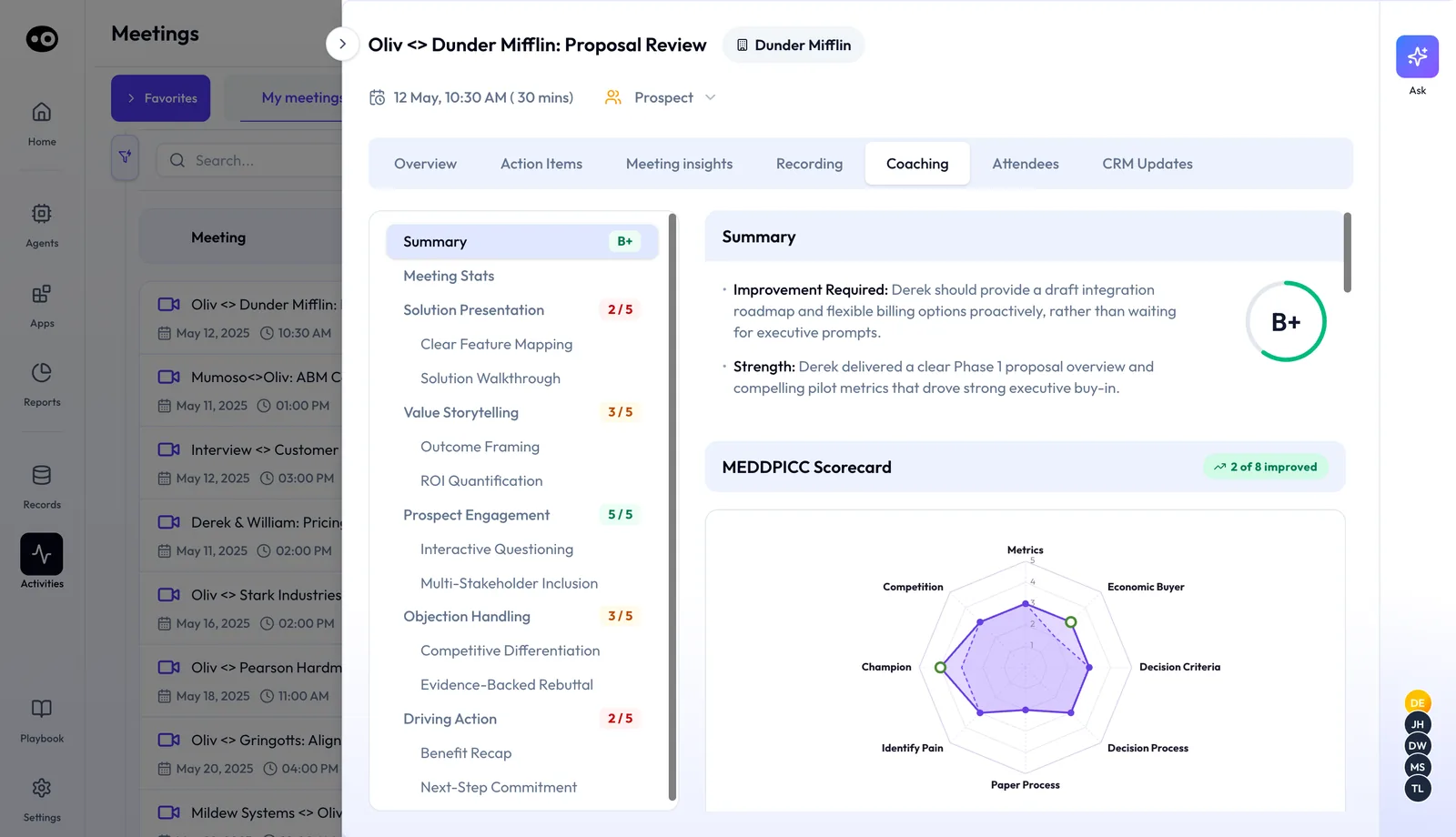
A recorded Zoom call scored by Oliv AI's Coach agent: an overall grade, a score per skill and qualification coverage on one radar, ready for the next one-to-one. The grade and scores are sample figures.
### Content Curator {#with-content-curator}
When enablement needs a moment from a customer call, Oliv AI's Content Curator agent [clips it from the recordings](https://www.oliv.ai/product-docs/apps/converse/clips/). The agent needs the Oliv Notetaker to be recording, so if your Zoom calls produce no clips, check that those calls were recorded before anything else.
## Who uses the Zoom integration, and how {#who-uses-it}
### Sales development {#sales-development}
Your first step is to log in and connect your calendar. After each first call, check **My meetings** to confirm the call was recorded, so the account executive who takes the deal gets the call and not your notes. See how Oliv AI supports [sales development teams](https://www.oliv.ai/sales-development).
### Account executives {#account-executives}
Your first step is to install the **Oliv.ai** app, so you can edit deal fields while the customer is talking. After each call, review the drafted follow-up, then open **CRM Updates** and press **Update Deal** on any pending stage move. The full day is laid out in [running deals as an account executive](https://www.oliv.ai/product-docs/use-cases/ae-run-deals/).
### Customer success and account management {#customer-success}
Your first step is to connect your calendar, then check how your customers set up their calls. Many renewal and check-in calls may run on the customer's link, so look for the note taker when the call opens. Afterwards, confirm the call appears on **My meetings**. More on Oliv AI for [customer success](https://www.oliv.ai/customer-success) and [account management](https://www.oliv.ai/account-management).
### Zoom admins and revenue operations {#zoom-admins}
A Zoom admin's first step is to grant shared access and tell the Oliv team. The admin then confirms that a call with no host on it was recorded. RevOps reviews what each app may do in the permissions table, then counts recording coverage each month. See Oliv AI for [revenue operations](https://www.oliv.ai/revops).
## How Oliv AI compares as a Zoom AI note taker {#compare}
Oliv AI records Zoom calls your company hosts without a bot, and keeps recording when the host is absent once a Zoom admin grants access. Its in-meeting app also lets you edit CRM fields without leaving Zoom. Oliv AI is the only platform in this table that does all three.
Zoom AI note taker features, from each platform's public documentation:
| Platform | Botless recording on Zoom | Records with the host absent | CRM fields edited inside Zoom |
|---|---|---|---|
| **Oliv AI** | Yes | Yes | Yes |
| **Gong** | Yes ([native Zoom recording](https://help.gong.io/docs/set-up-native-zoom-recording)) | Yes ([bot records without the host](https://help.gong.io/docs/set-up-zoom-recording-with-the-gong-bot)) | Partly ([notes and moments in the app](https://help.gong.io/docs/use-the-gong-app-for-zoom)) |
| **Avoma** | Yes ([Zoom Cloud Recording option](https://help.avoma.com/avoma-integration-with-zoom)) | Partly ([joins on behalf of an attendee](https://help.avoma.com/connect-zoom-for-recording)) | Partly ([notes app inside Zoom](https://help.avoma.com/avoma-for-zoom-apps)) |
| **Fathom** | Yes ([botless Zoom recording](https://help.fathom.video/en/articles/2462209)) | Not in docs | Not in docs |
| **Fireflies** | Yes ([capture without a bot](https://guide.fireflies.ai/articles/1208704416-getting-started-with-the-fireflies-desktop-app)) | Not in docs | Not in docs |
*Yes: documented and built in. Partly: documented with a limit, shown in brackets. Not in docs: not found in the vendor's public documentation.*
### Why Oliv AI is the stronger choice as a Zoom AI note taker {#compare-stronger}
- **Choose Oliv AI if reps need to edit CRM fields during the call.** The Oliv.ai Zoom app shows Oliv in the meeting so you can edit CRM fields directly. Gong's app for Zoom is for [taking notes, marking important moments and following the conversation](https://help.gong.io/docs/use-the-gong-app-for-zoom). Compare [Oliv AI vs Gong](https://www.oliv.ai/blog/gong-vs-oliv).
- **Choose Oliv AI if hosts often miss calls.** After a Zoom admin grants shared access, Oliv records even when the host is not present. Avoma Assistant [joins on behalf of someone from your organization who is in the meeting](https://help.avoma.com/connect-zoom-for-recording). Compare [Oliv AI vs Avoma](https://www.oliv.ai/blog/avoma-vs-oliv-ai).
- **Choose Oliv AI if your team sells mostly on customer links.** When someone outside your company organizes the call, Oliv joins as a visible note taker under your company's name. Gong notes that under its organizer-only rule, [a call organized by someone outside your team may not record automatically](https://help.gong.io/docs/troubleshooting-unrecorded-calls). See [Oliv AI as a Gong alternative](https://www.oliv.ai/gong-alternative).
*Competitor details checked against each vendor's public documentation on 21 October 2026. Features and plans change, so confirm with the vendor before you decide.*
## Limits and things to know {#limits}
- **Consent comes first.** By default, Oliv asks the host for permission to record. Without it, Oliv can't summarize the meeting.
- **Waiting rooms need a click.** On calls hosted by someone else, the note taker may need to be admitted from the waiting room.
- **Botless recording needs setup.** Oliv Support enables it with your Zoom admin. Until then, the note taker joins as a visible participant.
- **Host-free recording needs a Zoom admin.** Only a Zoom admin can grant shared access, and the Oliv team then finishes the setup.
- **Your calendar must be connected.** Without calendar integration, Oliv can't take notes in your meetings.
- **Removal goes through Oliv.** To remove the integration, message Oliv through Intercom in the Oliv app.
## Common questions {#common-questions}
#### Do I need both Zoom apps? {#faq-both-apps}
No. **Oliv - Meeting bot** covers recording and summaries. Add the **Oliv.ai** app if you want Oliv inside the Zoom window during calls, where you can edit CRM fields.
#### Will the prospect see an Oliv participant on the call? {#faq-visible-bot}
It depends on who organized the call. On calls your company organizes, with botless recording on, no Oliv participant appears. On calls others organize, the note taker joins under your company's name.
#### Can Oliv record if the host never joins? {#faq-host-absent}
Yes, once a Zoom admin grants shared access at web.oliv.ai/apps/zoom-meeting-bot and tells the Oliv team. Recording then goes ahead regardless of whether the host is there.
#### Does a Zoom note taker need the host's permission? {#faq-consent}
With Oliv AI, yes by default. Oliv asks the host for permission to record, and without it Oliv can't summarize the meeting. If you're the host, you can switch to auto-record from the meeting bot page.
#### Why didn't my call get recorded? {#faq-not-recorded}
Check that your calendar is connected and that the host gave permission to record. If someone else hosted, the note taker may have been waiting in the lobby for someone to admit it.
#### How do I stop the note taker joining one call? {#faq-stop-one-call}
Use the link in the Zoom chat, the link in your meeting preparation summary, or the **Meetings** page under **Activities**. You can also remove it directly in Zoom.
#### Can I update deal data during a Zoom call? {#faq-in-meeting}
Yes, with the **Oliv.ai** app. You open Oliv in the Zoom window, update deal data while you talk and see the moments you highlighted through Oliv.
#### Where do I find a recording after the call? {#faq-find-recording}
Click **Open Meeting** in the Slack message about the call, or search **Activities** › **Meetings**. On the call's **Recording** tab, **Clip** cuts a moment and **Share** sends the meeting.
#### What do I do if the note taker is stuck in the lobby? {#faq-lobby}
Ask the host to admit it. On a call with a waiting room, the note taker may need to be admitted before recording can begin. Check for it when the call opens, so you don't lose the start of the conversation.
#### Can I use Oliv AI as a Zoom meeting recorder without the in-meeting app? {#faq-meeting-recorder}
Yes. **Oliv - Meeting bot** records your Zoom meetings with consent and surfaces the meeting details after the call. You only need the **Oliv.ai** app to work in Oliv during the call.
#### Can I get research on a new contact before a first Zoom call? {#faq-first-call}
Yes. Ask Oliv AI's Olivia agent to prepare you for the call. Her brief covers who is attending and their role, risks and talking points, with a profile of any new attendee.
#### Which Zoom permissions does Oliv ask for? {#faq-permissions}
The meeting bot asks for user_zak:read to join calls. The **Oliv.ai** app asks for meeting:read, user:read, meeting_token:read:local_recording and zoomapp:inmeeting. Each one is explained in the permissions table.
#### Does it work for Microsoft Teams and Google Meet too? {#faq-other-platforms}
Yes. For Teams and Google Meet, no separate integration is needed. Oliv joins those meetings automatically once your calendar is connected.
#### How do I remove the Zoom integration? {#faq-remove}
Send Oliv a message through Intercom in the Oliv app, and the team removes it for you.
## Further reading {#further-reading}
- [Connect HubSpot and Zoom](https://knowledge.hubspot.com/integrations/use-hubspots-integration-with-zoom) (HubSpot Knowledge Base): the Zoom settings and user connections HubSpot needs before cloud recordings sync.
- [Remote Moderated Usability Tests: How to Do Them](https://www.nngroup.com/articles/moderated-remote-usability-test/) (Nielsen Norman Group): a session script that waits for a yes before recording starts.
- [Obtaining Consent for User Research](https://www.nngroup.com/articles/informed-consent/) (Nielsen Norman Group): how people can take part in a session while opting out of the recording.
- [Call recording best practices](https://knowledge.hubspot.com/calling/what-are-the-call-recording-laws) (HubSpot Knowledge Base): who holds responsibility for consent in HubSpot's calling tool.
## Related {#related}
- [Prepare for a meeting](https://www.oliv.ai/product-docs/workflows/prepare-for-a-meeting/): what the brief before a recorded call contains.
- [Run deals as an account executive](https://www.oliv.ai/product-docs/use-cases/ae-run-deals/): recorded calls in a full selling day.
- [Deal Driver agent docs](https://www.oliv.ai/product-docs/agents/deal-driver/): the manager's view built on each call.
- [Olivia agent docs](https://www.oliv.ai/product-docs/agents/olivia/): ask questions across your recorded calls.
- [Agent tools and run modes](https://www.oliv.ai/product-docs/agents/builder/tools-and-run-modes/): what a custom agent can do with your apps.
- [Meeting Assistant agent docs](https://www.oliv.ai/product-docs/agents/meeting-assistant/): the agent that preps and follows up each deal call.
- [Converse, Oliv AI's capture app](https://www.oliv.ai/product-docs/apps/converse/): how calls, phone and in-person meetings are captured.
- [Oliv AI integrations](https://www.oliv.ai/product-docs/integrations/): every tool Oliv AI connects to.
- [Meeting transcription software compared](https://www.oliv.ai/blog/meeting-transcription-software): how transcription accuracy differs.
- [Meeting recorders for productivity](https://www.oliv.ai/blog/meeting-recorder-picks-for-productivity): choosing a recorder for your team.
- [Oliv AI pricing](https://www.oliv.ai/pricing): plans and what each includes.
- [Oliv AI product documentation](https://www.oliv.ai/product-docs/): every documented agent and feature.
*Updated 3 November 2026: added how Zoom calls get captured, consent and the lobby, how to measure coverage, a worked example and further reading.*