# AI sales platform docs: how Oliv AI's agents and apps work, and which guide to open first
Find which AI sales platform guide to open first with Oliv AI: prepare for a meeting, size up the agents, connect your CRM or assign seats.
- Applies to: All plans
- Status: Live
- Verified: 2026-11-03
- Canonical page: https://www.oliv.ai/product-docs/
You're weighing an AI sales platform for your revenue team, and you need to see what the agents do across sales and customer success and where to start. Pick the one guide below that matches what you have to do this week, open it, and leave the rest for later. Oliv AI is a layer on top of the CRM you already use, not a replacement, so you connect your CRM rather than move off it.
## Choose where you'd like to start {#start-here}
Open the card that matches your situation. If you're rolling out to a whole team, open the [30-day rollout plan](https://www.oliv.ai/product-docs/getting-started/plan-your-deployment/) instead, which takes you from admin access to the day-30 review.
- [Prepare for a meeting](https://www.oliv.ai/product-docs/workflows/prepare-for-a-meeting/): You have a call coming up. Get the deal brief, or research on a contact you haven't met, before you join.
- [Oliv AI agents](https://www.oliv.ai/product-docs/agents/): You're sizing up what AI agents can do. See which agent takes which job across sales and customer success.
- [Connect your CRM](https://www.oliv.ai/product-docs/platform/oliv-and-your-crm/): You're the admin connecting systems. See what the layer reads and writes, then connect your CRM so agents can read deals and propose updates.
- [Plans and seat roles](https://www.oliv.ai/product-docs/plans/plans-and-seat-roles/): You decide who gets what. Match each person on your revenue team to the seat role they need.
- [The Converse app](https://www.oliv.ai/product-docs/apps/converse/): You need to get back to what a customer said. Find the conversations your team captured, with summaries and search, in one place.
Still comparing vendors? Read our [comparison of AI sales platforms](https://www.oliv.ai/blog/ai-sales-platform) first, then come back to the agents guide.
## Everything begins on Home {#what-oliv-ai-is}
Start on **Home**, which has two tabs. Use **Ask** when you want work done, and check **Agent Feed** when you want to see what your agents have already done.
Ask in plain language. Go to [Oliv AI's Olivia agent](https://www.oliv.ai/product-docs/agents/olivia/) for day-to-day work, because she runs it and hands tasks to specialist agents. Go to [Oliv AI's Oliver agent](https://www.oliv.ai/product-docs/agents/oliver/) when the rules change, such as your stages, ownership and handoffs.
Everything else is in the sidebar: **Agents**, **Apps**, **Reports**, **Records** and **Activities**, with **Playbook** and **Settings** at the bottom.
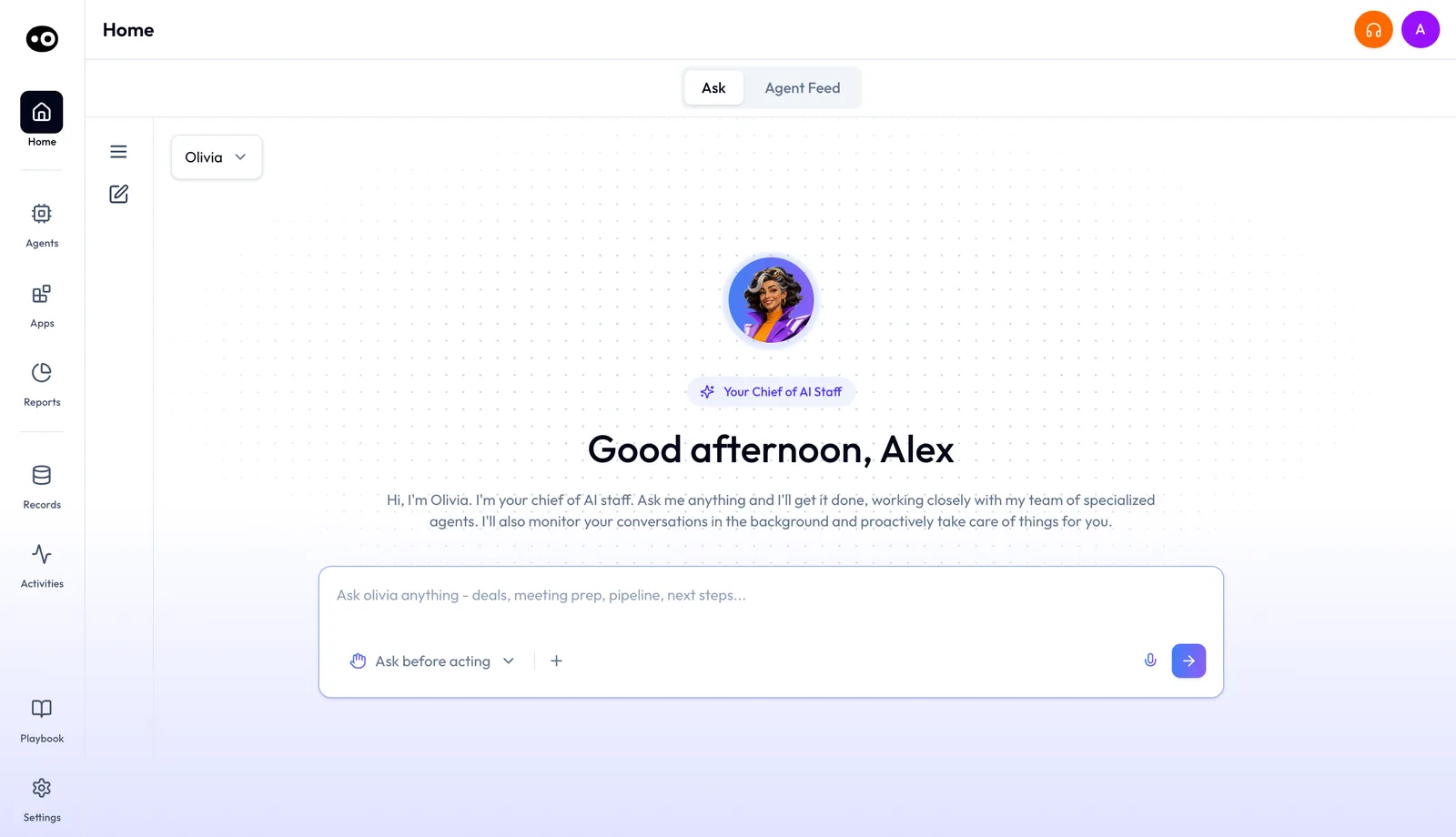
Home is where most people start: ask Oliv AI's Olivia agent for work in plain language, and switch to the Agent Feed to see what was done.
## Agents {#agents}
If you're sizing up what the agents do, start from the job you most want off your team's plate. Open the agent page that matches it:
- **Deals slip before a manager sees them.** Open [Oliv AI's Deal Driver agent](https://www.oliv.ai/product-docs/agents/deal-driver/), which watches the pipeline and tells managers which deals need attention.
- **Reps fall behind on CRM updates.** Open [Oliv AI's CRM Manager agent](https://www.oliv.ai/product-docs/agents/crm-manager/), which fills CRM fields from calls, emails and meetings. Then [map your custom fields](https://www.oliv.ai/product-docs/agents/crm-manager/field-mapping/) so updates land in the right place.
- **Reps walk into deal meetings unprepared.** Open [Oliv AI's Meeting Assistant agent](https://www.oliv.ai/product-docs/agents/meeting-assistant/), which prepares you for meetings linked to active opportunities and drafts the follow-up after them.
- **The forecast call is coming up.** Open [Oliv AI's Forecaster agent](https://www.oliv.ai/product-docs/agents/forecaster/), which drafts each rep's forecast.
- **Reps need coaching.** Open [Oliv AI's Coach agent](https://www.oliv.ai/product-docs/agents/coach/), which scores recorded calls and recommends a goal for each rep.
- **You run customer success.** Open **Agents** in the sidebar and filter to **Customer Success** to find Oliv AI's Portfolio Manager agent, which flags renewal risk.
Once an agent is running, check its work. Each agent posts to the **Agent Feed**, which you can filter by team, role, agent and time.
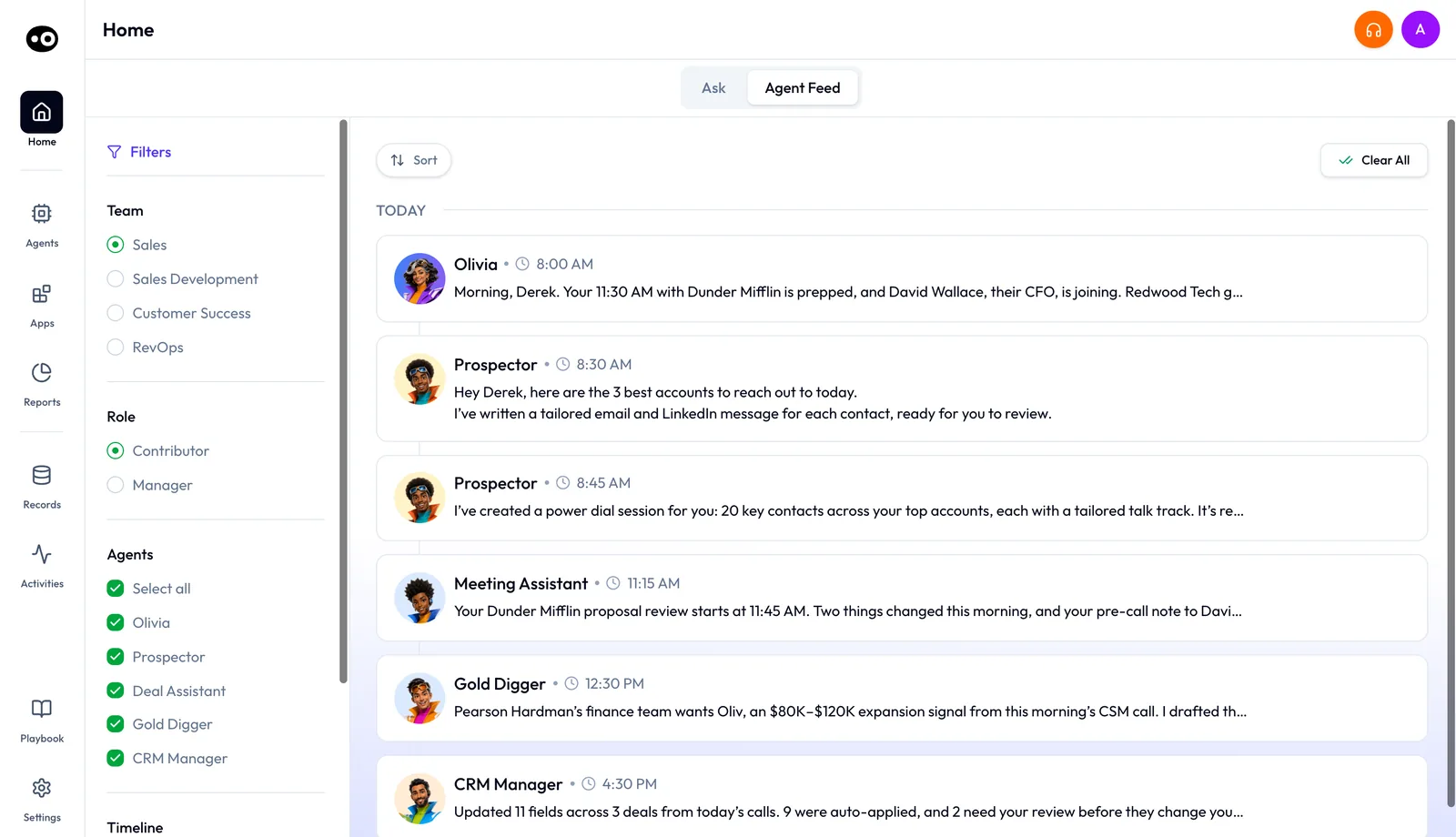
The feed shows a rep's day as the agents saw it, from Oliv AI's Olivia agent's morning brief to the evening CRM updates. Names and figures are sample data.
## Get to know your AI agents {#agent-builder}
Open **Agents** in the sidebar to reach the marketplace, then filter by team or search for the job you need done.
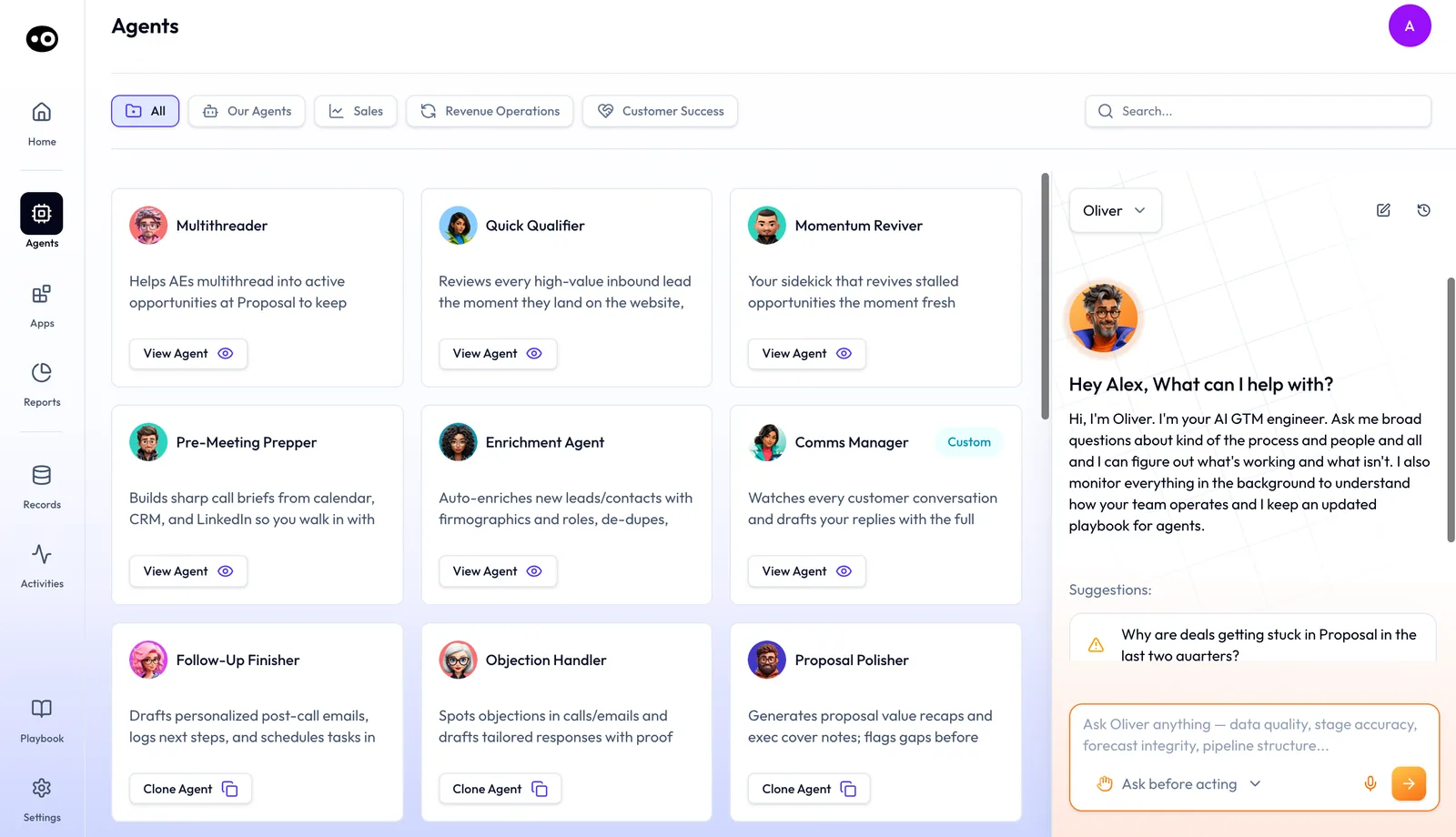
The marketplace lists the specialist agents by team. Each card opens an agent page built from the parts described below.
Before you let an agent act on its own, go through its setup in this order, using the [agent builder guide](https://www.oliv.ai/product-docs/agents/builder/):
1. Set its [tools and run modes](https://www.oliv.ai/product-docs/agents/builder/tools-and-run-modes/) to decide which actions run on their own and which wait for approval.
2. Check its [triggers](https://www.oliv.ai/product-docs/agents/builder/triggers/) to see what starts it.
3. Open its [knowledge files](https://www.oliv.ai/product-docs/agents/builder/knowledge/) to confirm it has your material.
4. Read its [instructions](https://www.oliv.ai/product-docs/agents/builder/instructions/) to follow its process step by step.
5. After it has run, read its [run history](https://www.oliv.ai/product-docs/agents/builder/run-history/) to see what it did.
## Apps {#apps}
Agents do the work, and [apps](https://www.oliv.ai/product-docs/apps/) group the screens each role works in. Open an app when you want to work through those screens yourself.
Need to find what a customer said? Open the [meetings list](https://www.oliv.ai/product-docs/apps/converse/meetings/) in Converse, then [meeting details](https://www.oliv.ai/product-docs/apps/converse/meeting-details/) for the call you want. In the sidebar, meetings and calls sit under **Activities**.
Save a moment worth sharing as a [clip](https://www.oliv.ai/product-docs/apps/converse/clips/). If a customer doesn't want a meeting bot on the call, check [recording modes](https://www.oliv.ai/product-docs/apps/converse/recording-modes/), which cover recording with or without one. For email and LinkedIn outreach, open [Engage](https://www.oliv.ai/product-docs/apps/engage/).
## Workflows and use cases {#workflows}
Open a [workflow](https://www.oliv.ai/product-docs/workflows/) when the job crosses several agents during a deal's week. Right after a call, [record the meeting and follow up](https://www.oliv.ai/product-docs/workflows/record-and-follow-up/). Between meetings, [keep the CRM updated](https://www.oliv.ai/product-docs/workflows/keep-the-crm-updated/). At the end of the week, [run a pipeline review](https://www.oliv.ai/product-docs/workflows/run-a-pipeline-review/).
Open a [use case](https://www.oliv.ai/product-docs/use-cases/) when you'd rather start from a role. [Running deals as an account executive](https://www.oliv.ai/product-docs/use-cases/ae-run-deals/) shows how one AE uses the agents across a week of calls.
## Integrations and plans {#integrations}
If you're the admin, connect the CRM first. Oliv AI's Meeting Assistant agent works only on meetings linked to active opportunities, so it has nothing to brief you on until the CRM is connected. Connect [Salesforce](https://www.oliv.ai/product-docs/integrations/salesforce/) or [HubSpot](https://www.oliv.ai/product-docs/integrations/hubspot/), then check that a brief arrives before your next meeting on an active opportunity.
Then add [Zoom](https://www.oliv.ai/product-docs/integrations/zoom/) for meetings and [Slack](https://www.oliv.ai/product-docs/integrations/slack/) for summaries and alerts. The [integrations overview](https://www.oliv.ai/product-docs/integrations/) lists what else you can connect.
If you assign seats, use the [plans overview](https://www.oliv.ai/product-docs/plans/) to see how seat roles, add-ons and agent actions fit together. Assign each person by the apps they need. Prices are on the [pricing page](https://www.oliv.ai/pricing).