# Sales call library: find a past customer meeting by search, filter or a Slack link
How to find a past customer meeting in a sales call library, by date, by phrase, by filter or from a Slack link, and open its recording, transcript and notes in Oliv AI.
- Applies to: Converse, Sell and Grow plans
- Status: Live
- Verified: 2026-11-03
- Canonical page: https://www.oliv.ai/product-docs/apps/converse/meetings/
Your next meeting is close and you need what the customer said on the last one, which is what a sales call library is for. Oliv AI keeps that in the Meetings list under **Activities › Meetings**, where you search by date or phrase, filter the grid and open the meeting's record. You can also skip the list and press **Open Meeting** in the Slack message about the call. Phone calls sit in their own list under **Activities › Calls**, so check there if the conversation wasn't a meeting.
## At a glance {#at-a-glance}
| | |
|---|---|
| **What it does** | Lists your captured meetings and opens each meeting's record |
| **Where it is** | **Activities › Meetings** in the main navigation |
| **Tabs** | **My meetings** and **Team meetings**, plus a **Favorites** toggle |
| **Columns** | **Meeting**, **Duration**, **Meeting with**, **Next Step** and **AI Summary** |
| **How you find a meeting** | **Search**, **Group**, **Fields**, **Sort** and **Filter**, or **Open Meeting** in a Slack message |
| **Phone calls** | Kept in their own list, under **Activities › Calls** |
| **Who it's for** | Account executives, SDRs, sales managers and customer success |
## What the Meetings list is {#what-it-is}
Start here whenever you need a past customer meeting. Open **Activities › Meetings**, pick the right tab, then read the row. Click the row only if it doesn't answer your question. The meeting's details open in a drawer over the list, with its recording, transcript and notes.
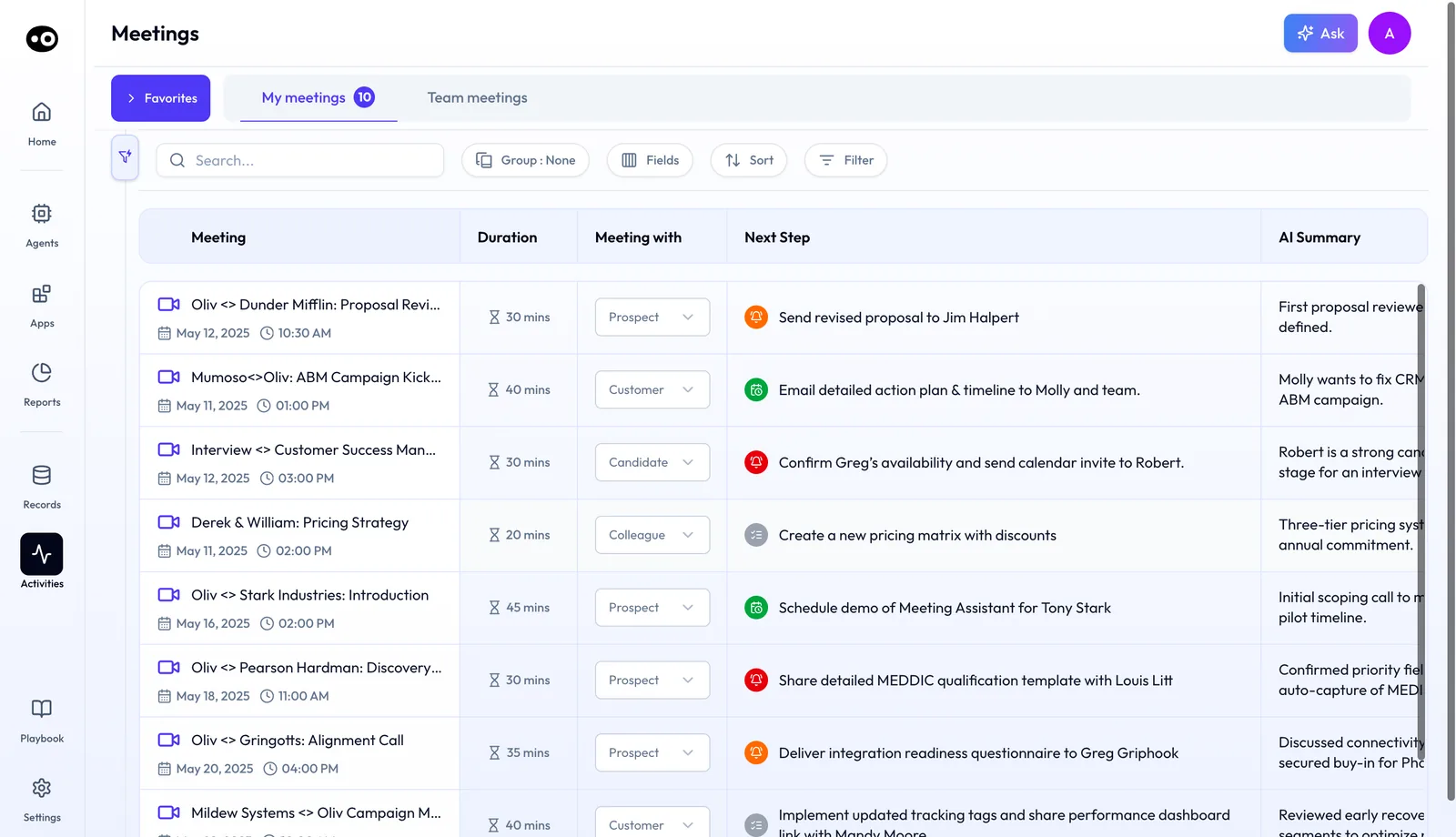
The Meetings list puts each captured meeting's type, next step and AI summary in one row, so you can see where a conversation landed before you open it. The dates and durations shown are sample data.
If a meeting you expect is missing, check how it was meant to be recorded. In [Converse](https://www.oliv.ai/product-docs/apps/converse/), Oliv AI's conversation capture app, online meetings are [recorded one of two ways](https://www.oliv.ai/product-docs/apps/converse/recording-modes/): botlessly through the meeting platform when your company hosts, or by a visible note taker when someone else does.
### What each row shows {#row-columns}
Read the row before you open the meeting, because it may already hold your answer.
- **If several meetings look alike,** check **Meeting** for the title, date and time.
- **If you're deciding what to play,** check **Duration**, which gives the length in minutes.
- **If you only want customer conversations,** read **Meeting with**. It labels each meeting **Prospect**, **Customer**, **Candidate** or **Colleague**, and you can change a wrong label there.
- **If you need to know what happens next,** read **Next Step**. It shows the step Oliv AI picked out of the call, with a color-coded status icon.
- **If you need the gist,** read **AI Summary**. It shows only the opening, so open the meeting for the rest.
### Tabs and views {#tabs-and-views}
If you were on the call, start on **My meetings**, which shows the meetings you were in. If you weren't on the call, switch to **Team meetings**, which widens the list beyond your own calls. If you keep returning to the same meetings, use **Favorites** to keep them within reach.
### Meetings and calls are separate {#meetings-and-calls}
If the conversation was a phone call, go to **Calls**, because phone calls don't appear in the Meetings list. Open **Activities** and choose **Calls** from the menu. Use the direction, disposition, owner, company and deal columns to pick out the right call. If you can't remember how you spoke, check both lists before you decide the conversation wasn't captured.
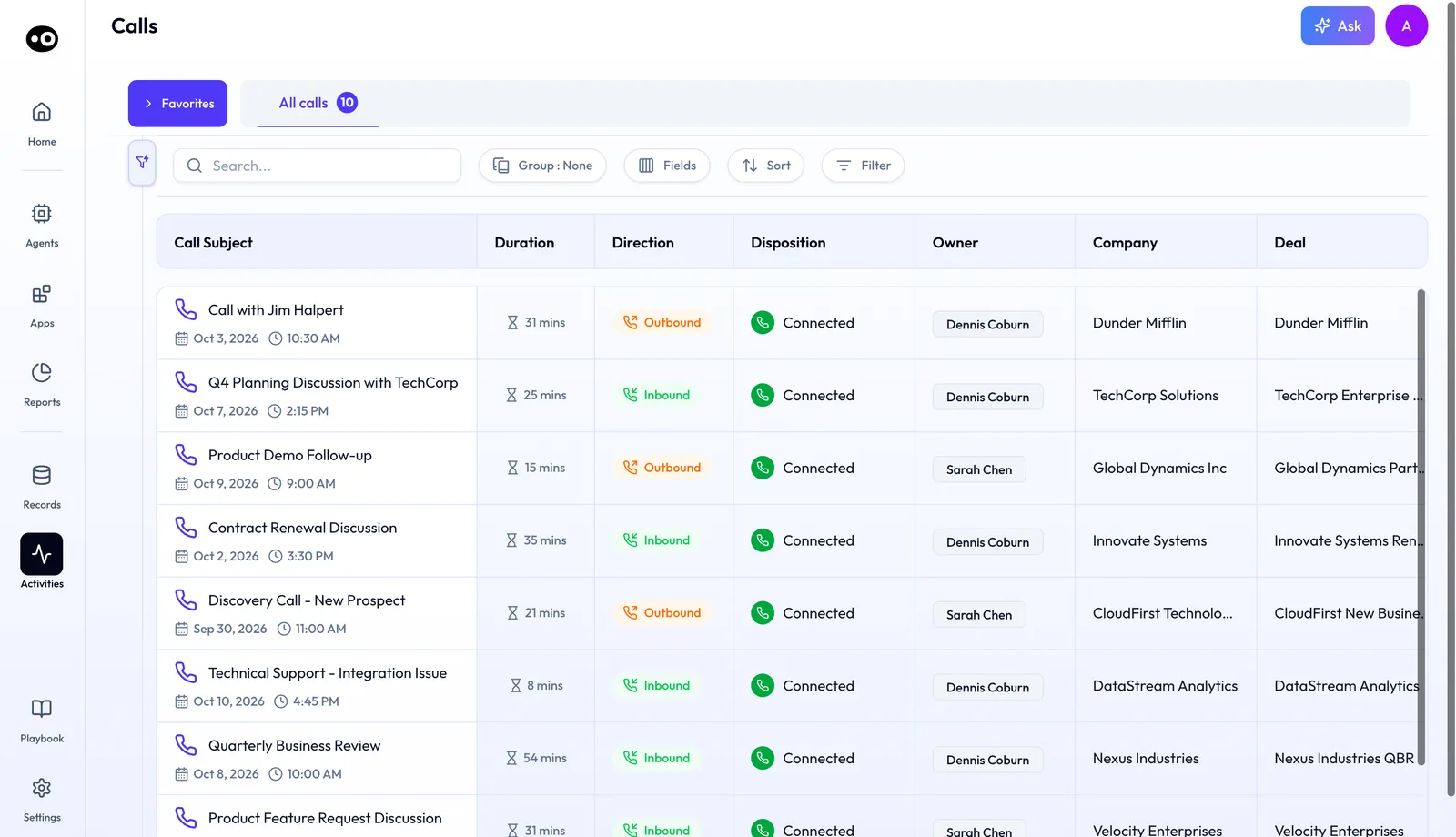
Phone calls live in their own Calls list, with direction, disposition, owner and linked deal, so look there when the conversation you need was a call rather than a meeting. These rows hold demo data.
## Why the Meetings list matters {#why-it-matters}
### What it's for {#what-its-for}
Use this sales call library when you need to get back to a conversation you've already had. Go to the Meetings list first, before you ask around for who was on the call.
### How it helps {#how-it-helps}
- **You have a meeting coming up.** Find the last call in **My meetings** and read its **Next Step** before you walk in.
- **You remember the day or the words.** Search for the date or the phrase, then click the row.
- **A deal just changed hands.** Switch to **Team meetings** and find the calls you weren't on.
- **The meeting just ended.** Press **Open Meeting** in the Slack message instead of looking for the row.
### What happens without it {#without-it}
If you skip the list, you rebuild what a buyer said from memory, or you walk in without it. Details like who raised a concern get lost between calls. So check the row before you rely on what you remember.
### Why buyers care {#why-buyers-care}
Account executives need this before a late-stage meeting, so they open the last call first. Sales managers need it when a deal changes hands, so they start on **Team meetings**. Customer success needs it at handover, so they look up what sales promised.
## The Oliv AI approach to the Meetings list {#approach}
{/* 5P */}
Take an account executive with a pricing-stage meeting on Thursday. The buyer's finance lead joined a call about four weeks ago and raised concerns about budget timing. The AE wants to hear exactly how that was put before walking back in.
Often the AE scrolls back through the calendar to find the date, then scrubs through an hour of recording. Or they message the sales engineer who was there and wait for a reply. That can easily eat half an hour, and the exact words may still be missed. Under time pressure, the AE may simply go in from memory instead.
The call itself was recorded. What's missing is a fast way back to it at the moment the AE needs it. A recording only helps if it surfaces before the meeting, not after it.
Oliv AI puts that way back in two places. The afternoon before, a Slack message lists tomorrow's meetings, so Thursday's call is on the AE's radar early. In **Activities › Meetings**, the AE searches for the last call, reads its next step in the row and opens it. From there they can find the exact concern and clip it for the sales engineer.
Oliv AI's own help article shows the date search with an example: a meeting held on June 12th, found by searching for that date. Searching by date is one of the points covered in How Oliv AI compares as a sales call library, below.
## How a past sales meeting gets found {#methods}
You usually remember one of four things about a meeting: the day, the words, the kind of meeting, or the message that told you about it. Start from whichever you remember, because each way in catches some meetings and misses others.
### By date, when you remember the day {#by-date}
This is the fastest way in when you know the day. It breaks down when all you remember is "sometime last month". Then you open several meetings before you reach the right one, so check the title and the **Next Step** in each row first.
### By phrase, when you remember the words {#by-phrase}
A phrase search finds the moment even when you've forgotten the date. Call tools commonly offer it: HubSpot, for one, describes [global search for key terms in call recordings](https://knowledge.hubspot.com/calling/review-call-recordings-and-transcripts) in its own product. The weak spot is wording. Search for "budget" and you can miss a buyer who said the money isn't there until next quarter, so try two or three phrasings before you give up.
### By filter, when you know the kind of meeting {#by-filter}
A filter works by [removing the items that don't meet your criteria](https://www.nngroup.com/articles/filters-vs-facets/), which makes a long list short. HubSpot's call index, for example, [filters by user, team, call outcome and duration](https://knowledge.hubspot.com/calling/review-call-recordings-and-transcripts). The risk is that a wrong value hides a meeting completely. If a meeting you know happened is missing, clear your filters and check how it was labeled.
### By link, when someone pointed you to it {#by-link}
A link in a message gets you to a recent meeting with no hunting at all. It helps less with an older meeting, because the message has scrolled out of sight. It also can't help if you've turned those messages off.
### Which of these Oliv AI gives you {#what-oliv-gives-you}
Oliv AI's help article confirms the date search. [Its Converse page](https://www.oliv.ai/converse) describes searching for the exact objection, competitor mention or pricing concern. The list's toolbar holds **Search**, **Group**, **Fields**, **Sort** and **Filter**, with **Quick Filters** behind the filter icon. The Slack message carries **Open Meeting**. If you want patterns across many calls rather than one meeting, that's a different job, and our guide to [sales call analytics software](https://www.oliv.ai/blog/sales-call-analytics) covers it.
## Find a past meeting {#find-a-meeting}
1. Open **Activities** from the main navigation and choose **Meetings**.
2. Stay on **My meetings**, or switch to **Team meetings** to see your team's calls too.
3. Use **Search** to locate the meeting. To find a meeting from a particular day, search for its date.
4. Reshape the grid with **Group**, **Fields**, **Sort** and **Filter**, or open the **Quick Filters** panel from the filter icon beside the search.
5. Click the row to [open the meeting's details](https://www.oliv.ai/product-docs/apps/converse/meeting-details/), with its recording and notes.
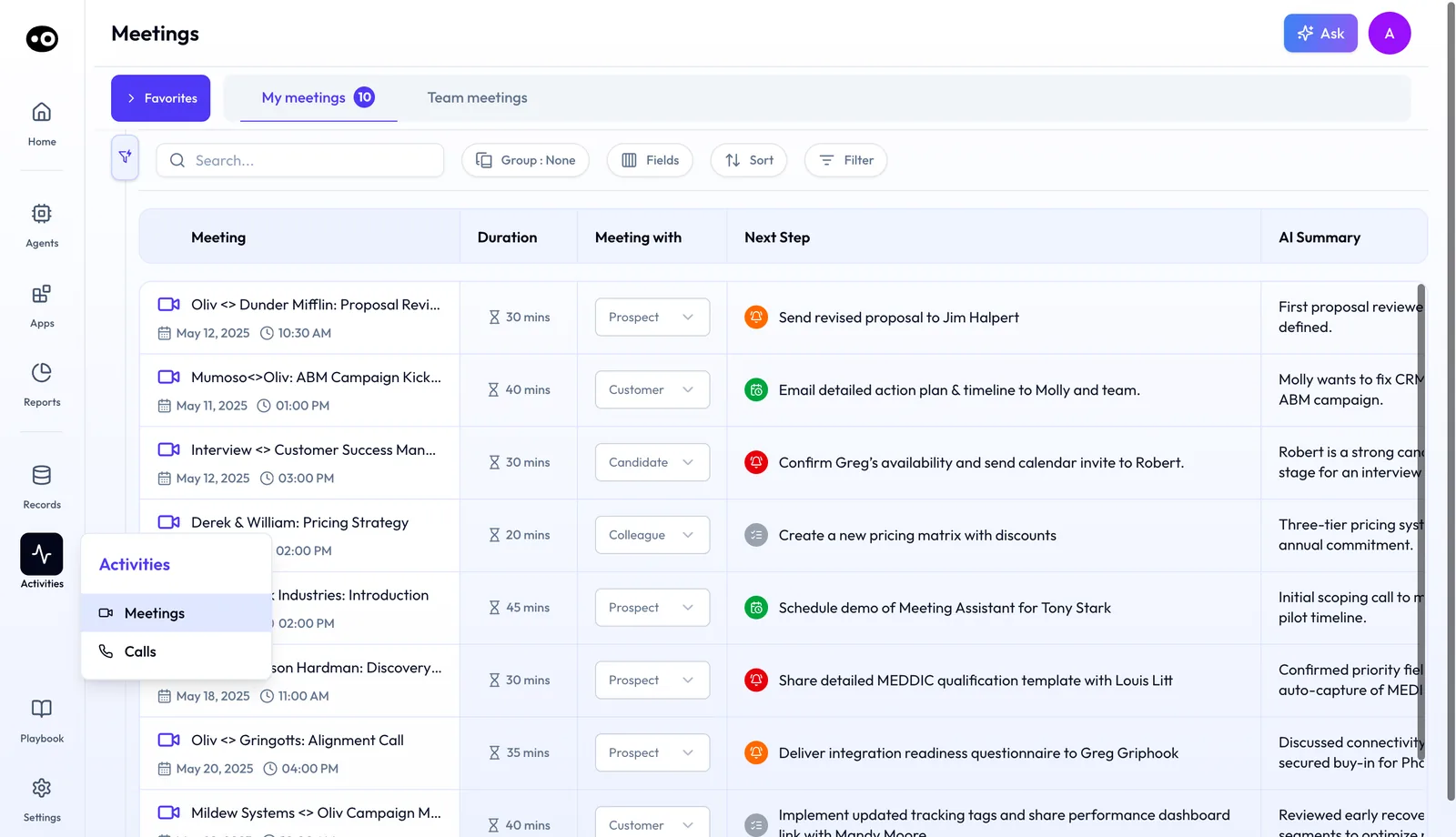
Step 1: the Activities menu holds Meetings and Calls, so this is where you start whenever you need to get back to a past customer conversation. The count behind the menu comes from a demo workspace.
Clicking a row opens a drawer with seven tabs: **Overview**, **Action Items**, **Meeting insights**, **Recording**, **Coaching**, **Attendees** and **CRM Updates**. A round arrow on its left edge collapses it back to the list.
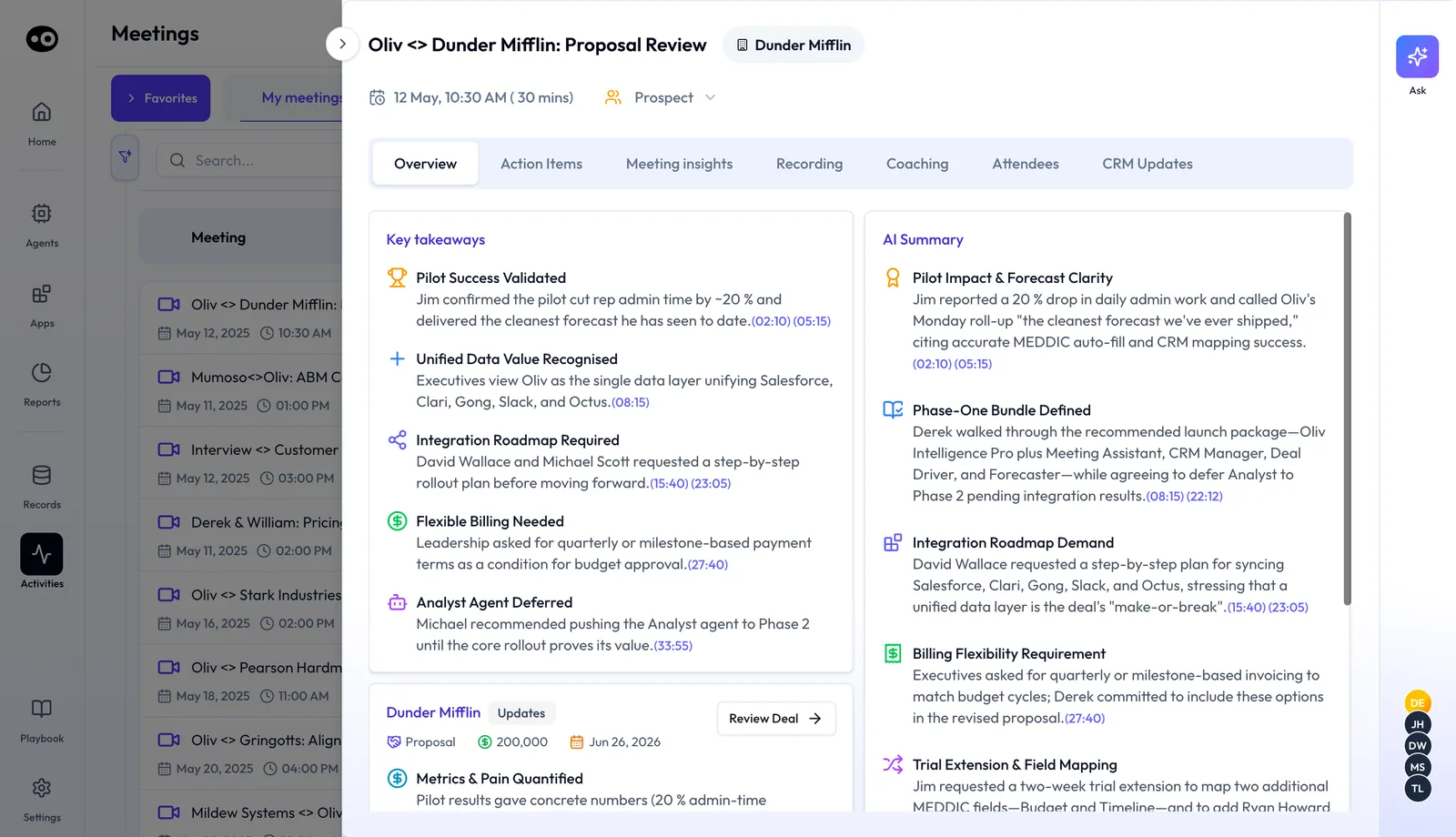
Step 5: a row opens the meeting's drawer on its Overview tab, so the takeaways and deal context are one click away from the list. The names and figures in this meeting are sample data.
If you're after one moment, search for the exact objection, competitor mention or pricing concern. Then [cut the moment into a clip](https://www.oliv.ai/product-docs/apps/converse/clips/), so you can share it with a colleague before the meeting. For more on getting ready, read [how to prepare for a sales meeting](https://www.oliv.ai/blog/meeting-preparation-for-sales).
### Classify who a meeting was with {#meeting-with}
Change the **Meeting with** dropdown in the row to **Prospect**, **Customer**, **Candidate** or **Colleague**. The same dropdown sits in the header of the meeting drawer, so you can correct it from either place.
## Open a meeting from Slack {#from-slack}
You don't have to start in the list. When you get a Slack message about a meeting, press **Open Meeting** in the message. It takes you to Oliv AI, where you open the green tab the help center points to.
Once Oliv AI is [connected to Slack](https://www.oliv.ai/product-docs/integrations/slack/), three messages start arriving with no setup:
- **Summary of tomorrow's meetings.** Sent at 4 PM local time, it lists the meetings Oliv AI will summarize the next day.
- **Prep summary.** Sent 10 minutes before a meeting, with its title, date, time, participants and account, plus research on the account and contact.
- **Meeting summary.** Sent as soon as the meeting ends, with the key takeaways and next steps.
The same messages go to your email by default. To stop them, turn them off on your **Profile Settings** page. Setup steps are on the [Oliv AI integrations page](https://www.oliv.ai/product-docs/integrations/).
## Know which meetings get recorded {#which-meetings}
Which way a meeting is recorded depends on who organized it, when [botless recording is enabled](https://www.oliv.ai/product-docs/apps/converse/recording-modes/) for your organization:
- **Your company organized it.** Oliv AI records through the meeting platform, such as [Zoom](https://www.oliv.ai/product-docs/integrations/zoom/) or Microsoft Teams. Attendees see the platform's own recording indicator, not an extra participant.
- **Someone outside organized it.** A note taker joins as a visible participant, shown with your company's name. If the meeting has a waiting room or lobby, admit it so recording can begin.
If botless recording isn't set up, Oliv Support can help enable it with your video conferencing admin.
## How to check your team can find past meetings {#measure-findability}
Run this check when reps keep asking each other for call links. It uses two numbers: the find rate and the time to find. The find rate is the usability measure known as [success rate, the percentage of users who complete a task](https://www.nngroup.com/articles/success-rate-the-simplest-usability-metric/).
1. Pick five customer meetings from last month's calendar.
2. Give each to a rep who wasn't on the call, with only the account and a rough date.
3. Time how long it takes them to open each meeting's record.
4. Divide the meetings found by the meetings you picked. Three of five is a 60% find rate.
The weak spots are easy to trip over. NN/g points out that [partial success is the hard case to score](https://www.nngroup.com/articles/success-rate-the-simplest-usability-metric/), and here that means finding the meeting but not the moment. Count those separately. A miss may also mean the meeting was never captured, or that it was a phone call, so check before you blame the search.
### Where to read these in the list {#read-findability}
You run this check by hand, using what the list already shows. The count badge on **My meetings** tells you how many meetings you're looking through. The **Meeting** column gives each row's date and time, so you can match it to the calendar entry.
## How to find a past customer meeting by hand {#find-by-hand}
Without a shared list, the job usually runs like this:
1. Scroll back through your calendar to the likely week, and note the date and attendees.
2. Message someone who was on the call and ask for the recording link.
3. Wait for the reply, then open the recording in the tool that holds it.
4. Scrub through the recording until you reach the moment you need.
5. Write down what was said, so you don't have to find it twice.
6. Repeat for every other meeting on the account.
Two things tend to go wrong. The person who has the link may be out, or may have left the company. And when you're pressed for time, you stop at step 2 and go in from memory.
### The same job in Oliv AI {#same-job-oliv}
Go to **Team meetings** and search for the date or phrase, then read **Next Step** and **AI Summary** in the row. Open the row only if you need more. On the drawer's **Overview** tab, the key takeaways carry timestamps that link back to the recording, so you can jump to the moment instead of scrubbing. If the conversation isn't there, check **Activities › Calls** before you assume it was lost.
### Worked example: a new account owner catches up on 24 meetings {#worked-example}
Say you've just taken over an account and have 2 hours to prepare for your first call. On **Team meetings**, you find the account's 24 captured meetings. The **Meeting with** column shows 18 **Customer**, 4 **Prospect** and 2 **Colleague**, and the customer meetings run 40 minutes each.
This is an illustrative calculation with sample figures, not an Oliv AI output.
| Question | Arithmetic | Answer |
|---|---|---|
| How many captured meetings? | 18 + 4 + 2 | 24 |
| What share are customer meetings? | 18 / 24 | 75% |
| How long to hear every customer meeting? | 18 x 40 minutes | 720 minutes, or 12 hours |
| How much preparation time do you have? | 2 x 60 minutes | 120 minutes |
| How many recordings fit? | 120 / 40 minutes | 3 |
| How many customer meetings are left? | 18 - 3 | 15 |
Twelve hours won't fit into two, so you have to choose. Open the 3 recordings that matter most for your first call, then read the **AI Summary** column for the other 15. The 120 minutes is listening time only, so allow a few extra minutes for reading the column.
Remember the column shows only the opening of each summary. If an opening points to a promise or a risk, open that meeting's drawer and read the rest. Go back to the 4 **Prospect** meetings if you need what was said before the sale. These 24 are meetings only, so check **Activities › Calls** for phone calls with the same account.
## How the Meetings list works with Oliv AI's agents {#works-with}
### Meeting Assistant {#with-meeting-assistant}
If you're preparing for a meeting on an active deal, check for the brief before you search the list. For meetings linked to an active opportunity, [Oliv AI's Meeting Assistant agent](https://www.oliv.ai/product-docs/agents/meeting-assistant/) sends one 30 minutes before the call. It covers the deal summary, qualification status, stakeholders and a recommended agenda. If the meeting isn't linked to an active opportunity, search the list yourself, and use the [prepare for a meeting guide](https://www.oliv.ai/product-docs/workflows/prepare-for-a-meeting/) to plan the rest.
### Olivia {#with-olivia}
If you only need the follow-up email, ask [Oliv AI's Olivia agent](https://www.oliv.ai/product-docs/agents/olivia/) to [draft it from the call](https://www.oliv.ai/product-docs/workflows/record-and-follow-up/) instead of opening the meeting. She pulls from the meeting transcript. If the email quotes the buyer's exact words, open the meeting and check them before you send it.
### Deal Driver {#with-deal-driver}
If [Oliv AI's Deal Driver agent](https://www.oliv.ai/product-docs/agents/deal-driver/) flags a deal at risk, open the meetings behind it from **Team meetings**. The agent reads the same record your captured meetings feed. Check what was actually said before you raise the deal with the rep.
### Content Curator {#with-content-curator}
If you keep hunting for the same kind of moment, such as a pricing objection for coaching, describe it to [Oliv AI's Content Curator agent](https://www.oliv.ai/agents/content-curator) rather than clipping by hand. The agent watches every new recording and clips the moments your team has described. Before you share a clip, follow its link back to the full source recording and check the context.
## Who uses the Meetings list, and how {#who-uses-it}
### Account executives {#account-executives}
An AE goes back to the last call before a late-stage meeting, to hear what the buyer actually said. More on how [AEs run deals with Oliv AI](https://www.oliv.ai/product-docs/use-cases/ae-run-deals/), and Oliv AI for [account executives](https://www.oliv.ai/account-executives).
### Sales development {#sales-development}
An SDR checks the discovery call before handing a qualified meeting to an AE, so nothing said on it is lost. See Oliv AI for [sales development teams](https://www.oliv.ai/sales-development).
### Sales managers {#sales-managers}
A manager opens **Team meetings** before a 1:1 and reads each rep's next steps down the column. Then they open one meeting to coach from what happened. See Oliv AI for [sales managers](https://www.oliv.ai/sales-managers).
### Customer success {#customer-success}
A CSM finds the sales calls for a new account, so onboarding starts from what the customer was promised. More on Oliv AI for [customer success teams](https://www.oliv.ai/customer-success).
## How Oliv AI compares as a sales call library {#compare}
Most sales call library tools let you search past calls and clip moments. Oliv AI also links each Slack message straight to its meeting and lists tomorrow's meetings in Slack the afternoon before. Oliv AI is the only platform in this table that does all four.
Sales call library features, from each platform's public documentation:
| Platform | Search past meetings by date or keyword | Open a meeting from its Slack message | Tomorrow's meetings listed in Slack | Clip a found moment into a playlist |
|---|---|---|---|---|
| **Oliv AI** | Yes | Yes | Yes | Yes |
| **Gong** | Yes ([filter calls by date and more](https://help.gong.io/docs/about-call-search-in-gong)) | Yes ([call page opened from a notification](https://help.gong.io/docs/catch-up-quickly-with-the-ai-briefer)) | Partly ([same-day digest by email](https://help.gong.io/docs/about-the-emails-gong-sends-you)) | Yes ([snippets saved to library folders](https://help.gong.io/docs/about-the-call-library)) |
| **Avoma** | Yes ([global search across transcripts](https://help.avoma.com/finding-meetings-within-avoma-overview)) | Partly ([meeting link shared by hand](https://help.avoma.com/sharing-meetings-in-avoma)) | Not in docs | Yes ([snippets added to playlists](https://help.avoma.com/how-to-add-items-to-a-playlist)) |
| **Fireflies** | Yes ([global search across meetings](https://guide.fireflies.ai/articles/1092250300-learn-about-fireflies-pro-tier-features)) | Partly ([notes posted after Slack setup](https://guide.fireflies.ai/articles/1671003178-how-to-set-up-the-fireflies-slack-integration)) | Partly ([digest of the past 24 hours](https://guide.fireflies.ai/articles/1208704416-getting-started-with-the-fireflies-desktop-app)) | Yes ([soundbites in playlists](https://guide.fireflies.ai/articles/2540580393-getting-started-with-playlists-how-to-create-and-view-them)) |
| **Fathom** | Yes ([keyword search across transcripts](https://help.fathom.video/en/articles/6220097)) | Yes ([recording and summary sent to Slack](https://help.fathom.video/en/articles/450432)) | Not in docs | Yes ([highlights in playlists](https://help.fathom.video/en/articles/449792)) |
*Yes: documented and built in. Partly: documented with a limit, shown in brackets. Not in docs: not found in the vendor's public documentation.*
### Why Oliv AI is the stronger choice for a sales call library {#compare-stronger}
- **Tomorrow's meetings, in Slack, the day before.** Oliv AI sends the list at 4 PM local time. Gong's [daily digest is an email](https://help.gong.io/docs/about-the-emails-gong-sends-you) for team members with calls that day. Compare [Oliv AI vs Gong](https://www.oliv.ai/blog/gong-vs-oliv). To test this gap, ask where your reps look for tomorrow's schedule. If the answer is Slack, give this row more weight in your decision.
- **The link arrives without anyone sharing it.** Each Oliv AI meeting message carries **Open Meeting** automatically. Avoma documents a way to [share the meeting link directly to a Slack channel or DM](https://help.avoma.com/sharing-meetings-in-avoma). Compare [Oliv AI vs Avoma](https://www.oliv.ai/blog/avoma-vs-oliv-ai). To test this gap, run one call through each tool and count the steps from the Slack message to the recording. If reps work from Slack, choose the shorter path.
- **Clips made for the team, not a private shelf.** Oliv AI clips found moments into a playlist for coaching, enablement or product. Gong describes [saved calls and snippets as a private workspace](https://help.gong.io/docs/about-the-call-library) unless you share. See [Oliv AI as a Gong alternative](https://www.oliv.ai/gong-alternative). To test this gap, have one rep save a clip and a second rep try to open it. If your coaching runs on shared clips, decide on how many steps that takes.
*Competitor details checked against each vendor's public documentation on 21 October 2026. Features and plans change, so confirm with the vendor before you decide.*
## Limits and things to know {#limits}
- **Phone calls are in a separate list.** Look under **Activities › Calls** for them.
- **The AI Summary column shows the opening only.** Open the meeting's drawer for the full summary.
- **A lobby can stop a recording.** For meetings organized outside your company, the note taker may need admitting before recording can begin.
- **Botless recording needs enabling.** If it isn't set up for your organization, Oliv Support helps your video conferencing admin turn it on.
- **Clips live in Enable.** The clips route opens the **Library** tab of the Enable app, which is separate from the Meetings list.
- **Slack messages are on by default.** They also go to your email. Turn them off in **Profile Settings**.
## Common questions {#common-questions}
#### Where is the Meetings list? {#faq-where}
Under **Activities › Meetings** in the main navigation. The **Activities** menu also holds **Calls**.
#### How do you find a past customer meeting? {#faq-find-past}
Open **Activities › Meetings**, search for the date or a phrase, and click the row. If you weren't on the call, switch to **Team meetings** first.
#### How do I find a meeting from a specific day? {#faq-by-date}
Search the Meetings list for the date. Oliv AI's help article uses a meeting held on June 12th as the example.
#### Can I search for something that was said? {#faq-phrase}
Yes. Search for the exact objection, competitor mention or pricing concern, then cut the moment into a clip to share it.
#### Can managers see their team's sales calls? {#faq-team}
Yes. Switch from **My meetings** to **Team meetings** to see meetings beyond your own calls. Phone calls are in the **Calls** list.
#### What does each row show? {#faq-columns}
The meeting title, date and time, its duration, who it was with, the next step and the start of the AI summary.
#### Are phone calls in the Meetings list? {#faq-calls}
No. Captured phone calls have their own grid under **Activities › Calls**, so look there if you can't find a conversation.
#### How do I pick out customer meetings from internal ones? {#faq-customer-only}
Read the **Meeting with** column, which labels each meeting **Prospect**, **Customer**, **Candidate** or **Colleague**. If a label is wrong, change it from the dropdown.
#### How do I open a meeting from Slack? {#faq-slack}
Press **Open Meeting** in the Slack message about that meeting. Oliv AI opens the meeting for you.
#### When does the list of tomorrow's meetings arrive? {#faq-tomorrow}
At 4 PM local time the day before, once Oliv AI is connected to Slack.
#### When does the prep summary arrive? {#faq-prep}
Ten minutes before the meeting. It shows the meeting details and research on the account and contact.
#### Can I stop the Slack messages? {#faq-stop}
Yes. Turn them off on your **Profile Settings** page.
#### Do I need to set up these messages? {#faq-setup}
No. They start automatically once Slack is connected, and they also go to your email by default.
#### Why did a meeting not record? {#faq-not-recorded}
If someone outside your company organized it, the note taker may have been waiting in the lobby. It needs admitting before recording can begin.
## Further reading {#further-reading}
- [Review call recordings and transcripts](https://knowledge.hubspot.com/calling/review-call-recordings-and-transcripts): how HubSpot's own call tools handle filters and key-term search.
- [Filters vs. Facets: Definitions](https://www.nngroup.com/articles/filters-vs-facets/): what a filter does to a list, and how it differs from a facet.
- [Success Rate: The Simplest Usability Metric](https://www.nngroup.com/articles/success-rate-the-simplest-usability-metric/): how to score a task like finding a meeting, including partial success.
## Related {#related}
- [Converse app](https://www.oliv.ai/product-docs/apps/converse/): the conversation capture app the Meetings list belongs to.
- [Meeting Assistant agent](https://www.oliv.ai/product-docs/agents/meeting-assistant/): briefs before meetings on active deals.
- [Meeting transcription software compared](https://www.oliv.ai/blog/meeting-transcription-software): how capture and transcripts differ across tools.
- [Agent tools and run modes](https://www.oliv.ai/product-docs/agents/builder/tools-and-run-modes/): how agents act on captured meetings.
- [Oliv AI product documentation](https://www.oliv.ai/product-docs/): every documented agent and feature.
*Updated 3 November 2026: added the ways a past meeting gets found, a findability check, the manual method and a worked example.*